|
11-29-01
REALbasic 3D Photo Gallery - Part 2 by
Erick Tejkowski
This week, we continue with the second part of a two part tutorial to create a 3D Photo Gallery with REALbasic. The end result
will allow you to "walk" through an imaginary room and view a collection of photographs hanging on the imaginary walls.
Addendum. If you plan on using this project with Mac OS X, you first need to download and install Quesa from www.quesa.org.
Build the Interface
Last week we prepared the graphics and 3D objects for this project. This week, we'll put them to use. To begin, launch REALbasic and
add the photographs you made last week to the project window. It's usually a good idea to save often while programming, so
go ahead and save the project. Next, drag the 3D objects you created last week into the same
folder as your REALbasic project. If you don't know how to create 3D objects, you can download a few examples with the completed
project at the end of this tutorial.
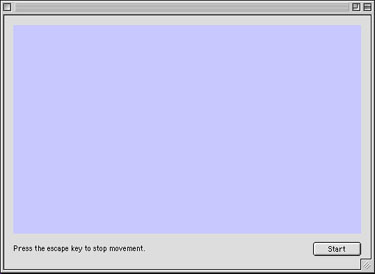
Next, open Window1 and add a PushButton, StaticText, and RB3DSpace controls to the window. Whatever dimensions you set for the RB3DSpace control
will dictate how large your "world view" is. As an example, your interface might look like this:
Believe it or not, that's all there is to the interface. On to the more complex aspect of this project... the code.
Add the Code
The code for this 3D tutorial is more intricate and lengthy than usual. In the interest of brevity, we will
discuss some of the key concepts and look at a few code snippets from the project. It is left up to the reader to
download the completed project to see the code in its entirety.
To set up a 3D world in REALbasic, follow this simple process:
- Load and append 3D Objects to a Rb3DSpace.
- Start a loop.
- During each pass of the loop, check for user action (i.e. key presses) and update the Rb3DSpace accordingly.
- Stop the loop when finished.
Navigate to the Open event of RB3DSpace1 and add the following code to load the 3D objects:
LoadTheObjects
LoadTheObjects is a method to, you guessed it, load the objects. To start with, the LoadTheObjects method loads a background object, in this case a sphere.
As you move around inside this 3D "world", you will be placed inside this sphere.
// create the background
Rb3DSpace1.background = LoadAnObject("BackgroundOrb.3DMF")
Next, we load a chair object from a 3DMF file. When you load an object, you may position it anywhere within the 3D world.
Since we are dealing with 3 dimensions, object can move on the x-axis (left/right), the y-axis (up/down), and the z-axis (into your computer monitor).
Not only can you position an object in 3 dimensions, you can also rotate one in 3 dimensions. The technical terms for 3D rotations are roll, pitch, and yaw and
they are expressed in radians.
If you would like to learn more about them, be sure to take a look at the Object 3D Class in REALbasic's Language Reference (press Cmd-1).
Once you've loaded and defined a 3D object, you add it to the mix by calling the Append method of the RB3DSpace control.
// create a chair object
obj = LoadAnObject("simplechair.3DMF")
obj.position.z = 100.0
obj.position.y = 10.0
obj.Yaw PI
Rb3DSpace1.objects.Append obj
While some objects are loaded directly into REALbasic, others can be created on the fly using 2D pictures. This is where the photo gallery aspect of our
tutorial comes into play. To create a 3D object from a 2D image, first create a new Object3D. Then, create a picture object and draw your image and its mask
on it. Next, add the picture and mask to the Object3D with the AddShapePictureWithMask method. Like before, you may also position and
rotate the object before appending it to the RB3DSpace.
//create photograph object from face1
obj = New Object3D
p = NewPicture(100,100,32)
p.graphics.drawpicture face1,0,0
p.mask.graphics.drawPicture theMask,0,0
obj.AddShapePictureWithMask p, p.mask, 1.0
obj.position.z = 250.0
obj.position.y = 50.0
obj.position.x = 0.0
obj.Yaw PI
Rb3DSpace1.objects.Append obj
You may continue adding as many objects to the mix as you wish. The demo project loads almost a dozen, so you can investigate the
code to see what other surprises are in store.
With all the objects created and ready to go, we enter a loop. We will start this loop from the Action event of PushButton1.
Normally we would never loop in the fashion we will here. 3D graphics are processor intensive, so we want to
devote all of our computer's attention to the task at hand: drawing 3D and responding to our actions. To help things along, we first include two
pragma statements that temporarily halt CPU tasks that occur while your application is running. Then, we finally enter the loop.
With each pass of the loop, we check to see if any keys were pressed and refresh the display accordingly. At the bottom of the loop, we check for a
press of the "escape" key, which we will use to stop the animation.
#pragma DisableBackgroundtasks
#pragma DisableBoundsChecking
me.enabled=false
do
CheckTheControls
Rb3DSpace1.Refresh
loop until Keyboard.AsyncKeyDown(&h35) // the escape key
me.enabled=true
Just so you can test out the project without looking at any code first, the keys that we respond to are:
- a/s - rotate right/left
- left/right arrows - move left/right
- up/down arrows - move forwards/backwards
- 8/5 - move down/up
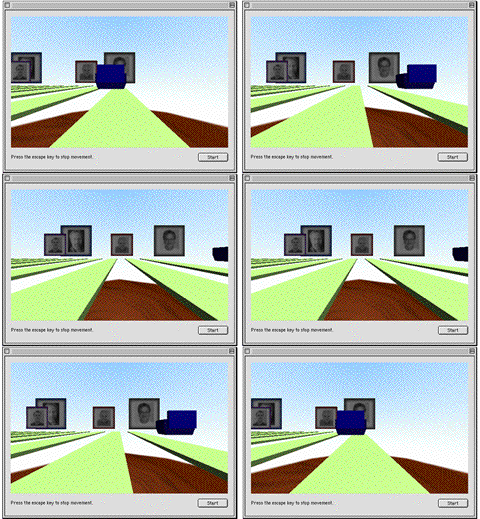
The finished project will look like this:
Conclusion
Well, that's it for this week. You can download the completed project, 3D models, and ResEx graphics here. See you next week!
12-04-01
REALbasic News
by
Erick Tejkowski
And the Winner is....
MacWorld has announced the winners of this year's Eddy Awards with REALbasic 3.5
taking home the prize for Best Development Software. Congrats REAL Software!
RB Database Article
Get you hands on a copy of the latest issue of MacTech magazine (Nov 2001), where you can read about the
cover story topic: Databases. Colin Faulkingham covers the blow-by-blow of REAL Databases in this issue.
Nice job Colin!
Carbon Events.
Will Cosgrove has updated his Carbon Events plugin once again.
It has the following features:
- Access to a toolbar button
- Scroll wheel support
- live window resizing
- Access to the application Dock tile menu
- Standard Alert Sheet support
- Ask Save Changes & Discard Save Changes sheet support
- Put file dialog sheet support
- Quit Event notification
- Complete proxy icon support with icon dragging and window's path menu
- The ability to get any folder by type & domain
Simple Chat
Interested in creating a chat project with REALbasic? Check out Rolando's
Simple Chat code to
get yourself started.
NavDialog Plugin.
Alfred Van Hoek posted a new version of his Nav Dialog Plugin.
It gives you about a zillion ways to use Navigation Services in your RB apps, so don't miss it!
|


 Boot Panels