Recent Articles...
3D
3D Photo Gallery (Part 1)
3D Photo Gallery (Part 2)

Audio
Poor Man's MIDI
Make A Metronome
iPod Tricks (Part 1)
iPod Tricks (Part 2)
iPod Tricks (Part 3)
Laugh Track Machine
Audio Player with Reverb
Shepard Melody
RB Phone Home
Build a Drum Machine

Custom Controls and Windows
Double Click Listbox
Draggable Metal Window
Double Click Canvas
Custom Buttons
Custom Buttons Part II
iTunes-style Listboxes
Custom Controls


General RB
Scrolling Windows
Using Mesage Dialogs
Case-Sensitive Word Finder
Introduction to Stacks
Wiggle Window
JPEG in PDF
Listbox Checkboxes
Background Applications
Listbox Auto-Find
Virtual Volumes
Time Tracker
Software Distribution (Part 1)
Software Distribution (Part 2)
Software Distribution (Part 3)
Software Distribution (Part 4)
Exceptions
Tips and Tricks
Text Clippings Made Easy

Graphics
Drawing a Simple Gradient
The SpriteSurface: Space Game
Image Spinner
Cropping Graphics (Part 1)
Cropping Graphics (Part 2)
Cropping Graphics (Part 3)
Cropping Graphics (Part 4)
Shimmer Graphics
Lissajous Figures
Simple Screen Capture
Vector Graphics
Kaleidoscope Images
Stegonography
Spirals!
Image Table
RB Magnifying Lens
Screen Capture
Color Picker Tutorial

Hacks
Ghost Grab
Speedy Mouse Extension
iTunes Plugins
iTunes Skinner

Mac OS X
Global Hot Key Event (Carbon Events)
Login Welcomer (Carbon Events)
Add/Remove Buttons
Resizable Sheets
Mac OS X Preferences Window
Using Sheets in REALbasic
Build a Bundle (Part 1)
Build a Bundle (Part 2)
Dock Your Passwords
Mac OS X Debugging
REALbasic Mac OS X Icon Tutorial
Animate Your Dock
RB and the Command Line

Menus
Window Menu
Templates Menu
Listbox Menu

Novelty
Guessing Game
Calendar Trivia
Tile Mixer
Zip Code Finder
Happy Valentine's Day
Merlin Simulator (Part 1)
Merlin Simulator (Part 2)
Merlin Simulator (Part 3)
Buzzword Machine
AppleSoft BASIC

Printing
Print to PDF

Registration
Registration Code Validation
Network Registration Codes

Resources
Picture Extractor (Part 1)
Picture Extractor (Part 2)

Serial
Caller ID (Part 1)
Caller ID (Part 2)
Caller ID (Part 3)

Speech
Speech Recognition

Socket Communication
Easy Peer-to-Peer File Sharing
MacPAD Version Checking
Display Web Image In Canvas
HTML IMG Tags
Version Tracking
Even Smarter Instant Messaging
Web Tiler
JavaScript and REALbasic
Stock Ticker (Part I)
Stock Ticker (Part 2)
AIM Mate

XML Manipulation
Simple XML Introduction

Video
Big Brother Video Capture

Note: All articles without a byline were written by Erick Tejkowski. When cleaning the site I removed them because the code differed from page to page, and I have yet to put them back in.

Newest Dev Tools!


Book Alert !
REALbasic for Dummies
by Erick Tejkowski
$19.99 @ Amazon

Made with REALbasic!

Book Alert !
REALbasic the Definitive Guide
by Matt Neuburg

Problems?
Downloads are in StuffIt 5 format (free download).
Tell me about a bad link (Thanks!).
Submission Policy

5-24-01

Picture Extractor by Erick Tejkowsi

As a ResExcellence reader, you probably already know how cool Macintosh resources are. All sorts of information can be stored in resources, including text, icons, cursors, audio, and even graphics. This tutorial shows you how to extract 'PICT' resources from your favorite application and save them to disk in a more useable format - a PICT file.

Create the Interface

Launch REALbasic and open Window1, the default window found in each new project. Drag the following controls from the toolbar into the interface:

  • Listbox - default name: Listbox1; ColumnCount=1
  • Canvas - default name: Canvas1
  • PushButton - default name: PushButton1; Text="Open App"
  • PushButton - default name: PushButton2; Text="Save As Picture"
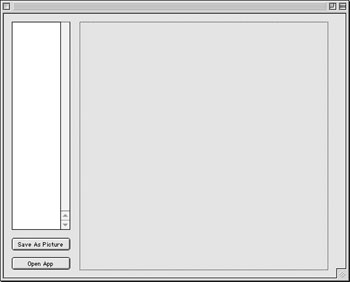
Rearrange the controls to create an interface that looks like this:

05-24_interface.jpg (11k)

If you haven't guessed already, this project will allow a user to choose any application and display the 'PICT' resources contained within. Thereafter, the user can save any of the 'PICT' resources as 'PICT' files.

Define the Properties

You are going to need access to two important pieces of information throughout the code:

  • FolderItem - The location of the application that you want to look inside
  • Picture - the currently selected picture in the list

Since you want access to these pieces of information throughout your code, you must declare these properties local to the window. To do so, double-click Window1 to open its Code Editor. Next select Edit->New Property and add a new property:

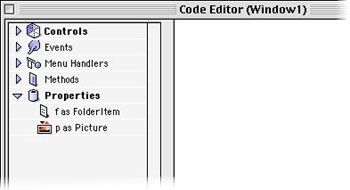
f as FolderItem
Next, add a Picture property:
p as Picture
By now, your Code Editor should look something like this:

05-24_window1props.jpg (18k)

Declare File Types

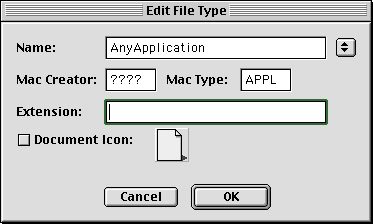
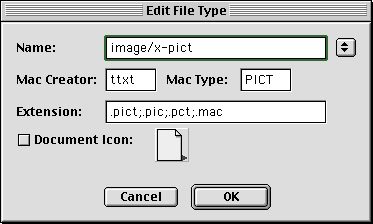
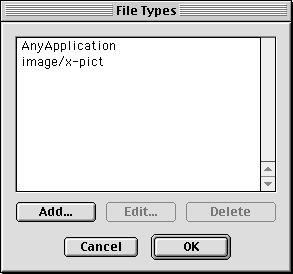
Now, before we go crazy adding code to the interface, we need to do one last bit of preparation. In this example, we want to give the user an opportunity to choose an application and later to save a 'PICT" file. By default, your application doesn't know anything about these two types of files. You have to describe them for your application to "know" what they are. To do so, select Edit->File Types and add the two file types pictured below:

AnyApplication: Describes what an application "looks like" to your application
05-24_anyapp.jpg (16k)

image/x-pict: Describes what a 'PICT' file "looks like" to your application
05-24_imgx-pict.jpg (17k)

When you're finished adding the two file types, your File Types dialog should look like this:

05-24_filetypes.jpg (13k)

Add the Code

Now, it's time to add some code. First off, double-click PushButton1 and add the following code:

dim rf as ResourceFork
dim picturecount, i as integer

f=GetOpenFolderItem("AnyApplication")
if f<>nil then
  //Open the resource fork
  rf = f.openresourcefork
  //Count the PICT resources
  picturecount = rf.ResourceCount("PICT")
  //Clear the Listbox
  ListBox1.DeleteAllRows

  if picturecount>0 then
  //Loop through the PICT resources in this file
    for i=1 to picturecount
      ListBox1.AddRow str(rf.ResourceID("PICT",i-1))
    next
  //Sort the list of numbers
    listBox1.headingindex=0
  end if

  rf.close
end if
This code permits the user to select an application file (Type="AnyApplication"). If a file is selected, the code open's the applications resource fork and counts the number of 'PICT' resources within. If there are any 'PICT' resources, the code then loops through the 'PICT' resources and adds the resource number of each to Listbox1. Finally, it sorts the list of resource numbers (alphabetically) and close the resource fork of the file.

Next, open the Change event of Listbox1. To this event, add the following code:

dim rsrcnumber as integer
dim rf as ResourceFork

if me.listindex>0 then
  //convert the text in the listbox to a number
  rsrcnumber = val (me.text)
  if f<>nil then
    //Open the resource fork and load the picture from it
    rf = f.openResourceFork
    p = rf.GetPicture(rsrcnumber)

    //Resize and refresh the Canvas
    Canvas1.width = p.width
    Canvas1.height = p.height
    Canvas1.Refresh

    //Close the resource fork
    rf.Close
  end if
end if
This code executes each time a user selects something in the list box. In this case, the listbox should be full of 'PICT' resource numbers. When a user selects an item in the list, the code grabs the text from that list item and converts it to a number with the Val command. Next, the code checks for a valid FolderItem (named f) representing the application where these 'PICT' resources lie. Next, the code loads that 'PICT' resource from the file and stores it in the Picture p. Finally, we resize the Canvas to accomodate the picture resource, refresh the appearance of the canvas, and close the resrouce fork.

To make the picture display, add the following code to the Paint event of Canvas1.

if p<>nil then
  //if there is a valid picture, draw it on this canvas
  g.DrawPicture p,0,0
end if

The final coding step shows you how to save the Picture (p) to an external file. Open the Action event of PushButton2 and add this code:

dim PictureFile as FolderItem

if p<>nil then
  PictureFile = GetSaveFolderItem("image/x-pict",f.name+".pct")
  if PictureFile<>nil then
    PictureFile.SaveAsPicture(p)
  end if
end if

Test and Build the Application

There! That wasn't too tough, was it? To test your masterpiece, select Debug->Run. when you are convinced it is error free, select File->Build Application to build the final version. Since you will be opening 'PICT' resources with this application and 'PICT' resources can be potentially large, make sure to give the application a healthy RAM size for Mac OS 8/9 use.

As usual, you can also download:


5-22-01

REALbasic News by Erick Tejkowsi

REALbasic 3.2. REAL Software has released the latest incarnation of REALbasic - version 3.2. Check the News page for the list of new features and improvements.

Marquee Class. Mark Alme has posted a new Marquee Class that lets you put a Times Square-style animation in your RB projects.

05-22_marquee.jpg (8k)

New Resource Editor. Mathemaesthetics, Inc. has announced the immediate availability of Resorcerer 2.4 for Mac OS X. Among the numerous changes, some of the more important ones for ResExcellence readers and REALbasic users include:

  • Mac OS X's first native resource editor
  • Data fork resource file support
  • 32 bit 'icns' resource and ".icns" file editing
  • Pixel magnifier tool

Navigation Services. Alfred Van Hoek has released the latest update of his NavFolderItem plugin. It lets you custom your Save and Open dialog boxes in a myriad of ways.

ListBoxer. Tim Lisauskas has created an interesting little utility, called ListBoxer. It is a GUI-based REALbasic Listbox creation tool. Design a ListBox in the editor and with one button click it produces the REALbasic code .

It's all Greek to me. REALbasic is now available in Greece and Cyprus.

05-22_logo_rainbow.gif (3181bytes)
REAL Software and Rainbow Computer of Athens, Greece announce the immediate availability of the REALbasic line of development products in Greece. Rainbow Computer will manage all sales, marketing, and customer care for REALbasic and REALbasic owners in Greece and Cyprus. The REALbasic product line is available for purchase through the Rainbow Computer website, and will soon be available through Apple resellers throughout Greece.

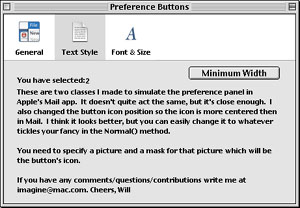
OS X Style Prefs Bar. Will Cosgrove has posted a nifty interface enhancement for REALbasic, called Prefs Bar. It gives you those great OS X style preferences, like those found in Mail.app. The great thing about this download is that OS X isn't required. Yep, they work on Mac OS 8/9 too!

05-22_PrefBar.jpg (22k)

Now, that's weird! Nubz Development recently made their Weird Toolz Plugin available for download. This is NOT a plugin for newbies or the faint-hearted, so if you don't understand how to use, you've been warned.



Maintained by the Staff of ResExcellence. This entire site ©1997-2003 ResExcellence
Privacy Statement? Sure we gotta Privacy Statement.

[an error occurred while processing this directive]

on the ResEx LinuxPPC Server