 |
 |
 |
||||
 3D 3D Photo Gallery (Part 1) 3D Photo Gallery (Part 2) Audio Poor Man's MIDI Make A Metronome iPod Tricks (Part 1) iPod Tricks (Part 2) iPod Tricks (Part 3) Laugh Track Machine Audio Player with Reverb Shepard Melody RB Phone Home Build a Drum Machine Custom Controls and Windows Double Click Listbox Draggable Metal Window Double Click Canvas Custom Buttons Custom Buttons Part II iTunes-style Listboxes Custom Controls General RB Scrolling Windows Using Mesage Dialogs Case-Sensitive Word Finder Introduction to Stacks Wiggle Window JPEG in PDF Listbox Checkboxes Background Applications Listbox Auto-Find Virtual Volumes Time Tracker Software Distribution (Part 1) Software Distribution (Part 2) Software Distribution (Part 3) Software Distribution (Part 4) Exceptions Tips and Tricks Text Clippings Made Easy Graphics Drawing a Simple Gradient The SpriteSurface: Space Game Image Spinner Cropping Graphics (Part 1) Cropping Graphics (Part 2) Cropping Graphics (Part 3) Cropping Graphics (Part 4) Shimmer Graphics Lissajous Figures Simple Screen Capture Vector Graphics Kaleidoscope Images Stegonography Spirals! Image Table RB Magnifying Lens Screen Capture Color Picker Tutorial Hacks Ghost Grab Speedy Mouse Extension iTunes Plugins iTunes Skinner Mac OS X Global Hot Key Event (Carbon Events) Login Welcomer (Carbon Events) Add/Remove Buttons Resizable Sheets Mac OS X Preferences Window Using Sheets in REALbasic Build a Bundle (Part 1) Build a Bundle (Part 2) Dock Your Passwords Mac OS X Debugging REALbasic Mac OS X Icon Tutorial Animate Your Dock RB and the Command Line Menus Window Menu Templates Menu Listbox Menu Novelty Guessing Game Calendar Trivia Tile Mixer Zip Code Finder Happy Valentine's Day Merlin Simulator (Part 1) Merlin Simulator (Part 2) Merlin Simulator (Part 3) Buzzword Machine AppleSoft BASIC Printing Print to PDF Registration Registration Code Validation Network Registration Codes Resources Picture Extractor (Part 1) Picture Extractor (Part 2) Serial Caller ID (Part 1) Caller ID (Part 2) Caller ID (Part 3) Speech Speech Recognition Socket Communication Easy Peer-to-Peer File Sharing MacPAD Version Checking Display Web Image In Canvas HTML IMG Tags Version Tracking Even Smarter Instant Messaging Web Tiler JavaScript and REALbasic Stock Ticker (Part I) Stock Ticker (Part 2) AIM Mate XML Manipulation Simple XML Introduction Video Big Brother Video Capture Note: All articles without a byline were written by Erick Tejkowski. When cleaning the site I removed them because the code differed from page to page, and I have yet to put them back in.
Tell us about a bad link. |
 |
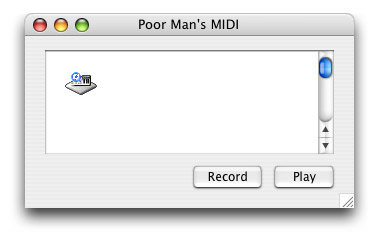
What We're Making The Interface
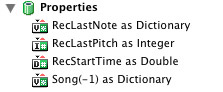
The Design Recording After clicking on the Record button, when the user presses a key, our program will respond by doing two things. First it will create a new line of text in the EditField for that note, and second it will play the note. To stop recording, the user will again click on the Record button which is labeled "Stop". Playing Properties
Playing a Song dim note as Dictionary dim line, count as integer dim noteLine as String dim currentNote as Integer dim startTime as Double // Clear Old Song Redim Song(-1) // Create Notes count = CountFields(EFNotes.Text, EndOfLine) for line = 1 to count First we declare our variables (duh), then we clear out the old song be redimming the array. Next we're going to loop through every line of text in the field.
  // Get Line Data
  noteLine = NthField(EFNotes.Text, EndOfLine, line)

  // If It's Creating a Note, then Do So
  if Left(noteLine, 7) = "NewNote" then
    noteLine = Mid(noteLine, 9)
    noteLine = Left(noteLine, Len(noteLine) - 1)
Here we're just making sure that the line isn't empty and contains a semblance of a valid NewNote() line. We then strip the line down to its parameters for easy reading. (ie "Pitch=60,Time=0,Velocity=80") Below, we then parse the parameters and create a new note dictionary. Remember that the Velocity parameter is optional which is why we first check to see if it contains a Velocity parameter. Also, notice that the order of the parameters can't be changed since this code is dependent on the order. After we parse it, we append the note to the Song array.
    // Create Note
    note = New Dictionary
    note.Value("Pitch") = Val(NthField(NthField(noteLine, ",", 1), "=", 2))
    note.Value("Time") = Val(NthField(NthField(noteLine, ",", 2), "=", 2))
    if InStr(noteLine, "Velocity") > 0 then
      note.Value("Velocity") = Val(NthField(NthField(noteLine, ",", 3), "=", 2))
    end if

    // Add Note To Song
    Song.Append note
  end if
next
The way our recording system works, is that it records the length of time that passes from the beginning of the song until the note is supposed to play. So when playing back a song, we need to know when the song starts, which is what the startTime variable is for. And since each note of the song needs to be played and is only played once, our outer for loop can simply loop through each index of the array. // Start the Clock startTime = Microseconds // Play Each Note of the Song for currentNote = 0 to UBound(Song) This small loop simply churns until it is time for the next note to play. While this tutorial could have been written to read directly from the field rather using a dictionary to store note information, the extra overhead of parsing the text between playing notes might cause the song to drag, causing notes to be played at inconsistent times. This will really only happen if the notes are close together, but hey, it can happen (wink).
  // Wait until it's time to play the note
  do
  loop until Song(currentNote).Value("Time").DoubleValue <= Microseconds - startTime
Below is where we hand off the note to the PlayNote method which actually plays the note. The reason we have a test for whether currentNote is greater than 0, is because if it is, we want to pass the previous note (Song(currentNote - 1)) to the PlayNote method as the second optional parameter, so that it knows which note to stop playing. (Remember that our application will automatically stop the previous note before the "current" one begins to play.) If there was no previous note, then it simply doesn't pass a second parameter at all.
  // Play Note
  if currentNote > 0 then
    PlayNote Song(currentNote), Song(currentNote-1)
  else
    PlayNote Song(currentNote)
  end if
next
Playing a Note
Sub PlayNote(CurrentNote as Dictionary, PreviousNote as Dictionary = nil)

   // Stop the Previous Note
   if PreviousNote <> nil then
      NotePlayer1.PlayNote PreviousNote.Value("Pitch").IntegerValue, 0
   end if

   // Play the Current Note
   if CurrentNote.HasKey("Velocity") then
      NotePlayer1.PlayNote CurrentNote.Value("Pitch").IntegerValue,
CurrentNote.Value("Velocity").IntegerValue
   else
      NotePlayer1.PlayNote CurrentNote.Value("Pitch").IntegerValue, 80
   end if
End Sub
That aside, all that our PlayNote method does, is stop the previous note (by "playing" it again with a Velocity value of 0), and plays the next note. Starting to Record // Set Caption if me.Value then me.Caption = "Stop" else me.Caption = "Record" end if // Record Notes if me.Value then EFNotes.Text = "" RecStartTime = -1 end if It, as you can see, is fairly simple and straight forward. Remember that the Record button is a toggling BevelButton, and to compliment that, we toggle the button's caption between "Record" and "Stop". Other than that, we remove the text from the field (since when the user presses keys, it will be inserted into the field), and set the RecStartTime variable to -1. This Double property of the window keeps track of when the first note of the song being recorded was pressed. This variable is used very much in the same way that the startTime variable is used in the Play button's code. The only difference is that clock doesn't actually start until the first key is pressed, and the -1 value flags that no key has been pressed yet. Recording Notes
Function KeyDown(Key As String) As Boolean
   dim Pitch as Integer, Time as Double


   // If we're recording, then record
   if BtnRecord.Value then

      // Get Pitch
      Select Case Key
      Case "a"
         Pitch = 60 // C
      Case "w"
         Pitch = 61 // D Flat
      Case "s"
         Pitch = 62 // D
      Case "e"
         Pitch = 63 // E Flat
      Case "d"
         Pitch = 64 // E
      Case "f"
         Pitch = 65 // F
      Case "t"
         Pitch = 66 // G Flat
      Case "g"
         Pitch = 67 // G
      Case "y"
         Pitch = 68 // A Flat
      Case "h"
         Pitch = 69 // A
      Case "u"
         Pitch = 70 // B Flat
      Case "j"
         Pitch = 71 // B
      Case "k"
         Pitch = 72 // C
      Case "o"
         Pitch = 73 // D Flat
      Case "l"
         Pitch = 74 // D
      Case " "
         Pitch = -1 // Silence
      else
         Return true // not a key we recognize
      end Select
The Select statement above determines which key was pressed and sets the Pitch value accordingly. If the spacebar is pressed Pitch is -1 to signal that instead of playing another note, it should stop the previous one. If a key is pressed that we don't recognize, we simply ignore it.
      // Get Time
      if RecStartTime = -1 then RecStartTime = Microseconds
      Time = Microseconds - RecStartTime

      // Add Note
      AddNote Pitch, Time
Above we determine the amount of time that has passed since the first valid key was pressed after clicking the Record button, and then we use the AddNote method to actually add the text to the field and play the note.
      // Return True to signal we handled the event
      return true
   end if
End Function
The AddNote method is the last piece of the puzzle. The first if-statement determines whether or not the note being added is a silencer for the previously played note. If it is, then it modifies the Pitch and Velocity variables in the method to match the Pitch of the previous note and have a velocity of 0 to stop the sound. If the note is not a silencer, then it simply remembers the pitch value in the RecLastPitch window property we added earlier.
Sub AddNote(Pitch as Integer, Time as Double, Velocity As Integer = 80)
   dim note as Dictionary

   // Remember the Note if Not Silence
   if Pitch = -1 then
      Pitch = RecLastPitch
      Velocity = 0
   else
      RecLastPitch = Pitch
   end if
This if-statement is where the text for the note is added to the field.
   // Add The Note
   if Velocity = 80 then
      EFNotes.Text = EFNotes.Text + "NewNote(Pitch=" + Str(Pitch) + ",Time=" + Str(Time)
+ ")" + EndOfLine
   else
      EFNotes.Text = EFNotes.Text + "NewNote(Pitch=" + Str(Pitch) + ",Time=" + Str(Time)
 + ",Velocity=" + Str(Velocity) + ")" + EndOfLine
   end if
Here we create a temporary note Dictionary and use it with the PlayNote method to play the note. Notice we also remember the last note that was played so that we can pass it to the PlayNote method so it will stop the previous note eliminating the continuous sound. If you're not sure why we're auto-stopping the previously played note, when the project is completed, comment out the line that stops the sound and run the project to learn/hear why.
   // Play the Note
   note = New Dictionary
   note.Value("Pitch") = Pitch
   note.Value("Velocity") = Velocity
   note.Value("Time") = Time

   if RecLastNote <> nil then
      PlayNote note, RecLastNote
   else
      PlayNote note
   end if


   // Remember Note
   RecLastNote = note
End Sub
Finished As always, you can download the project for this tutorial. |

|
|||
|
Please support ResExcellence by Visiting our Sponsors. One click makes a difference. |
||||||
 |
 |
 |




 |