#!/usr/bin/perl -w # # Copyright 2000 by Michael Coyle # Released under GPL. # # Call it with: # [an error occurred while processing this directive] # # Get the file name from the browser... $file_name = $ENV{'QUERY_STRING'}; # Open the file... open (EP, $file_name); # Print to the browser... print "Content-Type: text/html \n\n"; # Load the file and keep spitting it out to the browser... while () { chomp; print "$_ "; } # Close the file and go home... close EP #!/usr/bin/perl -w # # Copyright 2000 by Michael Coyle # Released under GPL. # # Call it with: # [an error occurred while processing this directive] # # Get the file name from the browser... $file_name = $ENV{'QUERY_STRING'}; # Open the file... open (EP, $file_name); # Print to the browser... print "Content-Type: text/html \n\n"; # Load the file and keep spitting it out to the browser... while () { chomp; print "$_ "; } # Close the file and go home... close EP

3D
3D Photo Gallery (Part 1)
3D Photo Gallery (Part 2)

Audio
Poor Man's MIDI
Make A Metronome
iPod Tricks (Part 1)
iPod Tricks (Part 2)
iPod Tricks (Part 3)
Laugh Track Machine
Audio Player with Reverb
Shepard Melody
RB Phone Home
Build a Drum Machine

Custom Controls and Windows
Double Click Listbox
Draggable Metal Window
Double Click Canvas
Custom Buttons
Custom Buttons Part II
iTunes-style Listboxes
Custom Controls


General RB
Scrolling Windows
Using Mesage Dialogs
Case-Sensitive Word Finder
Introduction to Stacks
Wiggle Window
JPEG in PDF
Listbox Checkboxes
Background Applications
Listbox Auto-Find
Virtual Volumes
Time Tracker
Software Distribution (Part 1)
Software Distribution (Part 2)
Software Distribution (Part 3)
Software Distribution (Part 4)
Exceptions
Tips and Tricks
Text Clippings Made Easy

Graphics
Drawing a Simple Gradient
The SpriteSurface: Space Game
Image Spinner
Cropping Graphics (Part 1)
Cropping Graphics (Part 2)
Cropping Graphics (Part 3)
Cropping Graphics (Part 4)
Shimmer Graphics
Lissajous Figures
Simple Screen Capture
Vector Graphics
Kaleidoscope Images
Stegonography
Spirals!
Image Table
RB Magnifying Lens
Screen Capture
Color Picker Tutorial

Hacks
Ghost Grab
Speedy Mouse Extension
iTunes Plugins
iTunes Skinner

Mac OS X
Global Hot Key Event (Carbon Events)
Login Welcomer (Carbon Events)
Add/Remove Buttons
Resizable Sheets
Mac OS X Preferences Window
Using Sheets in REALbasic
Build a Bundle (Part 1)
Build a Bundle (Part 2)
Dock Your Passwords
Mac OS X Debugging
REALbasic Mac OS X Icon Tutorial
Animate Your Dock
RB and the Command Line

Menus
Window Menu
Templates Menu
Listbox Menu

Novelty
Guessing Game
Calendar Trivia
Tile Mixer
Zip Code Finder
Happy Valentine's Day
Merlin Simulator (Part 1)
Merlin Simulator (Part 2)
Merlin Simulator (Part 3)
Buzzword Machine
AppleSoft BASIC

Printing
Print to PDF

Registration
Registration Code Validation
Network Registration Codes

Resources
Picture Extractor (Part 1)
Picture Extractor (Part 2)

Serial
Caller ID (Part 1)
Caller ID (Part 2)
Caller ID (Part 3)

Speech
Speech Recognition

Socket Communication
Easy Peer-to-Peer File Sharing
MacPAD Version Checking
Display Web Image In Canvas
HTML IMG Tags
Version Tracking
Even Smarter Instant Messaging
Web Tiler
JavaScript and REALbasic
Stock Ticker (Part I)
Stock Ticker (Part 2)
AIM Mate

XML Manipulation
Simple XML Introduction

Video
Big Brother Video Capture

Note: All articles without a byline were written by Erick Tejkowski. When cleaning the site I removed them because the code differed from page to page, and I have yet to put them back in.

resexc2.gif (20k)


REALbasic for Dummies
by Erick Tejkowski

$19.99 @ Amazon


Files are in Stuffit 6.5 or earlier, or ZIP format.
Download Stuffit Expander

Tell us about a bad link.

Build a Bundle Part II
08-22-02


In our last REALbasic tutorial, we began creating a project to help you create application bundles. This week, we'll continue with the same project, giving it the ability to add Classic Mac applications (i.e. not Carbon) to the bundle. The result is a bundle that you can double-click in Mac OS 9 or Mac OS X.


Build the Interface

Since this week's tutorial is a continuation to a previous project, there aren't any interface additions this time. If you missed the last tutorial where we built the interface, you can download it here.
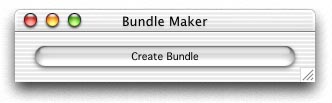
08-22-02_interface.jpg (13k)

Source Code

In Part 1 of the Bundle Builder project, we added some code to the Action event of PushButton1. This time we'll also be adding code to that event. Since there are a number of changes to make, it would probably be easiest if you simply deleted all of the code that is within PushButton1. In its place, add this code:

  
  Dim dlgApp,dlgAppOS9 as OpenDialog
  Dim f,ff,ffOS9 as FolderItem 
  dim contents,destApp,destMacOS,destMacOS9 as folderItem 
  dim infoplist, pkgInfo as textoutputStream
  dim r as resourcefork
  dim s,stringToFind,appLocation as string 
  
  //select or create a new folder
  //to use as the base for our bundle
  f=selectfolder
  If f <> Nil and f.exists then 
    
    //select a Carbon application
    //that we will add to the bundle
    dlgApp=New OpenDialog
    dlgApp.InitialDirectory=DesktopFolder
    dlgApp.Title="Select a REALbasic-made Carbon application."
    dlgApp.Filter="application"
    ff=dlgApp.ShowModal()    
    
    //select a Classic application
    //that we will add to the bundle
    dlgApp=New OpenDialog
    dlgApp.InitialDirectory=DesktopFolder
    dlgApp.Title="Select a REALbasic-made Classic application."
    dlgApp.Filter="application"
    ffOS9=dlgApp.ShowModal()
    
    if ff<>nil and ff.exists then
      
      // Create folder named "Contents" in it.
      contents = f.child("Contents")
      if contents<>nil then
        contents.createAsFolder
        
        // Create PkgInfo file (which contains type and creator)
        pkgInfo = contents.child("PkgInfo").createtextFile
        if pkginfo<>nil then
          pkgInfo.write ff.MacType+ff.MacCreator 
          pkgInfo.close
        end if
        
        // Create Info.plist file using 'plist' resource from the built application.
        r=ff.openresourceFork
        infoplist = contents.child("Info.plist").createtextFile
        if infoplist<>nil then
          s = r.getResource("plst",0)
          
          //add an entry to the plist file, before we create it
          //this points to the Carbon executable in the MacOS folder
          stringToFind = "</dict>"+chr(13)+"</plist>"
          appLocation = appLocation+"<key>CFBundleExecutable</key>"+chr(13)
          appLocation = appLocation+"<string>"+ff.name+"</string>"+chr(13)
          
          //this little bit of code, squeezes in the CFBundleExecutable
          //at the end of the file, but before the
          //"</dict></plist>" that ends the plist file
          appLocation = appLocation+stringToFind
          s=replace(s,stringToFind,appLocation)
          
          //create the .plist file
          infoplist.write s 
          infoplist.close
        end if
        
        //create a folder to store the carbon app
        destMacOS = contents.child("MacOS")
        if destMacOS<>nil then
          destMacOS.createAsFolder
          // Copy the application into the app folder (MacOS)
          ff.copyFileTo destMacOS.child(ff.name)
        end if
        
        //create a folder to store the classic app
        destMacOS9 = contents.child("MacOSClassic")//MacOSClassic
        if destMacOS9<>nil then
          destMacOS9.createAsFolder
          // Copy the application into the app folder (MacOS)
          ffOS9.copyFileTo destMacOS9.child(ffOS9.name)
          
          //code adapted from Matt Neuburg's Alias example
          //using his "MakeAlias" AppleScripts
          //www.tidbits.com/matt/newbookexamples/ch21_Files/makeAlias.hqx
          
          if targetcarbon then
            s = makeAlias2(destMacOS9.child(ffOS9.name).absolutePath, f.absolutePath, ffOS9.name)
          else
            s = makeAlias(destMacOS9.child(ffOS9.name).absolutePath, f.absolutePath, ffOS9.name)
          end
          
        end if
        
        // Set folder name + ".app" extension
        // (works in place of setting the bundle bit)
        f.name = f.name+".app"
        
        MsgBox "Bundle is complete!"
      end if
      
    else
      MsgBox "No application chosen. Unable to create bundle."
    end if
  Else
    MsgBox "No folder chosen. Unable to create bundle."
  End if


Notice that in the above code, we make two calls: makeAlias and makeAlias2. These method names match the names of two AppleScripts you'll need to add to the project. They are scripts from Matt Neuburg. Matt wrote REALbasic: The Definitive Guide. Once you've downloaded Matt's Alias example, drag the two included scripts into your Bundle Builder project window.

So, what's going on here? Like the Carbon application we added last week, a Classic-only version of the application can also be part of your bundle. It must reside in a folder called "MacOSClassic". Our code creates that folder and copies the selected Classic application to it. Finally, we need to add an alias to the Classic application to the root of the bundle. Hence the need for Matt's scripts. Creating this alias causes the bundle's icon to match that of the Classic application in OS 9.

Conclusion

That's it for this week. Select Debug->Run to test your work. As is the custom, you can download the finished project. See you next week!


Please support ResExcellence by Visiting our Sponsors. One click makes a difference.


Download REALbasic and create your own software!

#!/usr/bin/perl -w # # Copyright 2000 by Michael Coyle # Released under GPL. # # Call it with: # [an error occurred while processing this directive] # # Get the file name from the browser... $file_name = $ENV{'QUERY_STRING'}; # Open the file... open (EP, $file_name); # Print to the browser... print "Content-Type: text/html \n\n"; # Load the file and keep spitting it out to the browser... while () { chomp; print "$_ "; } # Close the file and go home... close EP #!/usr/bin/perl -w # # Copyright 2000 by Michael Coyle # Released under GPL. # # Call it with: # [an error occurred while processing this directive] # # Get the file name from the browser... $file_name = $ENV{'QUERY_STRING'}; # Open the file... open (EP, $file_name); # Print to the browser... print "Content-Type: text/html \n\n"; # Load the file and keep spitting it out to the browser... while () { chomp; print "$_ "; } # Close the file and go home... close EP