 |
 |
 |
||||
 3D 3D Photo Gallery (Part 1) 3D Photo Gallery (Part 2) Audio Poor Man's MIDI Make A Metronome iPod Tricks (Part 1) iPod Tricks (Part 2) iPod Tricks (Part 3) Laugh Track Machine Audio Player with Reverb Shepard Melody RB Phone Home Build a Drum Machine Custom Controls and Windows Double Click Listbox Draggable Metal Window Double Click Canvas Custom Buttons Custom Buttons Part II iTunes-style Listboxes Custom Controls General RB Scrolling Windows Using Mesage Dialogs Case-Sensitive Word Finder Introduction to Stacks Wiggle Window JPEG in PDF Listbox Checkboxes Background Applications Listbox Auto-Find Virtual Volumes Time Tracker Software Distribution (Part 1) Software Distribution (Part 2) Software Distribution (Part 3) Software Distribution (Part 4) Exceptions Tips and Tricks Text Clippings Made Easy Graphics Drawing a Simple Gradient The SpriteSurface: Space Game Image Spinner Cropping Graphics (Part 1) Cropping Graphics (Part 2) Cropping Graphics (Part 3) Cropping Graphics (Part 4) Shimmer Graphics Lissajous Figures Simple Screen Capture Vector Graphics Kaleidoscope Images Stegonography Spirals! Image Table RB Magnifying Lens Screen Capture Color Picker Tutorial Hacks Ghost Grab Speedy Mouse Extension iTunes Plugins iTunes Skinner Mac OS X Global Hot Key Event (Carbon Events) Login Welcomer (Carbon Events) Add/Remove Buttons Resizable Sheets Mac OS X Preferences Window Using Sheets in REALbasic Build a Bundle (Part 1) Build a Bundle (Part 2) Dock Your Passwords Mac OS X Debugging REALbasic Mac OS X Icon Tutorial Animate Your Dock RB and the Command Line Menus Window Menu Templates Menu Listbox Menu Novelty Guessing Game Calendar Trivia Tile Mixer Zip Code Finder Happy Valentine's Day Merlin Simulator (Part 1) Merlin Simulator (Part 2) Merlin Simulator (Part 3) Buzzword Machine AppleSoft BASIC Printing Print to PDF Registration Registration Code Validation Network Registration Codes Resources Picture Extractor (Part 1) Picture Extractor (Part 2) Serial Caller ID (Part 1) Caller ID (Part 2) Caller ID (Part 3) Speech Speech Recognition Socket Communication Easy Peer-to-Peer File Sharing MacPAD Version Checking Display Web Image In Canvas HTML IMG Tags Version Tracking Even Smarter Instant Messaging Web Tiler JavaScript and REALbasic Stock Ticker (Part I) Stock Ticker (Part 2) AIM Mate XML Manipulation Simple XML Introduction Video Big Brother Video Capture Note: All articles without a byline were written by Erick Tejkowski. When cleaning the site I removed them because the code differed from page to page, and I have yet to put them back in.
Tell us about a bad link. |
 |
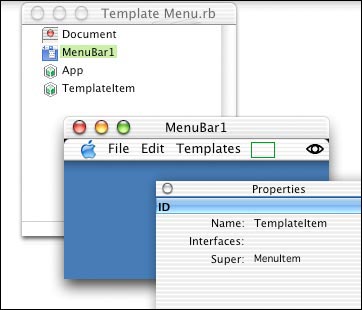
In this tutorial we're going to learn of one specific use for subclassing the MenuItem class. What we'll be doing is creating a Templates menu which has a menu item for each of the files in the application's "Templates" folder. When the menu item is selected, the application will create a new untitled document window and display the contents of the template file. About The MenuItem Class MenuItem is a class which represents a menu item. Properties of the MenuItem class include the name of the menu item, the style (bold, italic, underline), the keyboard shortcut, and a boolean for whether or not the menu item has a sub menu. Menu items directly in the menu bar (aka, "menus"), must have sub menus, cannot have any styles, and cannot have a keyboard shortcut. Although "menus" are treated a little differently from "menu items", they are all still instances of the MenuItem class. The Implementation
After this, we'll implement the TemplateItem class. We're first going to want to create a new property, "File as FolderItem". The File property will be the folderitem pointing to the file which the menu item represents. When the menu item is selected, the application will use the File property to know which template to open. The EnableMenu event of the MenuItem class is just like the EnableMenuItems event. Whenever the menu bar items need to be enabled or disabled, first the EnableMenu events of all of the MenuItems in the menu bar are called, then then EnableMenuItems event of any controls in the window, next is the EnableMenuItems event of the window, and finally the EnableMenuItems event of the application class instance. In our case, the menu items in the Templates menu are always going to be enabled so we simply write "me.enable" in the event. The Action event of the MenuItem is the Menu Handler for that menu item. It behaves in the same manner as the Menu Handlers in other classes and windows. When a template menu item is selected the Action event of the TemplateItem class is fired and in response, we're going to open the template, create a new document window, and set the text of the editfield in the window to be the text inside of the template file.
Creating the MenuItems
As you can see from the code, what we do first is remove any existing items in the "Templates" menu since the EnableMenuItems event is called many many times and we need to remove the existing items so we don't add duplicates. Next we get the folderitem to the Templates folder. In the code above, the folder is named "Templates" and is in the same folder as the application. We then test to see if the folder exists. If it doesn't exist, then we know there obviously aren't any templates inside of it, so we just skip over the code which adds the menu items. If the folder does exist, we then loop through each folderitem inside of the templates folder. If the file is visible and not a folder, then we assume that files is a template. I emphasize assume because you should really do whatever kind of validation is necessary to make sure that the file is actually a document your application can open, but for the sake of simplicity, this tutorial simply assumes that any file in the folder is a template. Once we determine that folderitem we have is a document template, we create a new instance of the TemplateItem class, set its caption to the name of the file, and set its File property to the folderitem of the template. The last step is to add the menu item to the "Templates" menu we created earlier. Now, remember that everything is a subclass of the menu item class. This applies to the "Templates" menu as well. If you'd like to verify it for yourself, look at the "Templates" menu in the Menu Editor and see that its super is "MenuItem". Also note that the name is "TemplatesMenu". With these two facts, we can call the "Append" method of TemplatesMenu, a MenuItem subclass, to add the given MenuItem instance to "Templates" menu. Side note: Using the Append method with any menu item will automatically set the "SubMenu" property of the item to true. The very last step in the even is to hide the "Templates" menu if no menu items are inside of it. We do this because it's quite useless to display a "Templates" menu if there are no templates to display in it. Our First Run Find the project for the tutorial in Finder. Next, create a folder named "Templates" and drop a couple of text files into it. (Files are included in the project download for your convenience.) After doing so, return to REALbasic and run the project again. Tada! I hope this tutorial has been a help to you in some way.
|

|
|||
|
Please support ResExcellence by Visiting our Sponsors. One click makes a difference. |
||||||
 |
 |
 |




 |