 |
 |
 |
||||||||||||||||
 3D 3D Photo Gallery (Part 1) 3D Photo Gallery (Part 2) Audio Poor Man's MIDI Make A Metronome iPod Tricks (Part 1) iPod Tricks (Part 2) iPod Tricks (Part 3) Laugh Track Machine Audio Player with Reverb Shepard Melody RB Phone Home Build a Drum Machine Custom Controls and Windows Double Click Listbox Draggable Metal Window Double Click Canvas Custom Buttons Custom Buttons Part II iTunes-style Listboxes Custom Controls General RB Scrolling Windows Using Mesage Dialogs Case-Sensitive Word Finder Introduction to Stacks Wiggle Window JPEG in PDF Listbox Checkboxes Background Applications Listbox Auto-Find Virtual Volumes Time Tracker Software Distribution (Part 1) Software Distribution (Part 2) Software Distribution (Part 3) Software Distribution (Part 4) Exceptions Tips and Tricks Text Clippings Made Easy Graphics Drawing a Simple Gradient The SpriteSurface: Space Game Image Spinner Cropping Graphics (Part 1) Cropping Graphics (Part 2) Cropping Graphics (Part 3) Cropping Graphics (Part 4) Shimmer Graphics Lissajous Figures Simple Screen Capture Vector Graphics Kaleidoscope Images Stegonography Spirals! Image Table RB Magnifying Lens Screen Capture Color Picker Tutorial Hacks Ghost Grab Speedy Mouse Extension iTunes Plugins iTunes Skinner Mac OS X Global Hot Key Event (Carbon Events) Login Welcomer (Carbon Events) Add/Remove Buttons Resizable Sheets Mac OS X Preferences Window Using Sheets in REALbasic Build a Bundle (Part 1) Build a Bundle (Part 2) Dock Your Passwords Mac OS X Debugging REALbasic Mac OS X Icon Tutorial Animate Your Dock RB and the Command Line Menus Window Menu Templates Menu Listbox Menu Novelty Guessing Game Calendar Trivia Tile Mixer Zip Code Finder Happy Valentine's Day Merlin Simulator (Part 1) Merlin Simulator (Part 2) Merlin Simulator (Part 3) Buzzword Machine AppleSoft BASIC Printing Print to PDF Registration Registration Code Validation Network Registration Codes Resources Picture Extractor (Part 1) Picture Extractor (Part 2) Serial Caller ID (Part 1) Caller ID (Part 2) Caller ID (Part 3) Speech Speech Recognition Socket Communication Easy Peer-to-Peer File Sharing MacPAD Version Checking Display Web Image In Canvas HTML IMG Tags Version Tracking Even Smarter Instant Messaging Web Tiler JavaScript and REALbasic Stock Ticker (Part I) Stock Ticker (Part 2) AIM Mate XML Manipulation Simple XML Introduction Video Big Brother Video Capture Note: All articles without a byline were written by Erick Tejkowski. When cleaning the site I removed them because the code differed from page to page, and I have yet to put them back in.
Tell us about a bad link. |
 |
This week we'll create a fun little project that mimics a drum machine. This project is somewhat unique in that it uses high quality samples for the drum loops, lets you start and stop the loops at will, and yet the whole thing only requires two lines of code! How are we going to pull this one off? Read on! Introduction The secret behind this week's project involves two file formats : SoundFont(.sf2) and Downloadable Sounds(.dls). These two file types are capable of storing multiple audio samples in one file. Think of them as audio packages. All audio samples are located conveniently in one file. These samples might represent a variety of sounds: orchestral instruments, pop vocals, car horns, or dog barks. To hear the sounds within SF2 and DLS files, you can trigger them with MIDI from REALbasic. QuickTime added SF2 and DLS support beginning with QuickTime 5 and REALbasic works great in combination with it. (For best results on this project, download the latest version of QuickTime.) To install a SF2 or DLS file, drag it into one of the following folders on your hard drive:
In case you don't have any SF2 or DLS files, some are included with the project download at the end of this tutorial. There are also many free files in SF2 and DLS format. SF2 has been fairly popular in the Windows world for several years, so you will find many of this file type on the web. DLS is a somewhat newer format, so it hasn't gained as much momentum yet. Files in this format are harder to find right now. DLS, however, is now the de facto standard (it's part of the MPEG4 spec., for example), so expect to see more it in the future. At the end of this tutorial are some links, where you can find sounds or learn to build them yourself. Once you have moved your SF2 and DLS files to the proper location on your hard drive, open the QuickTime Control Panel (Mac OS 9) or the QuickTime Panel of the System Preferences (Mac OS X). Select your file and press "Make Default" for Mac OS X. For Mac OS 9, simply click the little black circle to the left of the sound bank's name. 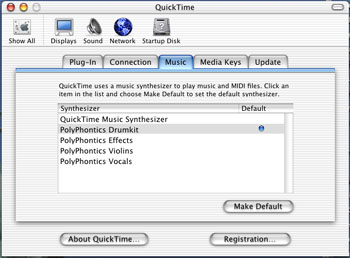 
After you select a sound bank, close the QuickTime settings and launch REALbasic. Build an Interface and Add the Code To begin building the interface, double click Window1 in the Project Window. Drag four NotePlayers and eight PushButton controls from the Toolbar to your interface. Name them according to this chart:
Notice above that we are using control arrays. In other words, 4 buttons share the same name (PlayButton, for example), but each has its own unique Index number. This permits you to write code one time and let each control with the same name use that code. The NotePlayer Instrument number normally corresponds to a General MIDI Instrument as listed in the RB Language Reference. It needn't, however. When a SF2 or DLS file is used as the QuickTime music engine, the instruments are numbered according to the order they appear in the file. The demo files included with this project have four "instruments" per file. 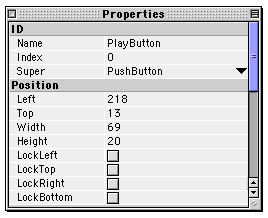 
The completed interface might look something like this: 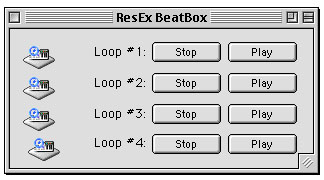
The final step is to add the two lines of code. Double click any one of the PlayButtons and enter this line: NotePlayer1(Index).PlayNote(60,127)This simple line of code starts up the NotePlayer control that shares the same Index number as this PushButton. It plays MIDI note number 60 at a volume of 127 (volume = 0-127). The second line of code is equally small - it turns off the note, by sending it a volume fo zero. Place this code in the Action event of the StopButton NotePlayer1(Index).PlayNote(60,0)Conclusion That's it! Test your project by selecting Debug->Run. If all is working well, you should hear some unique sounds coming out of QuickTime, instead of those boring old QT Instruments you're used to. Feel free to download some other SoundFont or DLS files and activate them the same way. Your project can then instantly make use of the new sounds. If you're too lazy to build this week's project, there may be no hope for you. :-) We still have the project available for download, though. It also contains a few sound banks for your listening enjoyment. You can learn more about SoundFont and DLS at the following URLs: BEST Software Design - Creators of PolyPhontics, the forthcoming Macintosh SoundFont and DLS Editor. Creative Technologies - Co-inventors of the SF2 format. Creators of the Mac-compatible SoundBlaster card. SynthZone - A huge listing of SoundFont and DLS sites. Sonic Implants - Sells commerical SoundFont and DLS samples. They also hand out some great freebies too. HammerSound - Another large collection of SoundFont files. Have fun and see you next week! |

|
|||||||||||||||
|
Please support ResExcellence by Visiting our Sponsors. One click makes a difference. |
||||||||||||||||||
 |
 |
 |





 |