|
5-17-01
Animate Your Dock by
Erick Tejkowski
Of all the new toys in Mac OS X, perhaps the most fun to play with is the Dock. REALbasic does not yet permit drawing in the Dock,
but with the help of a plugin or two, you can. Not only can you draw on the Dock, but you can change the picture over
time, thus creating an animation. Fun stuff, indeed!
Before you can get started working on the animated Dock project, you need to download a plugin. I have created a free plugin especially for ResExcellence readers,
which you can download here. You can also download it as part of the completed project at the end of this tutorial.
Install the Plugin
REALbasic plugins give you the opportunity to expand REALbasic's native functionality. To use a plugin, simply drop it in the folder named "Plugins", which
resides in the same folder as your REALbasic application. When you launch REALbasic, it instantly gains the functionality of the installed plugins. In this case, the
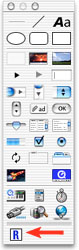
plugin adds a control (called ResExDockAnimation) to the Toolbar, as seen here:
Build the Interface
Once you have launched REALbasic, open Window1 and add the following controls to the Window Editor.
- CheckBox - Name it ClockCheckbox
- CheckBox - Name it AlarmCheckbox
- Timer - Leave the default name Timer1. Mode=0; Period=1000;
- ResExDockAnimation - Leave the default name ResExDockAnimation1
You may notice that the ResExDockAnimation1 control is a small black square. Don't worry about this.
The control takes care of displaying images on the Dock and is invisible when the application is running.
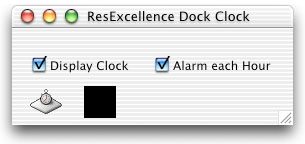
By now, your interface might look something like this:
Add the Goodies
Create four 'PICT' images with dimensions of 128x128 pixels. Name them as follows:
Then, add them to your REALbasic project, by dragging them into the Project Window from the Finder.
In a similar fashion, drag a sound file into the Project Window. For this example, I used a System 7 sound file (similar to System Alert sounds)
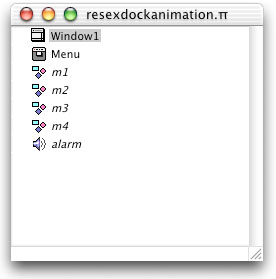
and named it alarm. At this point, your Project Window should look similar to this:
Create Two Properties
This project will need two properties that different controls can access. Open the Code Editor of Window1 and
add two properties to it by selecting the Edit->New Property menu. Create the following properties:
- animationcounter as integer
- p as picture
We will use the animationcounter property to keep track of the current frame of animation. The p property will
store a picture in memory, which we will then transfer to the Dock.
Add the Code
To begin adding code, open the Code Editor to the Open Event of the ResExDockAnimation1 control and enter this code:
//initialize the ResExDockAnimation1 control
me.init
Next, click in the Close Event of the ResExDockAnimation1 and enter the following code:
//Shutdown the ResExDockAnimation1 control
me.halt
So far, you have prepared the ResExDockAnimation1 for animations and for cleaning up at shutdown.
You also need to initialize some things in the Open Event of Window1. Proceed to the Open Event and
enter this code:
//Create a picture object
p=newpicture(128,128,32)
//initialize the animation counter
animationcounter=0
//start the animation
timer1.mode=2
This code creates a new picture object for us to draw on, sets the animationcounter to zero,
and starts the animation, which will be driven by the Timer control (Timer1).
The final step is to animate the Dock icon. This occurs within the Action Event of Timer1. Since we set the Period
of Timer1 to 1000, the Timer will fire at one second intervals. This works perfectly for clock functions. In the Dock, we will
display a clock and a silly animation of Michael Coyle (head ResEx dude). To up the ante, we will also play a sound on the hour and allow this feature to
be toggled on and off. You will also be able to toggle the clock display on and off.
Open the Action Event of Timer1 and this code:
//Create a picture object
dim d as date
animationcounter=animationcounter+1
if animationcounter>6 then
animationcounter=1
end if
//Make sure we have a Picture object before we try to use it
if p<>nil then
select case animationcounter
case 1
p.graphics.drawpicture m1,0,0,128,128,0,0,128,128
case 2
p.graphics.drawpicture m2,0,0,128,128,0,0,128,128
case 3
p.graphics.drawpicture m3,0,0,128,128,0,0,128,128
case 4
p.graphics.drawpicture m2,0,0,128,128,0,0,128,128
case 5
p.graphics.drawpicture m4,0,0,128,128,0,0,128,128
case 6
p.graphics.drawpicture m2,0,0,128,128,0,0,128,128
End select
//If the clock checkbox is checked
//display the time
if clockCheckBox.value then
//create a date, for retrieving the time
d=new date
//set the color to black
p.graphics.foreColor=rgb(0,0,0)
//display the hours
p.graphics.drawstring str(d.hour),5,50
//display the minutes
p.graphics.drawstring str(d.minute),5,70
//display the seconds
p.graphics.drawstring str(d.second),5,90
end if
//Refresh the Dock's picture
ResExDockAnimation1.redraw(p)
end if
if AlarmCheckBox.value then
if d.minute=0 and d.second=0 then
//ring alarm on the hour
//i.e. when minute=0 and second=0
alarm.play
end if
end if
This code will fire once every second. When it does, it increases animationcounter by one, but only up to 6, when it resets itself to 1.
This number is used when deciding which picture to display in the Dock. The animation consists of 6 "frames". The Select...Case statement takes care of the
decision making. Based on which "frame" of the animation is current, the Select...Case statement draws the appropriate picture.
Next, if the clockCheckBox is checked, the code creates a Date object and from it
draws the current hours, minutes, and seconds on the p picture. Finally, the Dock's appearance is updated by passing the picture to the ResExDockAnimation1 control:
ResExDockAnimation1.redraw(p)
Once the Dock is drawn, the code checks to see if the time falls directly on an hour (min.=0; sec.=0). If so, an alarm is sounded.
To see your handiwork, it is safe to run this project by selecting Debug->Run menu item.
Warning - By testing this project in the REALbasic IDE, your REALbasic icon will change. This is harmless, but you will need
to relaunch REALbasic for the icon to reappear correctly. Also, if you have REALbasic permanently docked,
you may need to remove the icon from the Dock and redock it.
The last step (as always) is to build the finished product. To do so, select the File->Build Application menu item.
Now, for the horrifying results! :-) Again, with apologies to Michael.
Where to go from here
There are some peculiarities you should note about this project.
- This is not a true Dockling. REALbasic cannot yet create true Docklings. Press Cmd-H to hide the application, for a Dockling-effect.
- Do not attempt to use more than one ResExDockAnimation control. Havoc may ensue! Every application has only one icon in the Dock, so your REALbasic application
should only have one ResExDockAnimation control.
- This Dock icon control is only meant to change the application's Dock icon. If you want Dock icons for each of your project's windows, consult the link below.
If you are interested in more Dock tricks, I encourage you to check out the OS X Utilities plugins by Chad McQuinn. He has gone to the trouble of including other
Dock utilities, among other fine OS X tricks.
Lastly, if you don't feel like typing this project in by hand, or are having troubles getting it to work yourself, you can :
5-15-01
REALbasic News
by
Erick Tejkowski
Cheat Sheets In its current state, REALbasic does not yet support sheets, but a clever RB user, named Jim McKay, discovered a way
to create them anyway. To try it yourself:
- Create a new REALbasic project.
- Add a window to the project, giving you a total of 2 windows (one is included with a new project).
- In Window1, add a PushButton, and in its Action Event add the code: Window2.Show
- In the Open Event of Window2, add the code: Me.SetFocus (Thanks to Jonathan McGuire for this tip)
- In Window2, add a PushButton, and in its Action Event add the code: Self.Close
- Finally, make certain to:
- Change the Frame property of Window2 to "Floating Window".
- Change the Mac ProcID of Window2 to 1088.
You can also download an example project instead.
On your marks... If you would like to prepare for Thursday's ResEx REALbasic tutorial, create at least three 'PICT' files with dimensions of 128x128(pixels).
You can create as many as you wish, because these pictures will be used in an animation.
For example, I lifted a photo of Michael Coyle's mug and put it to good use. These are the four frames of animation I crafted - apologies to Michael :-) .
Is there a Dr. in the house? Claudio Palma is a ResExcellence reader, REALbasic user, and a medical doctor. He has asked us to post a note about his latest creation called ScriptMail v0.5
(available in Classic and Carbon flavors). He needs help testing it on different types of Macs. When you test it, drop him a line about your results.
OpenGL The king of 3D graphics these days is OpenGL.
Doug Holton has posted a "bleeding edge" version of his OpenGL plugin for REALbasic.
The latest version adds OS X support, but there are some caveats. Change your monitor to "Thousands of Colors" before running it.
Fast String Manipulations Theo Smith has updated his String Stuff plugin to v2.02.
Among other things, it includes the FastString class, which makes string appends blazing fast,
and comes with many manipulation methods (32 methods and 6 get/set properties).
OS X Utilities Chad McQuinn recently released his set of
OS X Utilities plugins.
They perform all sorts of important OS X functions that are currently not supported in REALbasic, including:
- Get the Unix path to a FolderItem.
- Change the Dock icon for windows and applications.
- Enable/Disable Preference and Quit menus.
You may want to use RB Plugin Plunger to see which calls the plugins offers.
Need Images? Why not try the "Made-with-REALbasic" PixNewsMacFREE.
(Available in Classic and Carbon flavors). Did I mention that it's FREE?
|


 Boot Panels