image ResEx Logo
ResExcellence www : Powered by Google
Cell Phone Themes Icons Mighty Mouse Cursors Software Reviews Widgets & Widgets

Articles
   3D
   Audio
   Custom Controls
   General RB
   Graphics
   Hacks
   Mac OS X
   Menus
   Novelty
   Printing
   REALbasic 2005
   REALbasic 2006
   Registration
   Resources
   Reviews
   Serial
   Speech
   Sockets
   XML
   Video
Resource Links
News
   Current News
   February 2006
   January 2006
   December 2005
   November 2005
   October 2005
   September 2005
   August 2005
   July 2005
   June 2005
   May 2005
   April 2005
   March 2005


REALbasic for Dummies
by Erick Tejkowski


Learning REALbasic through Applications
by Clayton E., Crooks II


REALbasic for Macintosh
by Michael Swaine


REALbasic Cross-Platform Application Development
by Mark S. Choate


Older files are in Stuffit 5 or greater format. Newer files are ".Zip". Download StuffIt Expander
Tell us about a bad link. Thank You!

Generate Kaleidoscope Desktop Images by Erick Tejkowsi
06-04-02

Printer Version


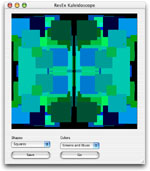
06-06-02_demo.jpg (9k) Just because "Dan the Desktop Man" is out of town doesn't mean we can't see some new desktop images. This week we'll build a project that generates random kaleidoscope-style images. This project lets you set colors, shapes, and image size to produce a wide variety of desktop images.


Build the Interface

Before you get started on this project, download the Flicker Free Canvas we used in earlier projects. Then, launch REALbasic and open Window1. Unstuff the flickerFreeCanvas and drag it in your REALbasic project.

Next, add the following controls:

Control Type Control Name Other Properties
Canvas Canvas1 Super=flickerFreeCanvas
PushButton PushButton1 Caption=Go
PushButton PushButton2 Caption=Save
PopupMenu PopupMenu1 InitialValue:Squares
Circles
PopupMenu PopupMenu2 InitialValue:Random
Reds
Greens
Blues
Reds and Greens
Greens and Blues
Reds and Greens
Timer Timer1 Mode=0; Period=20

Arrange the interface however you desire. A sample might look like this:
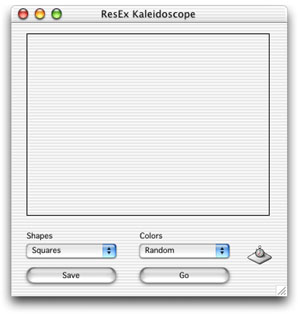
06-06-02_interface.jpg (14k)

Source Code

Before adding code, we need to do two things: define a property and add a file type. Double click any part of the Window1 interface to open its Code Editor. Then, select Edit-New Property. Create a Picture property like this:
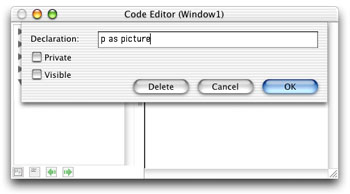
06-06-02_props.jpg (11k)

To add the file type, select Edit-File Types and add "pict" to the fray:
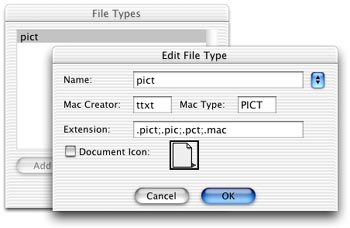
06-06-02_filetype.jpg (15k)

OK, now we're ready for some code. Navigate to the Action event of PushButton1 and add this code:

  
  if me.caption = "Go" then
    me.caption = "Stop"
    
    p=newpicture(canvas1.width,canvas1.height,32)
    if p<>nil then
      p.graphics.foreColor=rgb(0,0,0)
      p.graphics.fillrect 0,0,p.width,p.height
    end if
    
    Timer1.mode = 2
  else 
    Timer1.mode = 0
    me.caption = "Go"
  end if
  

This code create a new image, toggles Timer1, and changes the caption on PushButton1.

Next, navigate to the Action event of Timer1 and enter this code

  
  dim rx,ry,rs as double
  dim square as boolean 
  
  if popupMenu1.listindex=0 then
    square=TRUE
  else
    square=FALSE
  end if
  
  if p<>nil then
    //split the canvas(and picture) into four quadrants
    // 1 | 2
    //------------
    // 3 | 4
    
    // find a random "size" value
    rs = rnd * ((p.height/4)+1)
    
    //get a random point in the top left quadrant
    //to begin drawing
    
    // find a random x value
    rx = rnd * ((p.width/2)-rs+1)
    
    // find a random y value
    ry = rnd * ((p.height/2)+1)
    
    select case popupMenu2.listindex
      'Random
      'Reds
      'Greens
      'Blues
      'Reds and Greens
      'Greens and Blues
      'Reds and Greens
    case 0
      p.graphics.foreColor=rgb(rnd*255,rnd*255,rnd*255)
    case 1
      p.graphics.foreColor=rgb(rnd*255,0,0)
    case 2
      p.graphics.foreColor=rgb(0,rnd*255,0)
    case 3
      p.graphics.foreColor=rgb(0,0,rnd*255)
    case 4
      p.graphics.foreColor=rgb(rnd*255,rnd*255,0)
    case 5
      p.graphics.foreColor=rgb(0,rnd*255,rnd*255)
    case 6
      p.graphics.foreColor=rgb(rnd*255,0,rnd*255)
    end select
    
    
    if square then
      //SQUARES
      //draw a shape in quadrant 1
      p.graphics.fillrect rx,ry,rs,rs 
      //draw a shape in quadrant 2
      p.graphics.fillrect p.width-rx-rs,ry,rs,rs 
      //draw a shape in quadrant 3
      p.graphics.fillrect rx,p.height-ry-rs,rs,rs 
      //draw a shape in quadrant 4
      p.graphics.fillrect p.width-rx-rs,p.height-ry-rs,rs,rs 
    else 
      //CIRCLES
      //draw a shape in quadrant 1
      p.graphics.filloval rx,ry,rs,rs 
      //draw a shape in quadrant 2
      p.graphics.filloval p.width-rx-rs,ry,rs,rs 
      //draw a shape in quadrant 3
      p.graphics.filloval rx,p.height-ry-rs,rs,rs 
      //draw a shape in quadrant 4
      p.graphics.filloval p.width-rx-rs,p.height-ry-rs,rs,rs 
    end if
    
    
    canvas1.mPicture = p 
    canvas1.redraw
  end if
  

This code does the actual drawing. It splits the image up into four sections. A random size and position is then selected and a shape is drawn in each quadrant of the image according to these random numbers.

Finally, navigate to the Action event of PushButton2 and add this code:

  dim f as folderItem 
  
  if timer1.mode<>0 then
    PushButton1.push 
  end if
  
  f=GetSaveFolderItem("pict","ResEx Kaleidoscope Desktop.pct")
  if f<>nil then
    f.saveaspicture canvas1.mPicture 
  end if


This code lets you save the image as a PICT file when you're finished.

Conclusion

That's all for this week. You can download the project or the built applications (for OS 9 or OS X) to try things out. So, get to work creating some fun desktop images and send them to Dan. See you next week! 666 Killer No demons here... just a virus. If you've ever been bitten by the 666 virus (or one of its variants), Toon Van Acker has some relief for you. After discovering that the virus had left a copy of itself in any app in use, he coded a fix for it in REALbasic. Check out 666 Killer


Cell Phone Themes Icons Mighty Mouse Cursors Software Reviews Widgets & Widgets

Maintained by the Staff of ResExcellence. This entire site ©1997-2006 ResExcellence
Privacy Statement? Sure we gotta Privacy Statement. [an error occurred while processing this directive]