






 |
 |
 |
|
 |
||
 |

Articles 3D Audio Custom Controls General RB Graphics Hacks Mac OS X Menus Novelty Printing REALbasic 2005 REALbasic 2006 Registration Resources Reviews Serial Speech Sockets XML Video Resource Links News Current News February 2006 January 2006 December 2005 November 2005 October 2005 September 2005 August 2005 July 2005 June 2005 May 2005 April 2005 March 2005  REALbasic for Dummies by Erick Tejkowski  Learning REALbasic through Applications REALbasic for Macintosh REALbasic Cross-Platform Application Development 
Older files are in Stuffit 5 or greater format. Newer files are ".Zip". Download StuffIt Expander |

|
 
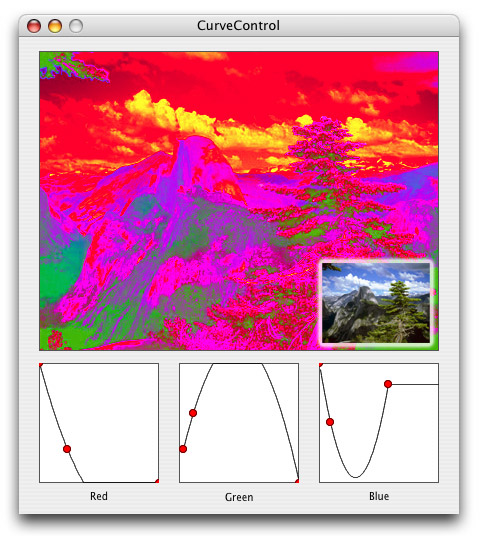
A few weeks ago a REALbasic user on the Getting Started mailing list asked about how to create a curve control like the one in Photoshop's "Curves" dialog. I had never seen anyone create one in REALbasic and it seemed like it'd be pretty easy to do, so I started making one. Now, I admit I'm not a professional Photoshop guy so when I set out creating this control I didn't realize that Photoshop actually lets you pick an arbitrary number of points to fit a curve to, so instead I made it a fixed 3 and since then I haven't rewritten it to allow more. But even so, it's still useful. I mean, how cool is that transformed image below?
Before examining the code, there are two things you need to understand about how this CurveControl works. The "physical" size of the control in the window is not the size the curve represents mathematically. That is to say, if the control is 120x120 in a window (like it is in this project) the curve does not map values from 0 to 119 or 1 to 120. That range of values is independent of the size. In our case since we're transforming the color values of an image, the range is from 0 to 255. You could also make it range from 0 to 1 since the curve values are all calculated as floating points. The other thing to note is simply how the cuve works. The bottom (x) axis of the control represents the input values. The left side of the control is 0, and the right side is the value of the MaxX property which in our case is 255. The left vertical (y) axis represents the output values, from 0 (at the top of the control, not the bottom [I didn't have time to flip the Y coordinates]) to 255 (MaxY) at the bottom. So if the line travels from top left (0, 0) to bottom right (255, 255) the image isn't transformed at all since each value along the "curve" matches input vs output. If the line is flipped upside down so it goes from bottom left (0, 255) to top right (255, 0), the image will be inverted! Ok, with that out of the way, there are three pieces to this control: 1) The math (which we'll completely ignore because you don't need to understand it), 2) the drawing of the curve and the drag points, and 3) using the drag points to manipulate the curve.
The Drawing The Drawing takes place in the Update method which is called from the Paint event as well as some of the mouse events. There are three parts to the drawing code in the Update method. The first is to draw the background (that's a piece of cake, no need to explain that), the curve, and the drag points.
Although the curve can represent any range of values under the sun (from 0 to anything that fits into a double) the canvas can only draw what fits into its width, so what we do is loop through the number of pixels that fit in the width of the canvas (the input axis) and transform those pixel coordinates (represented in the PixX variable) into the the curve coordinates (the cx value). After that transformation, the cx input value is used to calculate the cy outputvalue using the FX() function (the mathy part which actually creates the curve). cy is then transformed to its pixel value PixY and then we have the complete (PixX, PixY) coordinate in the canvas of the point on the curve it represents.
With the coordinate in hand, it simply needs to be drawn, which I've provided two ways to do. Photoshop uses pixels to draw the curve, but it will certainly result in large blank gaps between the points on the curve. To get around that, what I did was come up with a method that draws little lines between the points. This looks absolutely beautiful in all situations but one: the default position. With the line traveling from top left to bottom right, the lines don't line up correctly and wiggle a bit, but in every other case it looks great. As to which method you wish to use, it's your choice, but the code for both is provided:
The last bit of drawing is the drag points. There are a fixed number of them (3) in this project so they're all hardwired in. Each point is represented by a pair of double values (in curve coordinates, not pixel) which are then transformed into pixels. From there, the DrawPoint method is called which gives the opportunity to the subclass/instance to draw the points in a custom way (as pink squares or purple hearts, whatever) and draws the default red circles otherwise.
The Drag Points The first time the user interacts with a drag point is in the MouseDown event when the user clicks on one. So in MouseDown the first thing that happens is determining which drag point was hit, if any, by calling the PointHit method. PointHit converts the X, Y coordinate of each of the points (X0, Y0 - X1, Y1 - X2, Y2) to pixel coordinates and checks to see if the mouse location and the drag point location are within the radius of the drag point. If it is, it will return 0, 1, or 2, the constant value of the drag point (ie 0 for hitting the X0, Y0 point) and return -1 if no point was hit.
Next, the DragPoint method is called, which is where the actual change of the location in the drag points occurs. In each case of the value returned by PointHit (0, 1, 2), DragPoint will update the point's position (also limiting it so that the points can't cross over each other) or return false if there is no point currently being dragged.
After calling Change event to signal that one of the points' positions has changed, the control is redrawn and in the case of MouseDown, the event returns true so it goes on to the MouseDrag event.
MouseDrag and MouseUp are exactly the same as each other. They call DragPoint (without calling PointHit since that determines which point the user initially clicked on in MouseDown only), and then calls Change and redraws the control.
Finished So that's the CurveControl. I hope you have fun with it. Download the project.
|
 |
||
 |
 |
 |
|
 |





 |
 |
 |
||||||||||||||||||||||||||||||
 |
|
 |
||||||||||||||||||||||||||||||
 |
 |
 |
Maintained by the Staff of ResExcellence. This entire site ©1997-2006 ResExcellence
Privacy Statement? Sure we gotta Privacy Statement.
[an error occurred while processing this directive]