






 |
 |
 |
|
 |
||
 |

Articles 3D Audio Custom Controls General RB Graphics Hacks Mac OS X Menus Novelty Printing REALbasic 2005 REALbasic 2006 Registration Resources Reviews Serial Speech Sockets XML Video Resource Links News Current News February 2006 January 2006 December 2005 November 2005 October 2005 September 2005 August 2005 July 2005 June 2005 May 2005 April 2005 March 2005  REALbasic for Dummies by Erick Tejkowski  Learning REALbasic through Applications REALbasic for Macintosh REALbasic Cross-Platform Application Development 
Older files are in Stuffit 5 or greater format. Newer files are ".Zip". Download StuffIt Expander |

|
 
GET/POST Forms
The Form To Submit When submitting form data, it's simply a list of key/value pairs sent to a certain page with a form processing script, where the keys are the names of the html fields and the values are what the user types in. So how do you find the names of the fields and the page to send the request to? Look at the html of the form. The form url and type (GET or POST) will be specified in the opening <form> tag: The URL we'll send the request to is in the action attribute. Now remember, this is a URL relative to the site you're working on, so in this case it would be "http://www.realsoftware.com/listarchives/cgi-bin/namazu.cgi". The type of form is in the method attribute (GET). The field names are the in the "name" attributes of the various fields in the form. While the field values are either explicitly or implicitly the "value" attribute. By that, I mean if the field is a text field, a "value" isn't initially supplied, so you won't find a value attribute in the html. In the case of the search field we have: <input type="text" name="query" size="40"> This shows that the field name for the search field is "query", and the value will be determined by the user, unlike the description popup, where the values for the choices are given: <select name="result"> In this case, if the name of the field is "result" (and odd name, but that's what it is) and the value will either be "normal" or "short" depending on which option is selected.
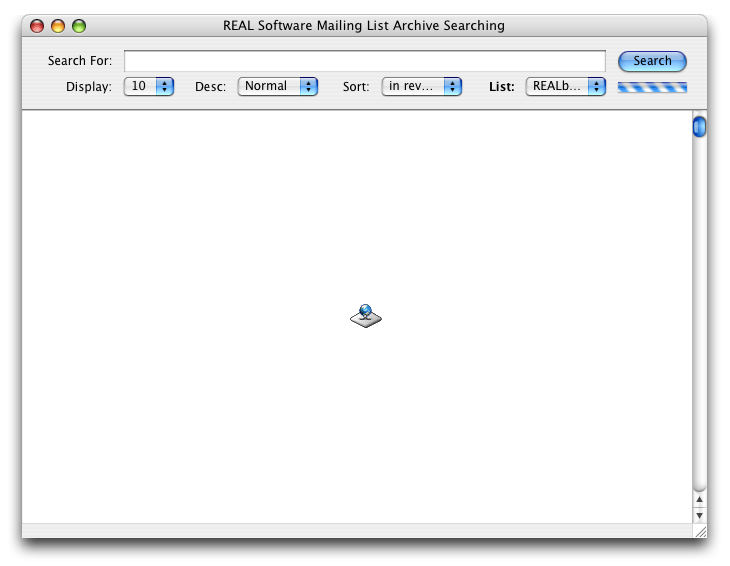
The Design
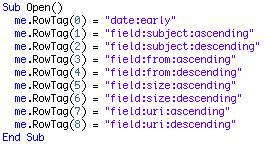
With the Display and Description popups, the form field values are exactly the same as the options listed in their popups. For example "normal" is the field value for the "normal" option in the Description popup. This makes it pretty easy when we're building the GET URL because we can take the "Text" value right out of the popup. This is different from the Sort popup though which has a different value than the text in the popup. So what we do first is specify RowTag values for each row of the popup that match perfectly with the initial value of the popup (see the finished project). We'll use these later.
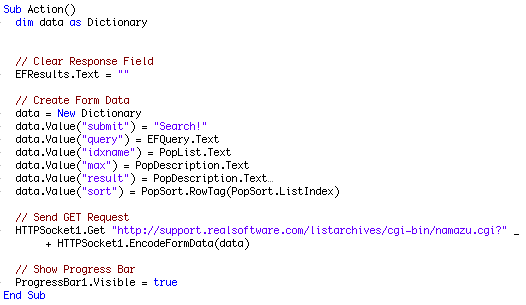
The BtnSearch Action Event After building the dictionary, you then fire off the request to the HTTPSocket, specifying the Action parameter of the form as the URL, followed by a question mark (?) which basically says "there is form data after the url", and then the form data itself. Rather than having to write the form data in a url encoded format (?submit=Search&query=blah+blah+blah&idxname=.....) you simply use the EncodeFormData method which returns the dictionary in that format for you. Very handy!
The HTTPSocket
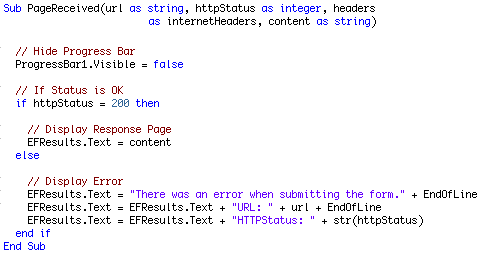
If an error happens on the server, we have to handle that in the PageReceived event (or the DownloadComplete event if we had specified a folderitem to download to in the Get method). The server will send back a status message along with whatever result comes back. The "OK" status message (everything went as planned) is "200". There is a list of all status messages on the w3 website.
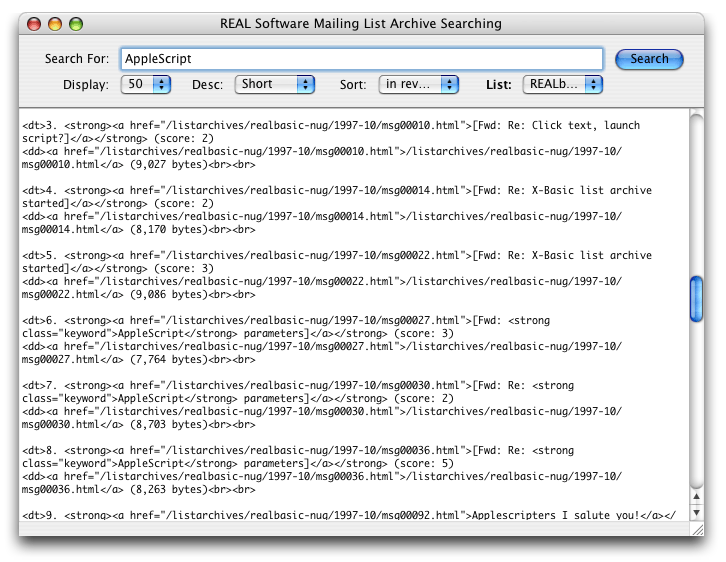
The content parameter contains the html of the resulting page, and we simply display that in the EFResults field.
Finished
|
 |
||
 |
 |
 |
|
 |





 |
 |
 |
||||||||||||||||||||||||||||||
 |
|
 |
||||||||||||||||||||||||||||||
 |
 |
 |
Maintained by the Staff of ResExcellence. This entire site ©1997-2006 ResExcellence
Privacy Statement? Sure we gotta Privacy Statement.
[an error occurred while processing this directive]