






 |
 |
 |
|
 |
||||||
 |

Articles 3D Audio Custom Controls General RB Graphics Hacks Mac OS X Menus Novelty Printing REALbasic 2005 REALbasic 2006 Registration Resources Reviews Serial Speech Sockets XML Video Resource Links News Current News February 2006 January 2006 December 2005 November 2005 October 2005 September 2005 August 2005 July 2005 June 2005 May 2005 April 2005 March 2005  REALbasic for Dummies by Erick Tejkowski  Learning REALbasic through Applications REALbasic for Macintosh REALbasic Cross-Platform Application Development 
Older files are in Stuffit 5 or greater format. Newer files are ".Zip". Download StuffIt Expander |

|
 
Fast User Switching
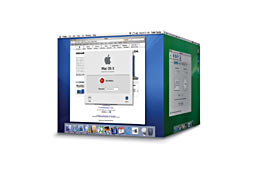
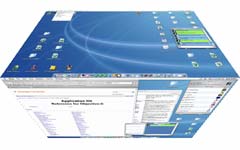
Some months ago (on my birthday as a matter of fact), Thomas McGrath on the REALbasic NUG mailing list asked how he could get the same kind of cube effect to swap images in and out of a canvas. In about an hour and a half, I came up with the basics for the 3d cube effect. I admit, it was not perfect and I was going off of some random guesses to make it worked, but the idea was there. Kevin Ballard soon after took the project I posted and spent the time to figure it out and posted his version on the web. While the version he posted literally only rotated a cube, the code he had written was better formatted. There is a difference to note here; if the face of the screen was literally rotated as if it was on a cube, the corners of the cube would extend beyond the bounds of the screen. The Fast User Switching effect actually makes the corners of the cube slide along the bounds of the screen. It's a bit hard to explain, but the latter looks far better, which is the reason Fast User Switching does it. The project here today is a modification of Kevin's project, rewritten to actually perform the Fast User Switching animation (his original project did a literal rotation), and was reorganized to be easier to use. With a one call to a single method - Run(FaceImage, SideImage, Direction, Duration) - you've got a cube effect in your application.
Design and Use In this project we simply use the KeyDown event of the window to determine which way we're going rotate, but interpreting the presses of the arrow keys. First we figure out how long we want the animation to take. Normally one second is about right, but if we want to be fancy, we can let the user hold the shift key to slow it down, much like minimizing a window, opening a folder, or selecting a window from Exposé. After that, we need to figure out which image is currently in the front. There's a window property, ImageFront as integer, which if 1 means that the "PicScreen1" image is currently visible on the front face of the cube, and if it is 2, it means "PicScreen2" is on the front. The "SideImage" parameter (the second parameter) to the Run method in Cube3dSpace is the image which will be rotated to the front. So in the case of pressing the left arrow key (Case 28), the image "Image2" is on the left side of the cube, and when we rotate the image, the left side of the cube comes to be the front. Function KeyDown(Key As String) As Boolean
Note that we also allow you to rotate the cube vertically. A special treat just for you! Also note, that this project will work on any platform Quesa runs on. If you have no idea what Quesa is, visit Quesa.org and read look on the REAL Software webpage for more information about REALbasic & Quesa.
Finished |
 |
||||||
 |
 |
 |
|
 |





 |
 |
 |
||||||||||||||||||||||||||||||
 |
|
 |
||||||||||||||||||||||||||||||
 |
 |
 |
Maintained by the Staff of ResExcellence. This entire site ©1997-2006 ResExcellence
Privacy Statement? Sure we gotta Privacy Statement.
[an error occurred while processing this directive]