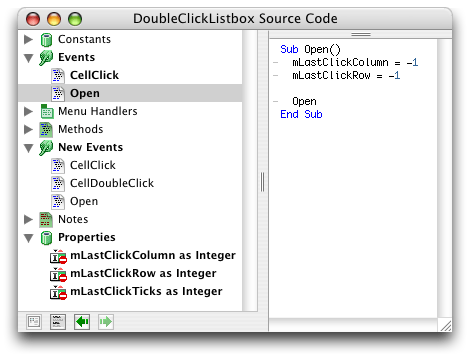
The Open Event
Well as you can see, the Open event is pretty simple. We simply set the two variables which are keeping track of the cell last clicked on (mLastClickRow and mLastClickColumn) to -1 in order to signify that no cell has been clicked yet, then we call the Open event of our subclass or instance, whichever it happens to be.
The CellClick Event
This is where all of the magic happens. The majority of the code is simply setting up Declares to get the users' specified double click time in ticks. On the Mac, GetDblTime returns the maximum number of ticks that can pass between double clicks, on Windows it returns milliseconds so we convert it to ticks, and on Linux, well I'm not sure what the Declare is so I cheated and used 30.
Function CellClick(row as Integer, column as Integer, x as Integer, y as Integer) As Boolean
dim doubleClickTime as Integer
#if TargetCarbon then
#if TargetMachO then
Declare Function GetDblTime Lib "Carbon" () as Integer
#else
Declare Function GetDblTime Lib "CarbonLib" () as Integer
#endif
doubleClickTime = GetDblTime()
#else
#if TargetMacOS then
Declare Function GetDblTime Lib "InterfaceLib" () as Integer
doubleClickTime = GetDblTime()
#endif
#endif
#if TargetWin32 then
Declare Function GetDoubleClickTime Lib "User32.DLL" () as Integer
doubleClickTime = GetDoubleClickTime() / 1000 * 60
#endif
#if TargetLinux then
doubleClickTime = 30 //???
#endif
And below, here we deterine a) whether the difference in time between the two clicks is within the maximum limit of a valid double click, and b) whether the last click and the current click were clicks on the same cell. If they were, we just call the CellDoubleClick event.
// If the two clicks happened close enough together in time
if ((Ticks - mLastClickTicks) <= doubleClickTime) and (row = mLastClickRow) and (column = mLastClickColumn) then
CellDoubleClick row, column
end if
mLastClickTicks = Ticks
mLastClickRow = row
mLastClickColumn = column
End Function
After that, we reset the current click time and cell clicked.
Finished
So that's it. It works like a charm. The most often use of this is probably to allow editing of a cell when it is double clicked. Rather than setting the cell or column type to "3" (editable), you can leave the cell selectable, but when it is double clicked, use Listbox.EditCell(row, column) in the CellDoubleClick event to make the cell editable. I hope you find a use for this; I know I have! As always, you can download the project here.