



image ResEx Logo
ResExcellence www : Powered by Google
Cell Phone Themes Icons Mighty Mouse Cursors Software Reviews Widgets & Widgets

Articles
   3D
   Audio
   Custom Controls
   General RB
   Graphics
   Hacks
   Mac OS X
   Menus
   Novelty
   Printing
   REALbasic 2005
   REALbasic 2006
   Registration
   Resources
   Reviews
   Serial
   Speech
   Sockets
   XML
   Video
Resource Links
News
   Current News
   February 2006
   January 2006
   December 2005
   November 2005
   October 2005
   September 2005
   August 2005
   July 2005
   June 2005
   May 2005
   April 2005
   March 2005


REALbasic for Dummies
by Erick Tejkowski


Learning REALbasic through Applications
by Clayton E., Crooks II


REALbasic for Macintosh
by Michael Swaine


REALbasic Cross-Platform Application Development
by Mark S. Choate


Older files are in Stuffit 5 or greater format. Newer files are ".Zip". Download StuffIt Expander
Tell us about a bad link. Thank You!

Cropping Graphics by Erick Tejkowsi
02-07-03

Printer Version


This week we'll begin a multi-part tutorial about cropping graphics with REALbasic. These tutorials will cover the basics of how to implement click-and-drag graphics selection and cropping, like you'll find in most popular graphics applications.

The tutorial emulates a Cocoa project available from Apple. As we progress through the project each week, we'll add various features to match the original example. So, go check out the original example and come back here ready for some REALbasic coding. NOTE: This demo is made with OS X in mind.

Build the Interface
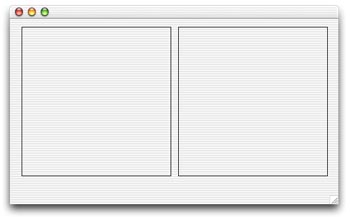
Launch REALbasic, and add two Canvas controls to Window1. Resize each one to a size of 256 x 256. You can position them anywhere in the window that you want, but if you are trying to match the Cocoa project, position them next to each other in a horizontal arrangement.

02-07-03_1.jpg (17k)

You should also add a 256 x 256 image to your REALbasic project. If you don't have an image, one accompanies the project download at the end of this tutorial. It is named scenery.

Add the Code
Double-click the Window Editor of Window1 to open its Code Editor. Choose Edit-New Property and create the following properties.

  • lastX as integer
  • lastY as integer
  • pictureDest as picture
  • pictureSrc as picture
  • startX as integer
  • startY as integer

To initialize the two Picture objects, add the following code to the Open event of Canvas1:

  pictureSrc = newpicture(canvas1.width,canvas1.height,32)
  pictureDest = newpicture(canvas1.width,canvas1.height,32)
  
  pictureSrc.graphics.drawpicture scenery,0,0
  pictureDest.graphics.drawpicture scenery,0,0

Next, enter this code in the MouseDown event of Canvas1 to begin a click-and-drag operation:

  startX = X
  startY = Y
  lastX = X
  lastY = Y
  
  return true

Then, add this code to the MouseDrag event of Canvas1 to track the drag operation:

  dim g as graphics
  
  g=pictureSrc.graphics
  
  if lastx<>x OR lasty<>y then
    
    lastX = X
    lastY = Y
    
    g.foreColor=rgb(255,255,0)
    g.drawpicture scenery,0,0
    g.drawrect startX,startY,lastX-startX,lastY-startY
    
    g=me.graphics
    g.foreColor=rgb(255,255,0)
    g.drawpicture scenery,0,0
    g.drawrect startX,startY,lastX-startX,lastY-startY
    
  end if

Next, we'll need to handle the MouseUp event of Canvas1. This code takes care of copying the selection from the source image to the destination image, which will appear in Canvas2.

  dim g,gg as graphics
  
  
  g=pictureDest.graphics
  gg=canvas2.graphics
  
  g.clearrect 0,0,g.width,g.height 
  gg.forecolor=rgb(255,255,255)
  gg.fillrect 0,0,g.width,g.height 
  
  if startX<lastX and startY<lastY then
    g.drawpicture scenery,startX,startY,lastX-startX,lastY-startY,startX,startY,lastX-startX,lastY-startY
    gg.drawpicture scenery,startX,startY,lastX-startX,lastY-startY,startX,startY,lastX-startX,lastY-startY
  elseif startX>lastX and startY>lastY then
    g.drawpicture scenery,lastX,lastY,startX-lastX,startY-lastY,lastX,lastY,startX-lastX,startY-lastY
    gg.drawpicture scenery,lastX,lastY,startX-lastX,startY-lastY,lastX,lastY,startX-lastX,startY-lastY
  elseif startX>lastX then
    g.drawpicture scenery,lastX,startY,startX-lastX,lastY-startY,lastX,startY,startX-lastX,lastY-startY
    gg.drawpicture scenery,lastX,startY,startX-lastX,lastY-startY,lastX,startY,startX-lastX,lastY-startY
  elseif startY>lastY then
    g.drawpicture scenery,startX,lastY,lastX-startX,startY-lastY,startX,lastY,lastX-startX,startY-lastY
    gg.drawpicture scenery,startX,lastY,lastX-startX,startY-lastY,startX,lastY,lastX-startX,startY-lastY
  end if

To draw the image in Canvas1, add this code to the Paint event of Canvas1:

  g.drawpicture pictureSrc,0,0

Finally, to draw in Canvas2, add this code to its Paint event:

  g.forecolor=rgb(255,255,255)
  g.fillrect 0,0,me.width,me.height
  g.drawpicture pictureDest,0,0

That's it! Choose Debug-Run to test your work.
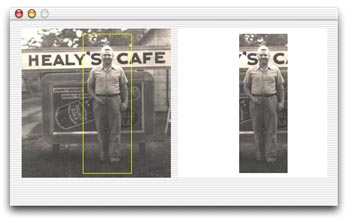
02-07-03_2.jpg (21k)

Conclusion
You can download the completed project here. We'll continue adding features to the project next week. See you then!


Cell Phone Themes Icons Mighty Mouse Cursors Software Reviews Widgets & Widgets

Maintained by the Staff of ResExcellence. This entire site ©1997-2006 ResExcellence
Privacy Statement? Sure we gotta Privacy Statement. [an error occurred while processing this directive]



