






 |
 |
 |
|
 |
||||||||||||||||||||
 |

Articles 3D Audio Custom Controls General RB Graphics Hacks Mac OS X Menus Novelty Printing REALbasic 2005 REALbasic 2006 Registration Resources Reviews Serial Speech Sockets XML Video Resource Links News Current News February 2006 January 2006 December 2005 November 2005 October 2005 September 2005 August 2005 July 2005 June 2005 May 2005 April 2005 March 2005  REALbasic for Dummies by Erick Tejkowski  Learning REALbasic through Applications REALbasic for Macintosh REALbasic Cross-Platform Application Development 
Older files are in Stuffit 5 or greater format. Newer files are ".Zip". Download StuffIt Expander |

|
 
NOTE: This project requires REALbasic 4.5 or newer! So far, you're probably most familiar with bitmap graphics, where you fill in the various squares of an imaginary grid with color. Examples of bitmap graphics include GIF, JPEG, and PICT(sometimes). Vector graphics, on the other hand, are drawings based on numerical formulas. You've seen vector files in action whenever you've viewed a pdf file in Acrobat or a drawing document in AppleWorks, or watched a Flash video on the web. Whereas bitmap graphics are a fixed size and orientation, vector graphics, with their formulaic-way of drawing, don't have the same constraints. Because of this, you can rotate and scale a vector image without loss of quality. Build the Interface Launch REALbasic and open Window1 from the Project window. To this window, add the following controls:
Arrange the interface however you'd like, but it might look like this:
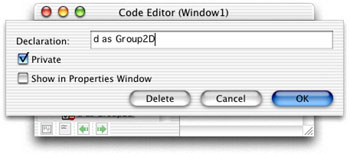
Source Code Before you begin adding code, you need to add a property to Window1. Double-click Window1 to open its Code Editor. Select the Edit-New Property menu and create a new property.
The first bit of code goes in the Open event of Window1. Next, add this line of code to the Paint event of Canvas1: g.drawobject d,250,175 Next, you'll need to create a new method. Select Edit-New Method and create a new method named Redraw. To this method, add the following code: The final step is to add some code for the rotate and zoom PushButtons. rotateButtonLeft.Action() rotateButtonRt.Action() zoomButtonIn.Action() zoomButtonOut.Action() Conclusion To test the project, select the Debug-Run menu. The demo draws a simple rectangle on the screen and lets you zoom in/out and rotate the object in both directions. As usual you can download the completed project instead of creating it by hand. Use your imagination when playing with the new vector features of REALbasic 4.5. There are many useful scenarios for using this feature, so it's a welcome addition to REALbasic. Have fun and see you next week! |
 |
||||||||||||||||||||
 |
 |
 |
|
 |




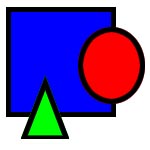 This week we'll continue examining some of the new features in REALbasic 4.5. This time, it's vector graphics! REALbasic 4.5 has some brand-spanking-new classes to give you the ability to create vector graphics in your projects.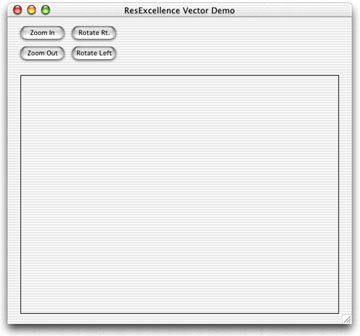
 |
 |
 |
||||||||||||||||||||||||||||||
 |
|
 |
||||||||||||||||||||||||||||||
 |
 |
 |
Maintained by the Staff of ResExcellence. This entire site ©1997-2006 ResExcellence
Privacy Statement? Sure we gotta Privacy Statement.
[an error occurred while processing this directive]