






 |
 |
 |
|
 |
||
 |

Articles 3D Audio Custom Controls General RB Graphics Hacks Mac OS X Menus Novelty Printing REALbasic 2005 REALbasic 2006 Registration Resources Reviews Serial Speech Sockets XML Video Resource Links News Current News February 2006 January 2006 December 2005 November 2005 October 2005 September 2005 August 2005 July 2005 June 2005 May 2005 April 2005 March 2005  REALbasic for Dummies by Erick Tejkowski  Learning REALbasic through Applications REALbasic for Macintosh REALbasic Cross-Platform Application Development 
Older files are in Stuffit 5 or greater format. Newer files are ".Zip". Download StuffIt Expander |

|
 
Stegonography is the discipline of hiding information in files. Today we will build a simple stegonography machine. With it you can hide a secret message within an image. Give the decoder to your friends or family and they can read your secret message. Intro If you would like to know more about the study of stegonography, the web has many resources about the topic. This introduction is a good start if this is a new topic to you. The basic idea behind stegonography is that you can hide data within various types of computer files. Since presumably no one is looking for this data in the place or manner you hid it, the data remains secret. Only those who know your method or who have a decoder can retrieve the information from its hiding place. To demostrate, we are going to hide a short message (<100 characters long) within a 100x100 image. Build the Interface and Add the Code Launch REALbasic, open Window1 and add the following items:
Next create two properties, by selecting the Edit-NewProperty menu: p as Picture r as RGBSurface Navigate to the Paint event of Canvas1 and enter the following code g.drawpicture p,0,0 Then, enter this code into the Open event of Window1. dim i,j as integer Add this code to the Action event of the EncodeButton: dim i,n as integer Finally, place this code in the Action event of the DecodeButton: dim i,n as integer Conclusion That's it! Select Debug-Run to test your work. Enter a message in the EditField and press the EncodeButton. You will be asked to save the resulting image to your hard drive. Later, press the DecodeButton to open the encoded image file and the decode the message within. Some important things to rememeber for this project:
The completed project might look something like this: 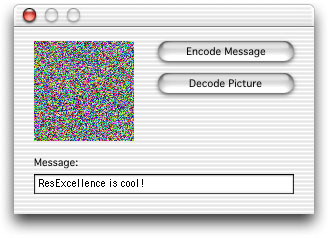
You can download the finished product here. See you next week! |
 |
||
 |
 |
 |
|
 |




 |
 |
 |
||||||||||||||||||||||||||||||
 |
|
 |
||||||||||||||||||||||||||||||
 |
 |
 |
Maintained by the Staff of ResExcellence. This entire site ©1997-2006 ResExcellence
Privacy Statement? Sure we gotta Privacy Statement.
[an error occurred while processing this directive]