






 |
 |
 |
|
 |
||
 |

Articles 3D Audio Custom Controls General RB Graphics Hacks Mac OS X Menus Novelty Printing REALbasic 2005 REALbasic 2006 Registration Resources Reviews Serial Speech Sockets XML Video Resource Links News Current News February 2006 January 2006 December 2005 November 2005 October 2005 September 2005 August 2005 July 2005 June 2005 May 2005 April 2005 March 2005  REALbasic for Dummies by Erick Tejkowski  Learning REALbasic through Applications REALbasic for Macintosh REALbasic Cross-Platform Application Development 
Older files are in Stuffit 5 or greater format. Newer files are ".Zip". Download StuffIt Expander |

|
 
This week we'll build a simple grocery list application that you can talk to. While surveying the contents of the refrigerator, tell your Mac what you need to buy at the store. It hears you and adds the item to the list. The Mac OS includes a nifty piece of speech recognition software. It's not the most accurate recognition around, but it works well enough for fun projects like this and comes stock on the Mac OS CD. Plus, it always makes Windows users jealous (and that's a good thing). Preparation Before we get started, there is a bit of preparation you need to do.
Got everything? Good. Let's build the interface. Build and Code Launch REALbasic and drag the resource file you just downloaded (named "Resources") into the project. This file contains an 'aete' resource, which permits your application to receive Apple Events. In other words, this project will be AppleScript-aware. This particular 'aete' resource adds one command to our application: AddText If you'd like to learn how to build your own 'aete' resource or add your own scriptable commands to this resource file, be sure to read this REALbasic Monthly tutorial. Next, from the Project Window open Window1 by double clicking it. Drag a Listbox and a PushButton to the interface. It might look something like this: 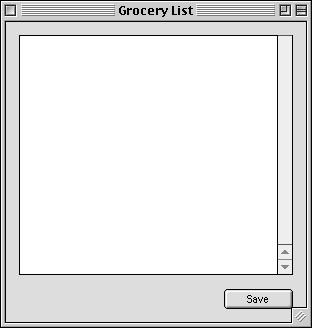
Double click the PushButton to open the Code Editor and add this code to its Action event. It saves each item from the grocery list to a text file in the same folder as the grocery list application. 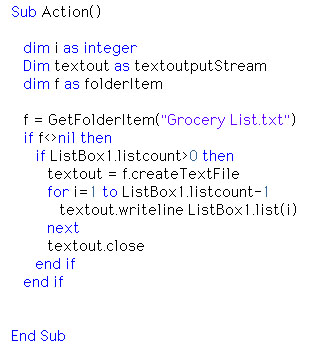
Close Window1 and create a new Class by selecting File->New Class. Name the class: App, and assign it as an Application subclass. The application subclass is where we will catch all incoming AppleScript commands. 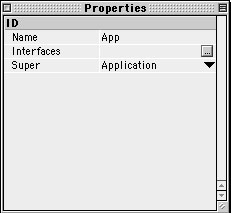
From the Project Window, open the App Class and navigate to the HandleAppleEvent event. Add the following code: 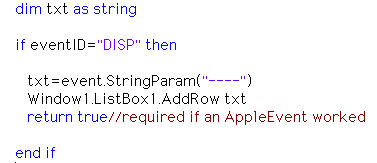
When your program receives an Apple Event from somewhere (typically an AppleScript), that Apple Event has a EventClass and an EventID. For this example, all you need to consider is the Event ID. If you open the Resources, you will find that the "AddText" command is mapped to a four digit code : "DISP" (short for 'display'). That code is the EventID. So, our application sits around minding its business, when suddenly along comes an Apple Event. If it has an EventID equal to "DISP", we will handle it. Next, we get the text that this EVent is passing to our application and place it in the variable txt. Finally, we add that text to the list and return TRUE, allowing the AppleEvent to be handled. The final step before building this application is to set our application's creator code. Select Edit->Project Settings, and change the code to 'resX'. This uniquely identifies our application and is an essential step for the AppleScript feature to work properly. AppleScript needs to know which application to send messages to, and this four digit code is how we do that. 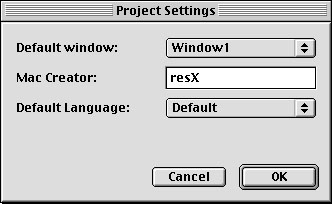
Ok, that's it! Well, almost. Go ahead and build the project, naming it "Grocery Listener". Once you've built it, launch it. As you can see, not much happens. This is because we must use an AppleScript to add data to the grocery list. Send in the Scripts! Launch Apple's Script Editor and create a simple script like this: tell application "Grocery Listener" Run the script, and if everything is working okay, the item "Carrots" should be added to your grocery list. Once you have it working, save the script as a Classic Applet. Finally, take this built script and place it in the "Speakable Items" folder (you can find it in the Apple menu). Fire up Speakable Items from the Speech control panel and you are on your way to a speech recognition grocery list. Conclusion Obviously this example is rudimentary and could be accomplished with a similar AppleScript and some word processor. The point is that you can use speech recognition in your application to perform some amazing tricks. Use this tutorial to help you dream up an interesting example and let me know about it. I'll post URLs for those you send me. You can download the application and completed project if you don't feel like working through the tutorial. See you next week! |
 |
||
 |
 |
 |
|
 |




 |
 |
 |
||||||||||||||||||||||||||||||
 |
|
 |
||||||||||||||||||||||||||||||
 |
 |
 |
Maintained by the Staff of ResExcellence. This entire site ©1997-2006 ResExcellence
Privacy Statement? Sure we gotta Privacy Statement.
[an error occurred while processing this directive]