






 |
 |
 |
|
 |
||
 |

Articles 3D Audio Custom Controls General RB Graphics Hacks Mac OS X Menus Novelty Printing REALbasic 2005 REALbasic 2006 Registration Resources Reviews Serial Speech Sockets XML Video Resource Links News Current News February 2006 January 2006 December 2005 November 2005 October 2005 September 2005 August 2005 July 2005 June 2005 May 2005 April 2005 March 2005  REALbasic for Dummies by Erick Tejkowski  Learning REALbasic through Applications REALbasic for Macintosh REALbasic Cross-Platform Application Development 
Older files are in Stuffit 5 or greater format. Newer files are ".Zip". Download StuffIt Expander |

|
 
This week we are going to break from tradition. Instead of the usual tutorial, we will take a look at some useful REALbasic tips and tricks. Tip 1 REALbasic, like any well-respected Mac app, makes interesting use of drag and drop. For example, you can drag a window (named Window1, for this example) from the the Project Window onto a PushButton in the Window Editor. When you release the mouse, the following code automatically appears in the Action Event of the PushButton: Window2.Show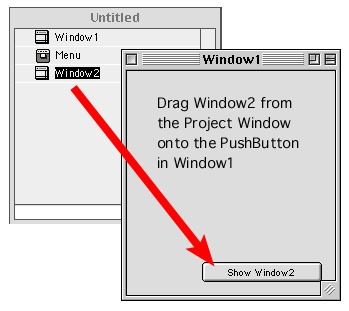
Some other drag and drop functions you can use in REALbasic:
Tip 2 If you are the musical type, perhaps you have tried out the REALbasic NotePlayer. If so, you know that to play a note you supply a note number (between 0-127) and a volume (also 0-127), like so: NotePlayer1.PlayNote(60, 127)This code plays a note (Middle C) at full volume. To stop the note, simply play it again with a volume of zero: NotePlayer1.PlayNote(60, 0)If you spend any time at all working with the NotePlayer, you'll want quick access to the note names and their corresponding note numbers. Download a quick hack that you can keep on hand for easy access to all MIDI note numbers. Tip 3 A good habit to get into: Carefully check for required hardware and software on a user's machine before attemping to use or access it. This typically involves using the Gestalt method of the Application Class (see the REALbasic Language Reference). The Mac OS identifies a variety of system characteristics using a 4-letter code (for example, QuickTime uses "qtim"). GestLab is the best source around for discovering the codes and what they do. Make sure you check it out! Tip 4 Do you spend a lot of time creating screenshots? Try using this simple MWRB app to cut down on the knuckle-busting screenshot key combinations in Mac OS 9. Tip 5 Have you ever created a REALbasic interface and managed to cover every single pixel of the background window? It can be a real pain to reselect the window without inadvertantly selecting any other control. To avoid having to move controls around just so you may reselect the window, simply press shift when you click a control. This causes the control to become deselected and its parent window to be selected in the process. Tip 6 If you use REALbasic to program for Windows, you'll appreciate this tip. Many MDI (multiple document interface) applications on Windows maximize the MDI frame window when launched. The MDI frame window is the parent window in which the applications windows open. If you would like to maximize the MDI frame window when your application launches, insert the following code in the Open event of your application class: dim result as integer |
 |
||
 |
 |
 |
|
 |




 |
 |
 |
||||||||||||||||||||||||||||||
 |
|
 |
||||||||||||||||||||||||||||||
 |
 |
 |
Maintained by the Staff of ResExcellence. This entire site ©1997-2006 ResExcellence
Privacy Statement? Sure we gotta Privacy Statement.
[an error occurred while processing this directive]