






 |
 |
 |
|
 |
||||||||
 |

Articles 3D Audio Custom Controls General RB Graphics Hacks Mac OS X Menus Novelty Printing REALbasic 2005 REALbasic 2006 Registration Resources Reviews Serial Speech Sockets XML Video Resource Links News Current News February 2006 January 2006 December 2005 November 2005 October 2005 September 2005 August 2005 July 2005 June 2005 May 2005 April 2005 March 2005  REALbasic for Dummies by Erick Tejkowski  Learning REALbasic through Applications REALbasic for Macintosh REALbasic Cross-Platform Application Development 
Older files are in Stuffit 5 or greater format. Newer files are ".Zip". Download StuffIt Expander |

|
 
Have you ever noticed that computer people like to describe colors in a variety of ways? Web developers use one format, REALbasic programmers another, and Mac OS X resource hackers use yet a third. This week's tutorial will show you how to build a color converter. Beginners should enjoy the project, because it is easy to complete. Pros can benefit too, because the tool is very useful. (I use mine daily.) Programmers have several different schemes for describing color. The web folks like to talk in hex, REALbasic programmers in integers, and the 'plist' files of Mac OS X use decimals. Below is a chart showing the color schemes and their numeric ranges.
Build the Interface This week's interface is very simple to build. Open Window1 and drag the following controls into your interface:
You may arrange your interface in any fashion you desire. The idea of the application is that a user will push PushButton1 and choose a color from the color picker. Once a color has been selected, our project will convert the color into 3 color formats:
Pictured below is a sample interface. (Note how the extra StaticText and Line controls spruce up the interface.) 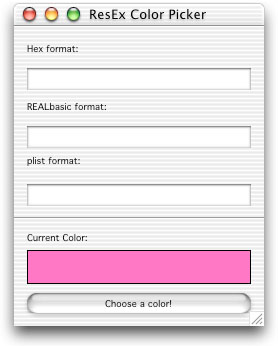
Add the Code Like the interface, the code portion of this week's tutorial is very easy to recreate. Open the Action event of PushButton1 and add the following code: Dim r,g,b as StringDim dr,dg,db as Double Dim c as Color Dim colorSelected as Boolean //set the default color for the color picker dialog c = Rectangle1.FillColor //let the user select a new color colorSelected = SelectColor(c,"Select a Color") if colorSelected = TRUE then //update the color in the interface Rectangle1.FillColor=c //******************************* // // Calculate Hex color values ($00-$FF) // //******************************* r = hex(c.red) //make sure the red hex string is two digits long if len(r)=1 then r = "0" + r end if g = hex(c.green) //make sure the green hex string is two digits long if len(g)=1 then g = "0" + g end if b = hex(c.blue) //make sure the blue hex string is two digits long if len(b)=1 then b = "0" + b end if //display color info HexField.text = r + ", " + g + ", " + b //******************************* // // Calculate REALbasic color values (0-255) // //******************************* //convert integer color values to strings r = str(c.red) g = str(c.green) b = str(c.blue) //display color info RBField.text = r + ", " + g + ", " + b //******************************* // // Calculate plist color values (0.0 - 1.0) // //******************************* //change values to decimal percentages // and convert color values to doubles dr = c.red/255 dg = c.green/255 db = c.blue/255 //convert doubles to formatted strings (i.e. with decimal points) r = format(dr,"#.00##") g = format(dg,"#.00##") b = format(db,"#.00##") //display color info plistField.text = r + ", " + g + ", " + b end if First, we allow the user to select a color using the standard color picker. On Mac OS X, it looks like this: 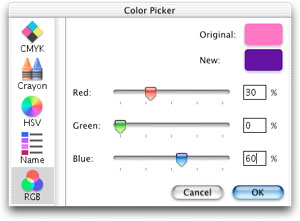
If the user selects a color, we convert the red, green, and blue values of the Color object into the three color formats: Hex, RB, and 'plist'. There is a bit more involved in the Hex conversion than the others. This is due to the fact that all numbers below 16 will return only one digit in hex. However, HTML requires double digits. The extra code tacks on a leading "0" (zero) if the string is only one character long. The REALbasic color format has a range of 0 to 255. No conversion is necessary. Finally, the 'plist' format is somewhat unique, because we must use Double type variables in this conversion. 'plist' colors fall in the range between 0 and 1. Since decimal points are involved, Double variables are required. The Format command cleans up the decimal points and puts them into a string which we then display. Test and Build That's it! To test, select Debug->Run. Once you have it down pat, select File->Build Application. This week's example is compatible with Mac OS Classic, Mac OS Carbon, and Microsoft Windows. As usual, you may: And, for the first time in this column... Microsoft Windows! |
 |
||||||||
 |
 |
 |
|
 |




 |
 |
 |
||||||||||||||||||||||||||||||
 |
|
 |
||||||||||||||||||||||||||||||
 |
 |
 |
Maintained by the Staff of ResExcellence. This entire site ©1997-2006 ResExcellence
Privacy Statement? Sure we gotta Privacy Statement.
[an error occurred while processing this directive]