Internet scripts
Do you use the Location Manager to switch your Powerbook settings between work and home? Adam Hinshaw wrote this little script to simplify the change between two Location Manager sets. It requires the Akua Sweets Scripting Addition for handling dialog boxes (not necessary but makes it a bit more hands free).
Anything dealing with the 'Net. These may be split into application-specific pages if we get enough scripts submitted.
Contents:
Toggle between two Location Manager Sets
Open URL from ircle
Use Internet Explorer as a Communicator Helper
Use Outlook Express with Groupwise 5
Set up browser cache RAM Disk
Check Eudora mail every 30 minutes
Clear AOL cache
Disconnect modem when Communicator quits
Make Communicator use a separate e-mail client
Auto-address an Outlook e-mail
Launch multiple URLs & control window placement
Create a PPP connection
Build an list of programs to quit when you disconnect
Check e-mail with Eudora, Outlook, or Emailer
I don't happen to use it, but Mark Evans wrote this AppleScript that should be of use to you if you use ircle:
What it does is launch a URL right from ircle in one of two ways. You can type "/URL TheURLHere" or just type "/URL" and a dialog box prompts you for the URL. Created to work with IE but the browser can easily be changed. Note : You must save the script as "URL" and place it in the ircle scripts folder for it to work.
on run
tell application "ircle3.0.4 US"
set MyURL to argstring
if MyURL = "" then
set Blah to display dialog "URL To Get?" default answer ""
set URLtoo to (text returned of Blah)
end if
tell application "Internet Explorer 4.5"
Activate
GetURL "" & URLtoo & ""
end tell
if not MyURL = "" then
tell application "Internet Explorer 4.5"
Activate
GetURL "" & MyURL & ""
end tell
end if
end tell
end run
David Emmons sent one of the oddest Applescripts I have ever seen. In effect, it makes Microsoft's Internet Explorer a slave of Netscape Communicator.
Now if we could only write a script to make Microsoft a slave of Apple....
Here is a script I wrote to have Communicator tell Explorer where to go to. I use Communicator by habit, but IE has a cool Web archive feature I like. The solution is this Applescript that will send IE to the site Communicator is looking at so that you can archive. With a little more work, you could even add the capabiltiy for IE to save the page by itself.
tell application "Netscape Communicator™"
set theHit to URL of window -1
end tell
tell application "Internet Explorer 4.5"
GetURL of theHit
end tell
Ryan Colley submitted these AppleScripts that allow you to use Outlook Express with GroupWise:
I work at a corporation that uses GroupWise 5 for our email and appointments package. Being that the Mac Client sucks, I wanted a way to use another mail program. I wrote the following two Apple Scripts to use in conjunction with Outlook Express.
The first will take forwarded mail from GroupWise, clean it up and strip out the Garbage.
The second will take a forwarded appointment from GroupWise, and strip out the appropriate information, and make an appointment in Palm Desktop 2.x. You may need to tweak them a little, but they work flawlessly for me. I would also be glad to help.
Some of you probably use a RAM Disk as your browser cache. Sung-Jin Kim wrote this AppleScript to rename the RAM Disk, give it a new icon, and create some folders for both Netscape and Explorer.
In order to script the changing of the icon, you need to download the Scripting Addition: Akua Sweets.
tell application "Finder"
if the "RAM Disk" is in (list disks) then
set name of disk "RAM Disk" to "Cache Zone"
-- The next line to assign an icon requires Akua Sweets
set the icon of disk "Cache Zone" to the icon for startup disk
make new folder in disk "Cache Zone"
make new folder in disk "Cache Zone"
make new folder in disk "Cache Zone"
set name of folder "untitled folder" of disk "Cache Zone" to "Netscape Cache 1"
set name of folder "untitled folder 1" of disk "Cache Zone" to "Netscape Cache 2"
set name of folder "untitled folder 2" of disk "Cache Zone" to "MS Internet Cache"
end if
end tell
Pete Mellows created this Applescript to launch Eudora and check for mail every 30 minutes.
I use it because at work we have a timed account. I'm often away from my machine, so email doesn't get checked as regularly as it should. When I'm surfing the internet I like to have Eudora Pro check my mail every 5 minutes. Eudora Pro cannot be set up to check every 5 minutes AND every 30 minutes when I'm offline.
To set it up, open to the "Settings" panel. Click on "OT/PPP MacSlip" and check both boxes. You don't want Eudora Pro to connect automatically (there is a reason for this) and you do want Eudora Pro to disconnect after checking the mail. In "Remote Access" Options, you can have connect automatically when starting TCP/IP Applications if you like, but it is not necessary. Eudora Pro bypasses this.
property checking : true
property CheckTime : 30 -- minutes til next check. Change according to taste.
on run
-- No setup required
end run
on idle
try
tell application "Eudora Pro" -- if "Eudora Pro" name exists, then launches
connect [|checking|] -- and checks mail
end tell
on error
tell application "Finder"
activate
tell application "Finder" to set app_name to application file id "CSOm" as string
select file app_name -- finds Eudora on computer, no matter what it's named
set name of selection to "Eudora Pro" -- changes name of Eudora to "Eudora Pro"
end tell
tell application "Eudora Pro" -- launches "Eudora Pro"
connect [|checking|] -- and checks mail
end tell
end try
delay CheckTime * 60 -- minutes*60 seconds
end idle
You can download the source and saved application which allows you to customize it for other email programs.
This next script was submitted by Gary Jastrzab:
Here's a simple AppleScript that will automatically clear the America Online 4.0 Browser Cache, which often takes up more than 5M of hard drive space. Placed in the "Shutdown Items" folder (in the System folder), it will "trash the cache" at the end of ever Mac session:
tell application "Finder"
set PrefsPath to the path to preferences folder as text
set AOLCachePath to (PrefsPath & "America Online:Browser Cache:cache.waf") as text
try
delete alias AOLCachePath
empty folder "Trash"
on error
end try
end tell
Jim Henderson was looking for options to automatically log off the internet when he quits Netscape Communicator. Here are two ideas:
KeyQuencer:
quit 'MOSS' -- creator code for Netscape
PPPSwitch off
Save this as an application and stick it in the Apple Menu, or assign it to a key combination.
AppleScript:
tell application "Netscape Communicator™"
activate
quit
end tell
RA disconnect
Type this into the Script Editor and save it as an Application.
If you are using the PPP control panel instead of the newer Remote Access control panel, you can end your session with the command: PPP disconnect.
Are you using FreePPP? Download the FreePPP Scripting Addition by Sebastian Kloska, and use the command: close FreePPP.
Want the new Netscape Communicator 4.5 to use another email client? Run this AppleScript, changing the creator code to match your favorite email program. Larry Kearl offers the raw scripts:
tell application "Netscape Communicator™"
register protocol "CSOm" for protocol "mailto" --Eudora
end tell
OR
tell application "Netscape Communicator™"
register protocol "MSNM" for protocol "mailto" -- Outlook Express
end tell
OR
tell application "Netscape Communicator™"
register protocol "MMan" for protocol "mailto" -- Emailer
end tell
The script may ask you to find your copy of Communicator, then it will launch it, and finally register the new email client. The next time you click on a mailto: link, your favorite email program will handle it!
If you want to go back to using the built-in emailer this little script cleanly undoes the damage:
tell application "Netscape"
unregister protocol "CSOm" for protocol "mailto:"
activate
end tell
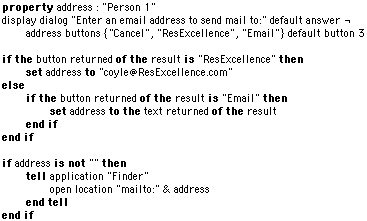
Kevin Hessel created this Applescript for you to download.
Remember back when Apple included the "Connect To..." script on your desktop? Well, this a "Mail To..." script that works basically the same way. I found that I e-mail two people more than anyone: My brother and my girlfriend. So instead of starting up Outlook Express, clicking the "New" button, typing a bit of their name and having Express fill it in for me, I created this script that defaults to my girlfriend's name, gives me an option for my brother's name, and also allows me manually type in any other name! Blammo -- directly to OE5.
Now, the best part about this, I discovered, is that you don't have to use the person's e-mail address ... you can use their REAL NAME! If OE5 stores the person's name in your address book as "Any Name <anyname@isp.com>" then OE5 will automatically recognize it if you simply type "Any Name" and then press "E-Mail."
Of course, you can also alter this slightly to make a new "Connect To..." script that will, perhaps, default to your home page, or give you the option to go to a search page!
Eric Albert reworked Kevin's script to make it recognize the email client you have selected in the Internet Control Panel. This script also stores the address that has been typed, making that the default the next time you run the script.
These scripts will launch your browser and open a new window for each of the listed URL's. They can be used as a simple way to make your browser an "off-line" reader.
To use the scripts, launch Apple's Script Editor and paste them into a new document window. Do a "Save As..." and from the popup menu select Application and check Never Show Startup Screen. You can, of course, change the URL's to your favorites.
Netscape:
tell application "Netscape Communicator" -- Make sure the name matches yours exactly!
activate
OpenURL "http://www.macnn.com" -- first window opens by default


																			make new document

																			OpenURL "http://www.macplaza.net" -- to Window 2


																			make new document

																			OpenURL "http://www.ResExcellence.com" --to Window 3
end tell
tell application "Internet Explorer 4.01" -- Make sure the name matches yours exactly!
Activate
OpenURL "http://www.macnn.com" toWindow 1

																			OpenURL "http://www.macplaza.net" toWindow 2

																			OpenURL "http://www.ResExcellence.com" toWindow 3
end tell
-- Add more if you wish
property myURLList : ¬ -- That little sidways L is a soft carriage return (option-return)
{"http://www.versiontracker.com/", "http://www.macintouch.com/", "http://www.resexcellence.com/"}
repeat with xUrL in myURLList
-- make sure that the name matches the name of your browser exactly
-- "window 0" apparently means a new window - I found this out by accident
-- this is useful as a launch script
tell application "Netscape Communicator" to OpenURL xUrL toWindow 0
end repeat
-- All of the below can be deleted if you don't have a preference to your window size
-- and the positions of your windows
-- this works best as a script application because you can have the script
-- set window positions as it quits when done processing the above URLs
-- but I thought I'd just provide the basics if it is of interest
tell application "Netscape Communicator"
activate
set xNum to 1
-- below finds out how many windows are open in case there are lots of
URLs
set theWindows to list windows
repeat with xWin from 1 to (count theWindows)
-- first number is position from left edge of screen
-- second number sets position from under the menubar
-- third number sets window height
-- fourth number sets window width
-- this can vary depending on monitor and resolution, personal preference
if xNum is in {1, 3, 5, 7, 9, 11, 13, 15} then
set position of window xWin to {10, 40, 450, 600}
else
set position of window xWin to {80, 40, 450, 600}
end if
set xNum to xNum + 1
end repeat
end tell
The following script will dial into your ISP, provide a user name and password, and even provide a verbal notice when connected.
on run
RA connect address "555-1212" user name "coyle" password "12345" with show status
say "Connection Complete"
end run
While older connection scripts use PPP connect, under MacOS 8.5, you should use RA connect and the additional show status command. This way you won't loose the status/progress dialog box.
If you have Macintalk installed, the line say "Connection Complete" will be spoken after the connection is complete.
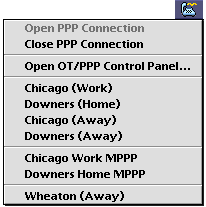
You can create multiple scripts for each dialup number and location you use. Save them as Applications with the box "Never Show Startupscreen" checked. Stick them in the Apple Menu, or in PPPMenu, and you'll never be more than a menu choice away from connecting to the net.
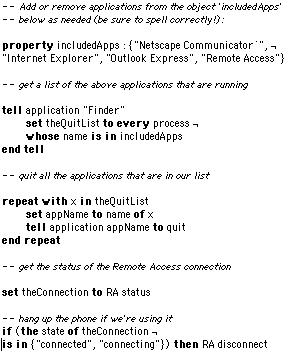
Dave sent this Applescript that gives several excellent examples of how to build a list and take actions on the list.
Here is an Applescript that I wrote for quitting a list of internet applications and hanging up the phone if it's in use. Just modify the 'includedApps' list for the programs you use. Thanks to Michael Askew for his script, which gave me the idea to look for a list of programs that may be running (I had been using a script that quit each specific program).
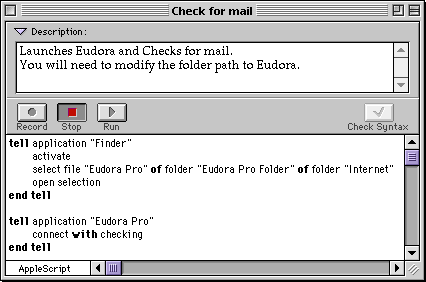
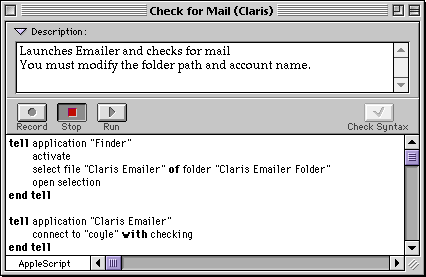
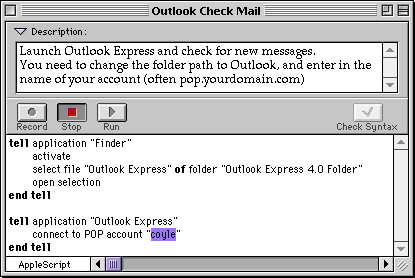
Dropping this little script into your Apple Menu allows you to launch an email program and check for mail.
You can download the two versions of this script and open them in Script Editor to modify them.
To have the Script Editor find the path to your email program, open a new script (command-N), and click the Record button.
While in Record, open the folder your email program is in, and launch it. Switch back to the Script Editor and Stop recording. You can then Copy/Paste the path into the provided script as shown below.
Eudora Version:
Claris Emailer Version:
Outlook Version:
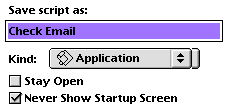 Once you have changed the folder path to your email program and changed the account name, use Save As... to resave the script with the following parameters:
Kind: Application
Check: Never Show Startup Screen
You now have a double-clickable application that will launch, or switch to your email program, and check for mail!
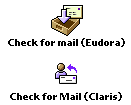
If you really want to spice up your script, open the email application in ResEdit, then the icl8 icon resources, and copy/paste a cool icon into your little script!
Back to the Archive