






 |
 |
 |
|
 |
|
 |
 |
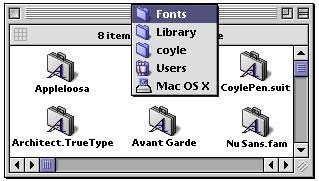
X-Tips Want to use your Classic TrueType fonts under MacOS X? Every user has their own font folder in which to place fonts. MacOS X gladly uses standard MacOS Classic TrueType fonts without any conversion. If you are on a multiuser MacOS X machine, place the fonts in System-->Library-->Fonts for them to be available to all.
Jason Sears asked a very interesting question regarding MacOS X and long file names. How are they supported? There is no information yet on Apple's site, but this is what I discovered with a little experimentation. MacOS X supports long file names. Very long - up to 255 characters, but only the first 150 are visible on the desktop when an icon text box is selected. If you use the File Inspector (Get Info), you can scroll with the arrows to see an entire name.
When an icon is not selected, only the first 18 characters of a name are visible.
But what happens if you view that filename under MacOS 9? Only 31 characters are displayed and the truncated characters from MacOS X are converted to some form that eludes me.
I imagine that after the release of MacOS X, Apple will post a TIL outlining these changes. The other day we were talking about how long file names in MacOS X were truncated in MacOS 9. Carsten Klapp sends this explanation:
John_g sent two tips for the Finder in MacOS X:
Jared Pinkham was the first to tell me that holding Option also makes this change in the Shutdown dialog box. I still like last week's method the best since it can all be done without a mouse and with one hand. (Last week's tip)
This site has a little tutorial on modifying TexEdit to edit the hidden 'dot' files under MacOS X. MacOS X Apps is a new site with in depth info on software for the newest OS. This is... OSXS Page is oddly named, but a good source for MacOS X info. Many readers recently sent this, but Charles Saeger was the first:
Jan Van Boghout was wondering...
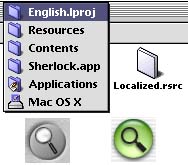
Jan, in Sherlock2 under MacOS 9, those buttons are stored in icns resources. Their size is 48x48. Under the MacOS X version of Sherlock, the buttons are also icns resources, but because all the info is in the data fork of the Localized.rsrc file. Take a look at this previous icon edit to learn how to copy the data fork to the resource fork.
Once you have converted a copy of Localized.rsrc, open it in Iconographer to copy and paste the new Aqua buttons into the older Sherlock2. One more thing to watch for: in the newer program, the icons are in the 128x128 section of the icon data, so when you copy/paste the icons and masks, you will copy from the 128 box, but paste into the 48 box.
Just open them in an image editing program, and customize as Nick Mason did in the clock face on the right.
iCab has released a new version of their perpetually beta web browser! This time they have included a MacOS X version that works great. If I understand correctly, since the MacOS X version also launches under MacOS 9, then it is a Carbon application, not Cocoa. Still, every application that runs without booting Classic is a big plus!
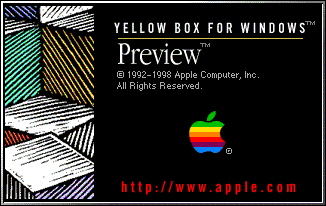
Nick Mason says, "I was just poking about in my MacOS X partition (through MacOS 9), and found something very interesting in the Preview.app bundle. Have a look at the file "previewSplashScreen.bmp" in the Resources folder of the Preview.app. Interesting, no?"
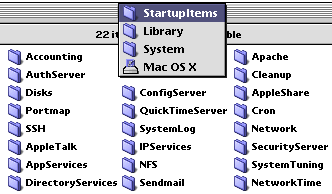
I suspect it's left over from a very early Rhapsody release, but still you never know what the future may hold... To aid in trouble shooting the MacOS X system, you can hold the "V" key during startup. Instead of the pretty boot panel, you're see pages of diagnostic text scroll down the screen. You know the text items that race by on the Boot Panel when MacOS X is starting up? Micah Lanier found their location.
Each of the folders in the location shown above contains a file called StartupParameters.plist. This file is a script that's run at the start of that service. The text that is displayed over the Boot Panel is visible in the script:
You can change the start sentence, and it will be displayed at boot time. I must admit that these text strings are displayed for a much shorter period of time than the text elements under MacOS 9, but if it has any value, you will now know where to find them. Akio sends this tip for Internet Explorer under MacOS X:
Stavros Karatsoridis weights in with more info on installing new software under MacOS X:
Many readers have written to tell me of a patch for the Screensaver in MacOS X that activates the password protection option. The company that created the patch, Public Access Software is a reputable company, and I'm sure that the patch works as advertised, but this brings up an important issue that Mac users. What has made the Mac platform so historically secure is the lack of a command line. By default, that also meant no ability to telnet into a MacOS 9 system. All this has changed under MacOS X. This is a true multiuser system that can be accessed remote as easily as you can load this web page. Mac users will now have to be more careful when installing software, especially software that must be installed as root. As I said, Public Access Software is a reputable company, but imagine someone else not quite so ethical. A patch applied as root to activate the ScreenSaver password could also turn on the telnet daemon (if it isn't already), and provide themselves with a root access account on your computer. Right now, someone out there is looking to write the first killer virus for the MacOS X platform. My opinion is that you should only apply security updates that are provided by Apple. You should always be sceptical of any software that requires you to be logged in as root. Just to reiterate, I do not in any way suspect Public Access Software of having anything but good intentions with their patch, but I believe all Mac users should be aware of the security risks that are possible with MacOS X, or any multiuser OS. Sky O'Mara sent ResEx these simple instructions for using Airport Networking under MacOS X. (Continued...) How to Change the New System Icons in MacOS X. With the arrival of MacOS X beta came big beautiful 128 x 128 icons that scale in size all the way down to 16 x 16. While you can still change most individual icons by pasting a replacement into the Get Info window (now called The Inspector), how do you change the Trash, default folder, and other System-wide icons? This tutorial will show you how. (Continued...) David Butler has come up with a way to get more Finder features to (mostly) function under the Classic environment in MacOS X. This includes popup windows, Finder windows (but not desktop icons), and a bunch of other stuff. This is experimental and I haven't tried it, so be sure to work on copies. Last update, I mentioned David Butler's little trick to get more Finder features out of Classic under MacOS X. Several readers emailed to mention something surprisingly easy. Just go to your Classic MacOS System Folder and double-click on the Finder! It launches, adding Popup windows, dragging between X and Classic Finders windows, and a few other tricks. I only recommend this as an experiment of what is possible. How practical or stable the system is with the addition Finder running has yet to be seen. After my recent mention of running ping from the command line, Ronald Guest wanted you to know about NetProbe in the GrabBag folder. It includes ping, whois, traceroute, finger and so on. The letter arrived in my mailbox on Friday. The words were comprised of individual letters cropped from a variety of magazines and newspapers. A randsom note? No, something much more sinister...
Mike Orticari reminds me to mention that a very good resource concerning Mac OS X Beta tips and tricks (many of which are applied through the terminal) is Epicware. Although the page states that the tips are for MacOS X Server most work fine under MacOS X Beta Eric Peyton, the webmaster, is also the developer behind Fire, the AIM client for MacOS X. You know how when you log into MacOS X as a new user you get the Quantum Foam desktop? Sure you can change it in the Control Panel, but if you want to change the default forever (or at least until the next System install), Aaron Eiche found the file.
The file is in the directory pictured above. It's in a Quicktime format, but you can convert any picture with Quicktime's PictureViewer, if you have QT Pro. Just match the name and format, and replace the original. With all this talk about the pico command line text editor, I mentioned that the included MacOS X TextEdit couldn't save files as plain text. M. Schultz came over to spank me with,
Sorry. It was a momentary lapse of reasoning. You can put the whip away now..
Replace the Login Screen in MacOS X If you would like to customize the screen that greets you for your user name and password, it's very easy. The original screen is 400 x 320 and because of button and box placement, I would keep any replacements the same size. (Continued...) Replace the Boot up Screen in MacOS X In MacOS X, instead of a MOSS (MacOS Startup Screen), there is the BootPanel.pdf. Located in the directory pictured below, this pdf image file is 353 pixels wide by 264 pixels high. Like a MOSS, the BootPanel displays a progress bar and text while the computer boots. (Continued...)
There are two new BootPanel replacements in the Archives. Maybe it's because my System and Finder are hacked, but no matter how I arranged my Extensions, I couldn't get Classic to load consistently under MacOS X. Plus, I like BeHierarchic over Apple Menu Options, and I like to leave Software Update and File Sharing disabled. The solution was to install a clean MacOS 9 on the HFS partition I normally use for sharing with LinuxPPC. In this new clean Preferences Folder, I put aliases to the true preferences from my main MacOS 9 System Folder. Now Classic is a breeze. Making the rounds on the internet is an Applescript titled MacOS Downloader. Don't kid yourself, it's the "666" SevenDust C Virus. Because the MacOS X uses invisible partitions, even if someone wanted to, you couldn't make an image available for download. Tired of the MacOS X Empty Trash warning? Hold the Option key while making the menu selection to suppress it. Unfortunately, adding it to the command key combination doesn't work. If you Command-click an item in the Dock, it opens the folder containing the original item. Multiple network settings in MacOS X Edward F. O'Rourke says you absolutely CAN use multiple network settings in MacOS X
Change the Look of the Dock in MacOS X. Thanks to a tip from Graham Brown, we have this little trick for changing the color and pattern in the MacOS X Dock. Ironically, because of the stricter file permissions in MacOS X, this edit is easier to perform when booted into MacOS 9. There are three pdf files that are used to create the look of the dock. They can be viewed in Acrobat, and opened and edited in Photoshop. You'll find them by following the path below. You'll need left, middle, and right.pdf. (Continued...)
|
 |
||
 |
 |
 |
|
 |




 After last week's tip on Restarting in MacOS X, I was barraged with emails reminding me the holding the Option key turns Shutdown to Restart in the Special Menu.
 Fun with the Clock. Many readers have written to point out how easy it is to modify the Clock face in MacOS X. The two faces, analog and digital, are TIFF images than can be found in the location shown below.



 |
 |
 |
||||||||||||||||||||||||||||||
 |
|
 |
||||||||||||||||||||||||||||||
 |
 |
 |
Maintained by the Staff of ResExcellence. This entire site ©1997-2006 ResExcellence
Privacy Statement? Sure we gotta Privacy Statement.
[an error occurred while processing this directive]