






 |
 |
 |
|
 |
 |
 |

Create Custom Terminal Files David Dear sent this great tip for creating custom Terminal preference files. Open a terminal window and use the Preferences to set the font, colors, window name, etc. From the Shell menu, save the settings in the /Library/Terminal folder. You can open this file in the Property List Editor (from the Developer's Tools) or in any text editor. Listed below are just some of the settings you can modify. Adjust the opaqueness for this window only
Execute a command line program.
* Note: to execute a command, hit return after the command line. Notice how </string> is on another line. One interesting command I couldn't get to work was the following. If any ResExers stumble upon the syntax, drop me a line:
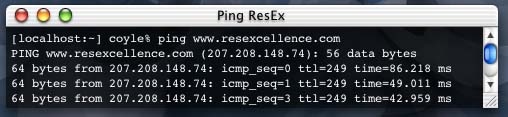
These custom .term files are handy for running programs in a small window. For example, to get the terminal featured in the image below, I launched a custom terminal preference file that opens a small window and pings the ResEx server to make sure it's up and running.
You can then make aliases of the terminal files, add custom icons, and place them in handy places for execution. |
 |
|
 |
 |
 |
|
 |




 |
 |
 |
||||||||||||||||||||||||||||||
 |
|
 |
||||||||||||||||||||||||||||||
 |
 |
 |
Maintained by the Staff of ResExcellence. This entire site ©1997-2006 ResExcellence
Privacy Statement? Sure we gotta Privacy Statement.
[an error occurred while processing this directive]