
Using New Features From REALbasic 2005!
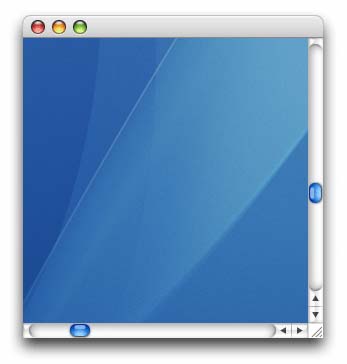
In this tutorial, we're going to use a new feature from REALbasic 2005 which is the new MouseWheel event in RectControl (it was also added to the Window class). We'll create a simple scrolling canvas and then add the code so that it responds to the scroll wheel event and scrolls both vertically and horizontally.
New MouseWheel Event
Function MouseWheel(X as Integer, Y as Integer, Delta as Integer) as Boolean
The parameters X and Y are the mouse coordinates relative to the control that has received the event. The parameter Delta is the number of scroll lines the wheel has been moved, as defined by the operating system. This value is positive when the user scrolls down and negative when scrolling up. Return True to prevent the event from propagating further into parent controls and, eventually, the window.
The Code
First, add a new class called ImageView and add these properties to it:
HorzScrollbar As CustomScrollBar
VertScrollbar As CustomScrollBar
Protected mXOffset As Integer
Protected mYOffset As Integer
Image As Picture
The Horz and Vert scrollbar properties are the scrollbars shown around the image view. The CustomScrollBar class won't be discussed here since it's quite simple. All it does is use the ValueChanged event to determine the difference between the previous and current value. The two offset properties are the offsets the image is drawn at, and Image is obviously the image itself.
Sub ResetScrollbars()
  HorzScrollbar.Maximum = Image.Width - me.Width
  VertScrollbar.Maximum = Image.Height - me.Height

  if HorzScrollbar.Value > HorzScrollbar.Maximum then
    HorzScrollbar.Value = HorzScrollbar.Maximum
  elseif HorzScrollbar.Value < HorzScrollbar.Minimum then
    HorzScrollbar.Value = HorzScrollbar.Minimum
  end if

  if VertScrollbar.Value > VertScrollbar.Maximum then
    VertScrollbar.Value = VertScrollbar.Maximum
  elseif VertScrollbar.Value < VertScrollbar.Minimum then
    VertScrollbar.Value = VertScrollbar.Minimum
  end if
End Sub
This method simply sets the maximum value of the scrollbars to be the size of the remaining portion of the image which isn't visible. It also checks the value of the scrollbar and makes sure it's in the proper range. This is because REALbasic doesn't seem to do this sometimes and can cause some really bad jumping in the image and it's quite ugly.
Sub ScrollX(delta as Integer)
  mXOffset = mXOffset + delta
  if mXOffset > HorzScrollbar.Maximum then
    mXOffset = HorzScrollbar.Maximum
  elseif mXOffset < 0 then
    mXOffset = 0
  end if
  Refresh
End Sub

Sub ScrollY(delta as Integer)
  mYOffset = mYOffset + delta
  if mYOffset > VertScrollbar.Maximum then
    mYOffset = VertScrollbar.Maximum
  elseif mYOffset < 0 then
    mYOffset = 0
  end if
  Refresh
End Sub
These two methods are called by the corresponding scrollbars. All they do is set the new offset the image should be drawn at and then refreshes the canvas so it redraws like so:
Sub Paint(g As Graphics)
  if Image <> nil then
    g.DrawPicture Image, 0, 0, g.Width, g.Height, mXOffset, mYOffset, g.Width, g.Height
  end if
End Sub
Note that we draw a chunk of the image from the given offset at 0, 0 in the canvas.
Function MouseWheel(X As Integer, Y As Integer, Delta as Integer) As Boolean
  if Keyboard.AsyncShiftKey then
    ScrollX Delta * HorzScrollbar.PageStep
    HorzScrollbar.SetValue HorzScrollbar.Value + Delta * HorzScrollbar.PageStep
  else
    ScrollY Delta * VertScrollbar.PageStep
    VertScrollbar.SetValue VertScrollbar.Value + Delta * VertScrollbar.PageStep
  end if
End Function
And here is the scroll wheel event. First we check to see if the shift key is held down. If it is, then we do a horizontal scroll, otherwise we do a vertical scroll. We multiply the delta value by the PageStep value because otherwise the canvas just scrolls too slowly and that's not what it should do.
Finished
That's all there is to it. The rest of the (very simple) code is in the project, and you can look at it there. So now that you can see how to handle mouse wheel events (it's not rocket surgery), go nuts with supporting it in your app. Mouse wheels rock, and if you don't have one, you should get one. Then you'll want it implemented too and you'll write it. :^) As always, you can download the project here.