
File Property Viewer
In this tutorial we'll have a single window application that has a file list on the left and properties on the right. This tutorial will demonstrate how to allow dragging of any file into the list and editing some of its properties.
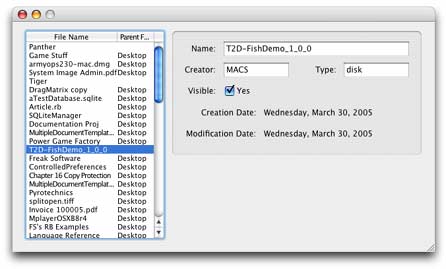
The ListBox
This is actually a pretty simple example so there won't be much to it. The first part is to get the file drag and drop working. To do this, we first have to tell the listbox to accept file drops of any kind (????) by using the AcceptFileDrop method of the RectControl class.

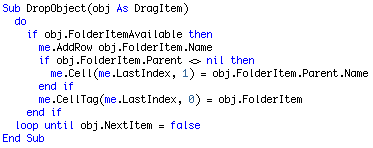
Then, in the DropObject event, we loop through all received DragItems (by using obj.NextItem untitl it returns false) and check to see whether there is a FolderItem available. If so, we add a row to the list that accepts the file, and puts the name of the parent folder into the second column. We then set the CellTag (a helpful per-cell property that programmer's can use to store anything they want along with the cell) to the FolderItem object for that file.
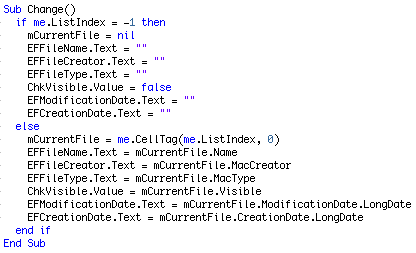
After setting up a binding to manage the state of the GroupBox and it's child controls (hold Cmd-Shift and drag from the ListBox to the GroupBox and select the only available binding) we add a "mCurrentFile as FolderItem" property to hold the currently selected folderitem object in the Listbox.

In the ListBox's Change event we either empty the controls if the ListIndex is -1 (meaning there is no selection in the list) or we populate it with the values of the currently selected file as well as set mCurrentFile to that file's FolderItem object, as retrieved from the CellTag property of the file name's cell.
At this point we have a working file property viewer, but it doesn't allow any editing. Below is an example of how to edit a FolderItem's property, in this case, the file's name. Using the KeyDown event we test to see if the key pressed was either the return key (chr(13)) or the enter key (chr(3)), and then if the current file is not nil as well. Technically we don't need the latter part since if the user is typing in the field there must be a selection since it would be disabled otherwise, but if this were in the TextChange event, then it'd be necessary. After that, we simply set the FolderItem's property to the value in the text field.

Finished
As I said, this a simple tutorial but it does show you how to manage dragged files in a Listbox which is often used in many programs. As always, you can download the project here.