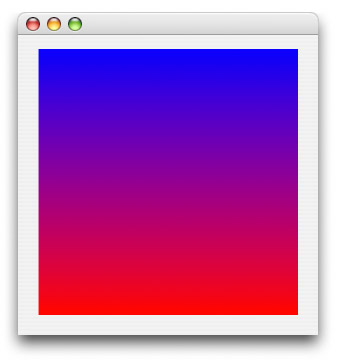
Drawing a Gradient
There are four very simple parts to the code in this project. 1) choose your starting and ending colors, 2) a loop which iterates for each step of the gradient, 3) the algorithm to determine the color for each step of the gradient, and 4) draw the gradient! Take a look at the code below. Lines 5 and 6? We pick our colors. Yay! Lines 10 and 19? The loop for each step (each vertical pixel). Yay! Lines 13-15? We pick our the color of the current step. Yay! Line 18? We draw the step of the gradient. Yay!
Sub Paint(g as graphics)
dim i as integer, ratio, endratio as Double
dim StartColor, EndColor as Color
// Pick our colors
StartColor = RGB(255, 0, 0)
EndColor = RGB(0, 0, 255)
// Draw the gradient
for i = g.Height DownTo 0
// Determine the current line's color
ratio = (i/g.Height)
endratio = ((g.Height-i)/g.Height)
g.ForeColor = RGB(EndColor.Red * endratio + StartColor.Red * ratio, EndColor.Green * endratio + StartColor.Green * ratio, EndColor.Blue * endratio + StartColor.Blue * ratio)
// Draw the step
g.DrawLine 0, i, g.Width, i
next
End Sub
The Finished Product
That's all there is to it! I know it was a pretty short tutorial compared to some others I've done. Sue me! :^) On average they're longer than Erick's! lol. I just thought this up a few days ago anyway. I've never drawn a gradient before. I'm trying to imagine how you would do completely dynamic radial and angled gradients. That'd be cool. Well, with what's above you can easily do simple gradients like the Finder does in the Places sidebar. Anyway, you can download the project here.