
Draggable Metal Windows
One of the new things in Mac OS X (well, actually it started with QuickTime 4.0) is the thing called a "metal window." A shiny brushed-metal appearing window which loosely alludes to the idea of a physical object (see the Aqua HIG.) One of the attributes of a physical object is that you can grab it from anywhere and move it (with the exceptions of scolding hot irons) which has carried over in to the implementation of metal windows in Mac OS X. That is, you can drag them from anywhere in the window instead of just the title bar. Unfortunately, REALbasic doesn't have this feature built in. Why? I'm not entirely certain having never seen the code, but I'm sure it has to do with the way REALbasic handles events. So anyway, that's what we're going to set out to do; create a draggable metal window. No metal window shouldn't not not not be draggable! (I think I got that right.)
Design
Okay, it's really simple. (Just like last week!) Create a new class named DragMetalWindow with a super of Window. You can't set properties of a Window subclass like you can of a Window instance (because classes don't have property values!) so this will actually work for any kind of window. Mac PC, metal, document, you name it. Add three properties to the class: FirstX as Integer, FirstY as Integer, and HandleMouseDown as Boolean. From there, add copies of the existing mouse events:
In the MouseDown event of the window we'll need to capture the inital (X, Y) position of the mouse click. Then when the MouseDrag event fires (after returning true in the MouseDown event so that the MouseDrag event is called) we'll calculate the difference between the old point and the initial point, and then move the window based on that. Other than that, we'll handle the events correctly so that it works seamlessly with existing code.
The MouseDown Event
As stated above, we first save the mouse coordinates relative to the window's origin (0, 0). We then call the MouseDown event of the window instance and store the returned boolean into the HandleMouseDown property. When HandleMouseDown is False, we won't send MouseDrag and MouseUp events to the window instance, but we will when it is true. This mimicks the existing functionality.
Function MouseDown(X As Integer, Y As Integer) As Boolean
// Save Initial Coordinates
FirstX = X
FirstY = Y
// Call Instance Event
HandleMouseDown = MouseDown(X, Y)
// Start Drag
return true
End Function
The MouseDrag Event
Here we calculate the difference between the mouse movements (x - FirstX) and (y - FirstY), then we move the window that much by adding it to the existing Left and Top values. The if statement below that makes sure that the top of the window never goes under the menubar. Recall that Screen(0) always refers to the monitor with the menubar and 22 is the height of the menubar. After that, we call the MouseDrag event of the instance only if it was requested by the instance returning true in the MouseDown event.
Sub MouseDrag(X As Integer, Y As Integer)
// Move Window
self.left = self.left + (x - FirstX)
self.top = self.top + (y - FirstY)
// Keep Window onscreen
if self.Top < Screen(0).AvailableTop + 22 then
self.Top = Screen(0).AvailableTop + 22
end if
// Call Instance Event
if HandleMouseDown then
MouseDrag(X, Y)
end if
End Sub
The MouseUp Event
Here all we do is call the MouseUp event when desired.
Sub MouseUp(X As Integer, Y As Integer)
// Call Instance Event
if HandleMouseDown then
MouseUp(X, Y)
end if
End Sub
The Finished Product
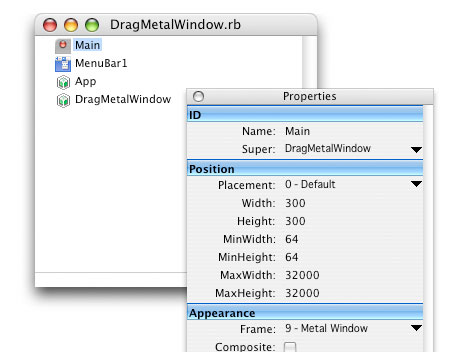
That's all there is to it. Set the window super class to DragMetalWindow of any window in an existing project and test it out! You can download the project here.
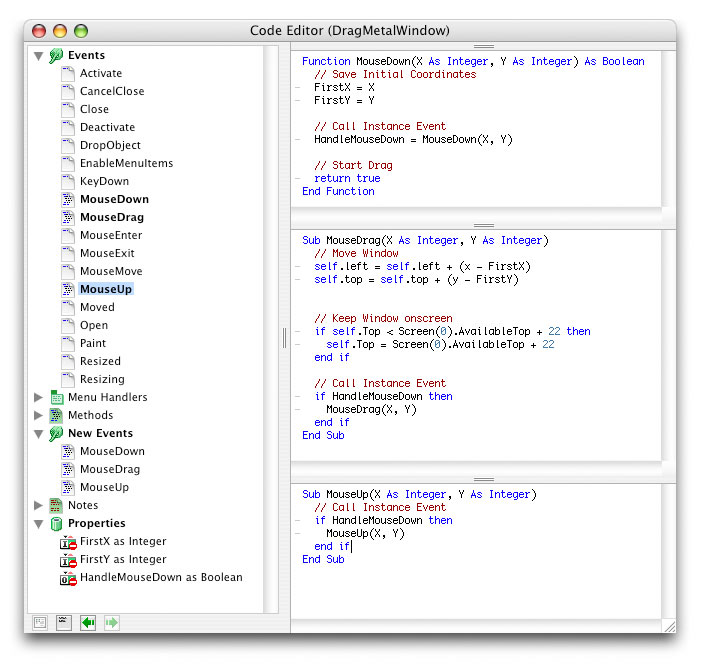
(Click on the image for a full view of the class)