This week we'll look at a significantly more advanced topic: PDF creation. In past years, I've tinkered with building PDF by hand using REALbasic. After many head-scratching hours, I managed to tackle text and simple drawing in a PDF document. Ever since I posted that code, though, I've been inundated with emails asking how to embed images in a PDF document. Well, I finally got off my duff and whipped up this week's example. This project is not your usual REALbasic tutorial on ResExcellence. It's decidely more complex and requires a lot of research on your part if you want to understand how it really works. If you don't care and just want to use it, it's pretty easy to adapt the code for use in your own projects. For any serious PDF hack, the Adobe web site should be your first stop. There, you can download a PDF (naturally) copy of the PDF specification. It is an extremely long document (Remember Steve Job's scrolling demo last week at WWDC? He was scrolling through this very spec.) and quite technical in nature. Don't fret if you don't understand it all. You probably won't. The basic premise behind the structure of PDF documents is the idea of an object. An object, much like an HTML tag, must adhere to a set of rules about its format. The PDF spec describes these objects in full detail. You can download one of my earlier PDF examples to see how the objects are strung together in a PDF file. It is a very touchy format in that the having the slightest thing off can result in an invalid (and often unviewable) PDF file. This can be very aggravating for the fledgling PDF newbie. Be patient. Creating PDF files by hand is a tedious task. If you happen to be an owner of Adobe Acrobat (not just the Reader), you're in luck. Your PDF hacking job will be much easier. Why? Because sometimes when you are piecing together your own PDF files, the format is very close to correct, but something subtle is off by a character or two. Whereas Acrobat Reader or Preview.app will puke on the file, Acrobat can sometimes repair the file for you. Not only is this good for viewing with the Preview, but it has an added side benefit. You can then open that repaired file in a text editor like BBEdit and compare the output with a copy of the file that hasn't been repaired. Within seconds you can often tell where you went wrong. Just a little tip from someone who's been there. ;)
Create PDF Documents with JPEG Images by Erick Tejkowsi
06-27-03
The Interface and the Code
Because this week's example is so elaborate, we won't be discussing how it works. It's just too involved. You are free to look at the code to see how I did it. It ain't pretty and it might not make a lick of sense to you if you are unfamiliar with the PDF spec. You've been warned.
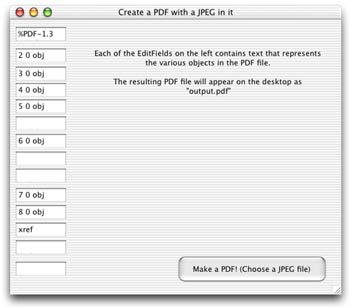
The interface consists of a bunch of EditFields. Each of these EditFields contains pre-written text. This text defines the various objects in the PDF file. The code in the Action event gives the user the chance to select a JPEG file. Then, it extracts information about that image. Using that info, the code concludes by constructing the PDF file. It does this by writing the various objects to a file with JPEG image info interspersed where appropriate. It's not the prettiest code, but it works. Hopefully it will give some folks a nice debugging tool for playing with PDF output themselves.
Conclusion
That's it for this time. The last couple weeks we covered some basic topics (text files, FolderItems), so I decided that this week you deserved a change of pace. If this one is way too tough for you, rest assured we'll return to simpler territory in coming weeks. Download the code for this week's project here. See you next time!