
 Have you ever wondered how all those neat iPod utilities work? This week we'll continue our multi-week tutorial about using REALbasic to have some fun with your iPod. This week we'll finish up by showing how to view system information about a connected iPod.
If you'd like to follow along with this week's project, download a copy of last week's finished project and open it with REALbasic. You can also go back and read the original tutorial in case you missed it.
Enhance the Interface
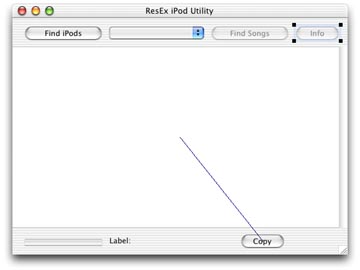
Open Window1 and add a PushButton labeled "Info" to it. Uncheck the Enabled property of the button. The updated Window1 interface looks like this:
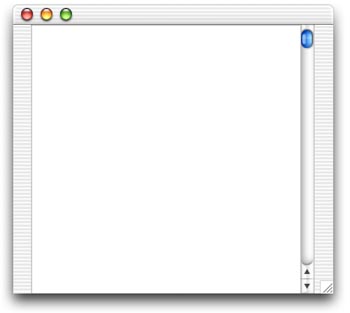
Next, create a new window by selecting File-New Window. This window will function as a drawer, so change its Frame property to "Drawer Window". (REALbasic 5.1 required). Open the new window (named Window2) and add an EditField control to it. Resize the EditField and its MultiLine property checkbox in the Properties window. Here's what my Window2 looks like:
Add the Code
Last week we added code to thread the iPod discovery and showed you how to copy files from the iPod. This week, we'll look at how to access some important system information. Like previous editions of this tutorial, this one is very simple. It turns out that each iPod stores its system information in a hidden text file. All you have to do is open the text file, read in its contents, and display it in a controll like our EditField. Basic stuff here. One small addition is that we'll want the drawer to open if its closed, and close if its open.
First, we'll want to enable the "Info" button when an iPod is found. Double click PushButton1 and locate this line of code
PushButton2.enabled=TRUE
Add one line of code immediately after this PushButton2 code to enable PushButton4.
PushButton2.enabled=TRUE
PushButton4.enabled=TRUE
Next, add the following code to the Action event of PushButton4.
  dim f as folderItem
  dim textin as textinputStream
  dim s as string

  if draweropen then
    //close the drawer
    window2.close
    draweropen=false
  else
    //find the system info
    f = iPods(PopupMenu1.listindex + 1).child("iPod_Control").child("Device").child("SysInfo")
    if f<>nil and f.exists then
      textin = f.openastextFile
      s = textin.readall
      textin.close
      //open the drawer
      window2.showWithin self,2
      window2.editField1.text = s
      draweropen=true
    end
  end if
As you can tell from this code, the system information is found in the file MyiPod/iPod_control/Device/SysInfo. One other new item is the ShowWithin method. When you call this for a Drawer window, it behaves as a drawer. The number 2 indicates that it will open on the right edge of its parent window.
Conclusion
That's it! Choose Debug-Run to see your work. Don't forget to mount an iPod before you test it, otherwise this project won't do much. Your Mac doesn't have FireWire, but the one in the other room does? You can always share an iPod over the network just like any other hard drive. Download the code for this week's project here. See you next time!