
This week we continue with out multi-part tutorial about cropping graphics with REALbasic. These tutorials will cover the basics of how to implement click-and-drag graphics selection and cropping, like you'll find in most popular graphics applications. This week we'll add a splash of color and delve into transparent graphics.
The tutorial emulates a Cocoa project available from Apple. As we progress through the project each week, we'll add various features to mimic the original Apple example. So, go check out the original code and come back here ready for some REALbasic coding. NOTE: This demo is made with OS X in mind.
Augment the Interface
Launch REALbasic and open a copy of last week's project. Add a PopupMenu control to Window1. Click the Edit button in the InitialValue property of PopupMenu1 in the Properties window. In the dialog that appears, add the following words (each on its own line): Red, Green, Blue. You can position the control anywhere in the window that you want. Here's what mine looks like.
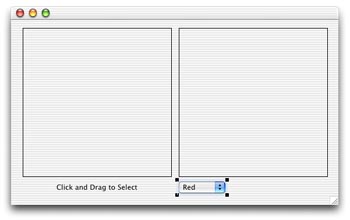
That's it for the interface enhancements, so let's move on to the code.
Add the Code
Double-click the Window Editor of Window1 to open the Code Editor. Choose Edit-New Property and create one new property.
Next, choose Edit-New Method and create a new method named: DrawMask. As you might have guessed, this method will draw the mask picture. First, the code selects a color based on the Popupmenu1 selection. Then, it fills in the Picture with a solid rectangle. Finally, using the Mask property of the Picture object, the code fills in the Picture with a transparent rectangle. ( using RGB(192,192,192) )
pictureMask = newpicture(canvas1.width,canvas1.height,32)
select case popupMenu1.listindex
case 0
//red
pictureMask.graphics.foreColor = rgb(255,0,0)
case 1
//red
pictureMask.graphics.foreColor = rgb(0,255,0)
case 2
//blue
pictureMask.graphics.foreColor = rgb(0,0,255)
end select
pictureMask.graphics.fillrect 0,0,canvas1.width,canvas1.height
pictureMask.mask.graphics.foreColor = rgb(192,192,192)
pictureMask.mask.graphics.fillrect 0,0,canvas1.width,canvas1.height
Add this code to the Open event of Window1 initialize the new Picture:
//prepare Mask image
DrawMask
Then, add the same code to the Change event of PopupMenu1 to change the mask when the user selects a new color:
//PopupMenu1.Change
DrawMask
Next, change the existing code in the MouseDrag event of Canvas1 to track the drag operation using the new mask:
//Canvas1.MouseDrag
dim g as graphics
g=pictureSrc.graphics
if lastx<>x OR lasty<>y then
lastX = X
lastY = Y
g.foreColor=rgb(200,200,200)
g.drawpicture scenery,0,0
g.drawrect startX,startY,lastX-startX,lastY-startY
g=me.graphics
g.foreColor=rgb(200,200,200)
g.drawpicture scenery,0,0
if startX<lastX and startY<lastY then
g.drawrect startX,startY,lastX-startX,lastY-startY
g.drawpicture pictureMask,startX+1,startY+1,lastX-startX-1,lastY-startY-1
elseif startX>lastX and startY>lastY then
g.drawrect lastX,lastY,startX-lastX,startY-lastY
g.drawpicture pictureMask,lastX+1,lastY+1,startX-lastX-1,startY-lastY-1
elseif startX>lastX then
g.drawrect lastX,startY,startX-lastX,lastY-startY
g.drawpicture pictureMask,lastX+1,startY+1,startX-lastX-1,lastY-startY-1
elseif startY>lastY then
g.drawrect startX,lastY,lastX-startX,startY-lastY
g.drawpicture pictureMask,startX+1,lastY+1,lastX-startX-1,startY-lastY-1
end if
end if
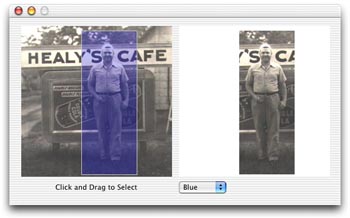
That's it! Choose Debug-Run to test your work. Click and drag in the image on the left side of the window to view a cropped version on the right side.
Conclusion
You can download the completed project here. We'll continue adding features to the project next week. See you then!