
 Did you know that your Mac OS X installation has some informative calendar trivia built-in? In the /usr/share/calendar/ folder, you'll find a handful of files that hold useful tidbits of information about holidays, computers, history, and more. This week, we'll look at how to search through the data in those files.
This demo is a shameless ripoff of a cool tip at Dr. Mac's site. Visit his site to see the original tip and come back here when you're done.
Build the Interface
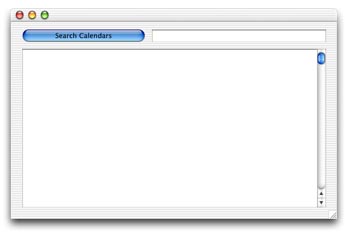
To create the interface for this project, open Window1 and add a PushButton, a Listbox, a single-lined Editfield named searchField, and a multi-lined Editfield named EditField1. Arrange the interface to your liking. Mine looks like this:
Add the Code
The code for this week's example is really simple. In fact, it's merely an altered sample from the built-in documentation in REALbasic.
Dim s As Shell
s=New Shell
If TargetCarbon then
s.execute "cat /usr/share/calendar/* | grep "+searchField.text+" "
If s.errorCode=0 then
EditField1.text=s.result
else
EditField1.text="Error Code: "+Str(s.errorCode)
end if
end if
searchField.setfocus
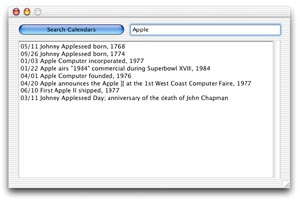
When you do a search with this little utility, make sure to only enter one word at a time. If you want to search for multiple words, you need to modify your execute string to include additional grep statements. Again, check out Dr. Mac's site to see how he searches for "Apple" and "founded" at the same time. Here's the results after searching for Apple.
05/11 Johnny Appleseed born, 1768
09/26 Johnny Appleseed born, 1774
01/03 Apple Computer incorporated, 1977
01/22 Apple airs "1984" commercial during Superbowl XVIII, 1984
04/01 Apple Computer founded, 1976
04/20 Apple announces the Apple ][ at the 1st West Coast Computer Faire, 1977
06/10 First Apple II shipped, 1977
03/11 Johnny Appleseed Day; anniversary of the death of John Chapman
Conclusion
That's it for this week. As usual, you can download the completed project instead of typing it in. See you next week!