
 To continue our examinination of the new features in REALbasic 4.5, we'll look at Virtual Volumes this week. If you've ever needed to store different kinds of data in one file, REALbasic's Virtual Volumes are for you!
NOTE: This project requires REALbasic 4.5 or newer!
The new VirtualVolume feature of REALbasic is easy to learn, quick to code, and is a pretty handy tool for your next REALbasic project. The VirtualVolume class lets you store multiple files in one file. This is somewhat like the disk images that you may have used in the Finder. Since REALbasic 4.5 gives you this feature across all of its target platforms (OS9, OSX, and Win32), we'll build today's example using the Classic Mac OS.
Build the Interface
Launch REALbasic and open Window1 from the Project window. To this window, add the following controls:
| Control Type | Control Name | Other Properties |
| PushButton | PushButton1 | |
| PushButton | PushButton2 | |
| EditField | EditField1 | ReadOnly=TRUE |
| EditField | EditField2 | ReadOnly=TRUE |
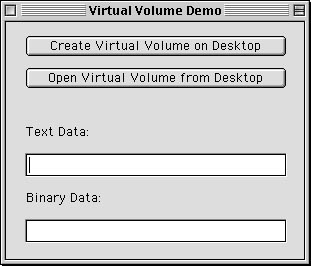
Arrange the interface however you want. It might look like this:
Source Code
That's it for the interface, now it's time to add some code. The code we'll add goes in the Action event of PushButton1 and PushButton2. First, PushButton1:
dim f,root,textfile,numberfile as folderItem
dim v as virtualVolume
dim textout as textoutputStream
dim numout as binaryStream
dim d as date
f=DesktopFolder.Child("Resex Virtual Volume")
v=f.createVirtualVolume
if v<>nil then
//we have a virtual volme, so let's find it's root
root = v.Root
//create folderitems for the items
//we will add to the virtual volume
textfile = root.child("My Text")
numberfile = root.child("My Date")
if textfile<>nil then
//create a text file on the virtual volume
textout = textfile.createTextFile
//add some text to it
textout.writeline "This is text on my virtual volume."
textout.close
end if
if numberfile<>nil then
d=new date
//using a generic binary file type here
//that we didn't even have to define
//in the file types dialog
numout = numberfile.createbinaryFile("")
//store the day, month, and year
numout.writelong d.day
numout.writelong d.month
numout.writelong d.Year
numout.close
end if
end if
Then, it's time for PushButton2
dim f,root,textfile,numfile as folderItem
dim v as virtualVolume
dim textin as textinputStream
dim binin as binaryStream
dim s as string
f=DesktopFolder.Child("Resex Virtual Volume")
//now open the virtual volume
v=f.OpenAsVirtualVolume
if v<>nil then
//we have a virtual volme, so let's find it's root
root = v.Root
//create folderitems for the items
//we will retrieve from the virtual volume
textfile = root.child("My Text")
numfile = root.child("My Date")
if textfile<>nil and textfile.exists then
//create a text file on the virtual volume
textin = textfile.openasTextFile
//read the text from it
editfield1.text=textin.readline
textin.close
end if
if numfile<>nil and numfile.exists then
//get the date from the virtual volume
binin = numfile.openasbinaryFile(FALSE)
if binin<>nil then
//day
s = str(binin.readlong)+"."
//month
s = s + str(binin.readlong)+"."
//year
s = s + str(binin.readlong)
editfield2.text=s
binin.close
end if
end if
end if
As you can tell, there isn't much to learn here, but there is much to gain. Creating a VirtualVolume requires use of the new "CreateVirtualVolume" method of the FolderItem class. Once you have a VirtualVolume, you find it's root using the "Root" method. From there, it's standard REALbasic code.
Conclusion
To test the project, select the Debug-Run menu. The demo creates a VirtualVolume on the desktop and adds two files to it. Clicking the other PushButton will retrieve the data from the VirtualVolume. As usual you can download the completed project instead of creating it by hand. Use your imagination when playing with the new VirtualVolume features of REALbasic 4.5. There are many useful possibilities for using this feature:
The cool part about the VirtualVolume is that you don't have to create your own weird file formats. You can put information together into one file using the standard text and binary file operations that you already know. Neat! Have fun and see you next week!