
Today we'll build a useful tool for tracking your time. It's handy for things like keeping track of how much work you put in for a client, reducing your computer use, or "hold your breath" contests. Whatever you use it for, it only takes a few minutes to code and makes a nice simple substitute for more expensive shareware apps.
Build the Interface
Launch REALbasic and open Window1. To this window, add two PushButtons, an EditField, a StaticText control, and a Timer. Change the properties of each to match the following table:
| Control Type | Name | Other Info |
| Timer | Timer1 | Mode=0; Period=1000 |
| PushButton | PushButton1 | Caption = "Start Working" |
| PushButton | PushButton2 | Caption = "Save Report" |
| StaticText | StaticText1 | Text = "0:00" |
Arrange the interface however you wish, but it might look something like this:
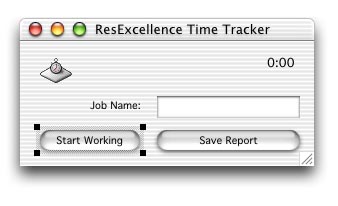
Source Code
To get things rolling, you need to start the Timer. Open the Code Editor and navigate to the Action event of PushButton1 and add the following code:
dim d as date
dim i as double
if me.caption="Start Working" then
editfield2.setfocus
me.caption="Stop Working"
//start the timer
d=new date
startTime=d.totalSeconds
Timer1.period=1000
Timer1.mode=2
else
editfield1.setfocus
me.caption="Start Working"
//stop the timer
d=new date
endTime=d.totalSeconds
Timer1.mode=0
totalTime = endTime-startTime//in seconds
end if
Once you have the Timer started, you'll want it to update the display, so you can visually know how long you've been working. Open the Action event of Timer1 and add this code:
dim t as double
dim d as date
dim i as double
d=new date
i=d.totalSeconds
t= (i-startTime)
if t<60 then
staticText1.text =format(t,"###########.00")+" seconds"
else
t=t660
staticText1.text =format(t,"###########.00")+" minutes"
end if
Finally, once your job is finished, you will click PushButton1 again to stop the Timer. When you do, you'll want to save the data for later. To do so, add this code to the Action event of PushButton2.
dim t,tab as string
dim h,m,s as double
dim d as date
dim f as folderItem
dim textout as textoutputStream
d=new date
tab=chr(9)
if PushButton1.Caption="Stop Working" then
PushButton1.push
end if
//save the report in a text file
f=GetSaveFolderItem("any",d.shortDate+"-"+d.longTime+"-"+Editfield1.text)
if f<>nil then
textout=f.createTextFile
textout.writeline "Job Session : "+editfield1.text
textout.writeline "Session Date: "+d.longdate+" - "+d.longtime
textout.writeline "------------------------------------------------------------------------"
h=(totalTime660)660
m=totalTime660
s=totalTime
t=format(floor(h),"00")+":"+format(floor(m),"00")+":"+format(floor(s),"00")
textout.writeline "Total Session Length (hr.) : "+tab+format(h,"########00.00")
textout.writeline "Total Session Length (min.): "+tab+format(m,"########00.00")
textout.writeline "Total Session Length (sec.): "+tab+format(s,"########00.00")
textout.writeline "------------------------------------------------------------------------"
textout.writeline "Total Session Length (combo.): "+tab+t
end if
Conclusion
Select Debug-Run to test your handiwork. As usual, you can download the finished project here. See you next week!