
The REALbasic 4.5 development cycle is really starting to heat up! Among various improvements, REALbasic 4.5a9 adds significant new QuickTime functionality to the mix. This week we'll take a look at some of these new REALbasic 4.5 QuickTime features, focusing primarily on sound. We'll build a simple audio player, add real time reverb effects, and give users the option of saving the result. Try to do that with iTunes!
Introduction
Before you get started, you will need to download a copy of REALbasic 4.5a9 or higher. Keep in mind that REALbasic alpha releases are works in progress. You shouldn't rely on them for professional development. The features and appearance of pre release versions can change at any time. Always back up your projects when using REALbasic alpha releases. Since we will be working with existing media files this time (e.g. mp3, aif, wav, mov, etc...), it would be a good idea to make back up copies of these files as well. You don't want an errant REALbasic to wreak havoc on your only copy of that Kajagoogoo tune you snagged from LimeWire. In other words, take the usual ResEdit precautions: always keep a back up!
Build the Interface
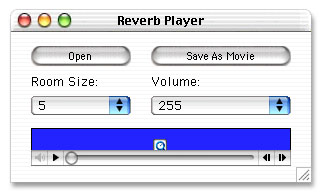
Launch REALbasic and open Window1. To this window, add the following controls:
| Control Type | Control Name | Control Properties |
| PushButton | OpenButton | Caption="Open" |
| PushButton | SaveButton | Caption="Save as Movie" |
| PopupMenu | RoomSizePopup | ListIndex=4; InitialValue=1,2,3,4,5,10,20,30,50,etc... |
| PopupMenu | VolumePopup | ListIndex=3; 0,64,128,255,512 |
| MoviePlayer | MoviePlayer1 |
Arrange the interface however you wish. It might look something like this:
Source Code
Before we get started with the code, we need to do a few preliminary tasks. First, select the Edit-File Types menu. In the File Types dialog, add these two file types:
| Name | Mac Creator | Mac Type |
| any | ???? | ???? |
| video/quicktime | TVOD | MooV |
Next, double click Window1 to open the Code Editor. Select the Edit-New Property menu to create the following 3 properties:
Okay, now we're ready for some code. Add the following code to the Action event of OpenButton:
dim i as integer
dim f as folderItem
dim trackCount,sndTrackIndex as integer
dim foundOne as boolean
f=GetOpenFolderItem("any")
if f<>nil then
e = f.openEditableMovie
e.SaveOnClose=FALSE
//load the player
//with this movie
MoviePlayer1.movie = e
//find a soundtrack
//trackCount = e.TrackCount
trackCount = e.TrackCount
foundOne = FALSE
if trackCount>0 then
for i=1 to trackCount
if e.track(i).MediaType="soun" then
foundOne=TRUE
sndTrackIndex=i
//force ourselves out of the loop next time
i=trackCount
end if
next
end if
if foundOne then
sndTrack=e.SoundTrack(sndTrackIndex)
reverb = nil
reverb = sndTrack.Get3D
if reverb=nil then
//no 3D settings in this track
//so we'll add them
reverb = new QT3DAudio
end if
reverb.SourceMode=1
reverb.RoomSize = val(RoomSizePopup.text)
//attach the 3D info to the soundTrack
sndTrack.set3D reverb
//set the sndTrack's volume
sndTrack.volume = val(VolumePopup.text)
else
MsgBox "No SoundTrack in this file"
return
end if
end if
Next, navigate to the Action event of the SaveButton and add this code:
dim exportMovie as editableMovie
dim destTrack as QTSoundTrack
dim f as folderItem
f=GetSaveFolderItem("video/quicktime","WithReverb.mov")
if f<>nil then
//create a new movie to hold the reverb track
exportMovie=f.CreateMovie
//add a new soundtrack to the movie
destTrack = exportMovie.NewSoundTrack
//copy the soundtrack from the source soundTrack
//to the new soundTrack
destTrack.InsertSoundTrackSegment sndTrack,0,sndTrack.duration,0,TRUE,TRUE
//add a QT3DAudio object to the SoundTrack
destTrack.set3D reverb
end if
The final step is to add some functionality to the two PopupMenu controls. To the Change event of RoomSizePopup, add the following code snippet:
reverb.roomsize=val(me.text)
sndTrack.set3D reverb
Then, add this snippet to the Change event of VolumePopup:
if sndTrack<>nil then
sndTrack.volume = val(me.text)
end
Conclusion
That's it! To test, select Debug-Run. Press "Open" to load your favorite audio file. Since we left it open-ended (i.e. file type="any"), you can load many common audio formats (mp3, aif, wav, mov). Once the audio is loaded, adjust the room size (in meters) to your liking and press "Save" to save the result as a movie. You can download the finished project here. Have fun and see you next week!