Creating Your Own Appearance Accents
Brad Matter tipped me off about some CLUT's in the Appearance Manager that he felt were related to the Accent Colors.
This week, I'll show you how to add Accent Colors to the Appearance Manager.
It's not a replacement for Kaleidoscope, but if you like to run a lean System, or like the Platinum Appearance, but wish you had a few more color options - you're gonna like this hack!
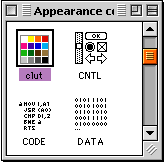
Open a copy of the Appearance Manager control panel in ResEdit, and find the clut resource. (Make sure you open the control panel, not the Appearance extension.)
The color combinations used in the Accent Colors are stored in here.
Open the cluts with a double-click.
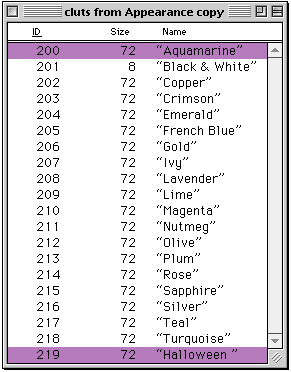 On the left are all the cluts for the Apple supplied Accents. Feel free to open them up and study the way the spectrum of colors is laid out. On the left are all the cluts for the Apple supplied Accents. Feel free to open them up and study the way the spectrum of colors is laid out.
To create a new Accent, select one of the existing ones and duplicate it using Command-D.
The duplicate will be given ID number 128.
Select the new ID 128 and get info on it with Command-I.
Change the ID number to 219 (so it comes after the Apple Accents in the list), and give it a new name.
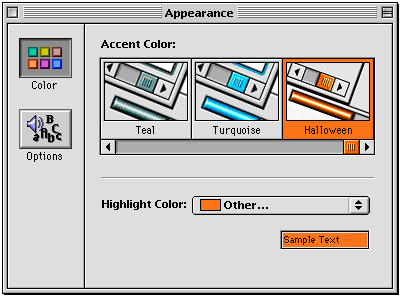
As shown, I'm going to create a holiday Accent called, "Halloween"!
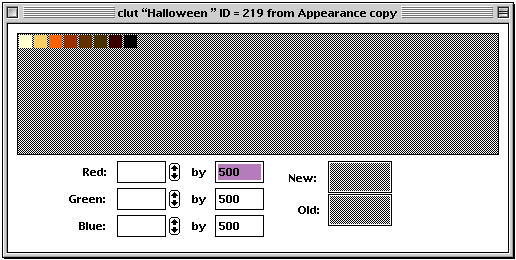
Pictured above is an open clut ID. I've already edited the colors to my choices. It edit the colors, double-clicking on each color square opens the standard Apple color wheel. Select your colors in 8 bit mode, so you won't have any dithering at the lower resolution.
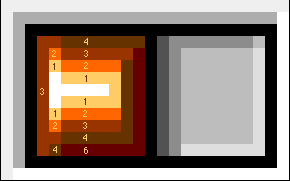
Referring to the clut colors in the ID as 0 through 7, use the following three graphics as templates to determine where the colors are mapped.
The Progress Bar Template
 |
The Button Template
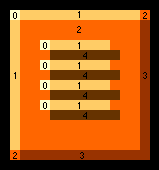 |
The Menu Template
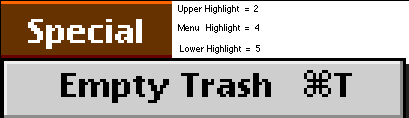 |
Once you have chosen your colors and closed the clut resource, you'll need to add a graphic so the Accent will show up in the Appearance Manager.
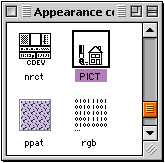 Find and open the PICT Find and open the PICT
resources with a double-click.
Below are the pictures representing the Accent Schemes. They are paired with the cluts by using identical ID numbers. Using the same technique you followed for cluts, make a duplicate of a PICT ID and renumber and rename it to match your clut.
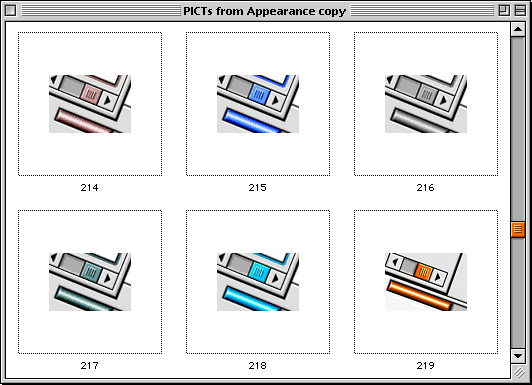
Since I felt like showing off, I cut together a little PICT (ID 219) showing the colors of my Accent. If you want to save yourself the trouble, duplicate an Accent with colors close to yours and simply rename it. You'll know what it is.
Once your picture and clut and done, save your work and quit ResEdit. The nice thing about these Accents, is that you don't have to restart the computer to see them. In fact, I edited my copy of the Appearance Manager while Halloween was the active Accent and never crashed.
Here's my new Accent in the Appearance Manager.
 |
Wouldn't it be great if some nice programmer wrote a little shareware utility to simplify this process? I'd buy it.
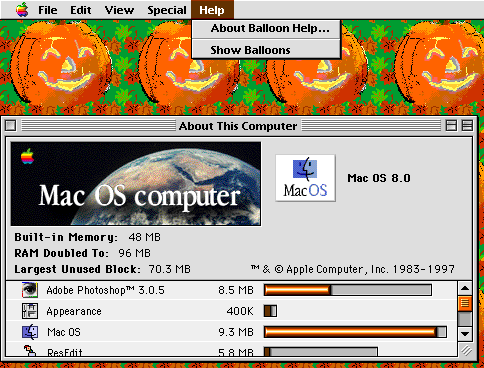
The Finished Acccent Color
 |
template graphics are ©1997 Michael Coyle and may not be reproduced without premission

|


