Change the Windowshade sounds in the Appearance Manager.
 If you use Kaleidoscope, you can visit Clixsounds and download dozens of Windowshade replacement sounds. But what if you don't run Kaleidoscope? If you use Kaleidoscope, you can visit Clixsounds and download dozens of Windowshade replacement sounds. But what if you don't run Kaleidoscope?
Here's what you need to replace the Windowshade sounds that are stored in the Appearance Extension:
How to install the Sound Editor
- After unstuffing, open the snd editor in ResEdit.
- In the System Folder, Preferences Folder, open the ResEdit Preferences (no need to make a copy).
- In the snd editor window, select all the resources and copy them to the clipboard.
- Switch to the ResEdit Preferences window and Paste them in. Answer Yes to the dialog box.
- Save your work and Quit ResEdit.
The Sound Editor is now ready to use.
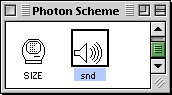 I chose the Photon sound for my replacement. The sound resources are stored inside the Agent Audio Replacer application. I chose the Photon sound for my replacement. The sound resources are stored inside the Agent Audio Replacer application.
To get the sounds out, open the Replacer in ResEdit and find the snd resources. Open them with a double-click.
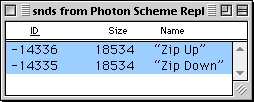 There are two ID's. There are two ID's.
Select them both and copy them to the clipboard.
You can now close the Replacer Application.
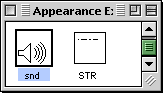 Open a copy of the Appearance Extension with ResEdit and scroll down to the snd resources. Open a copy of the Appearance Extension with ResEdit and scroll down to the snd resources.
Open them with a double-click.
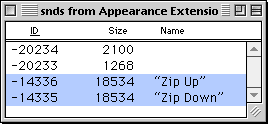 Paste in the Clixsound resources from the clipboard. Paste in the Clixsound resources from the clipboard.
Your window should look similar to the one on the left.
Double-click on both of the new sounds, and use the popup menus so the settings match the graphic as shown below:
Sound Format = HyperCard
Command = soundCmd
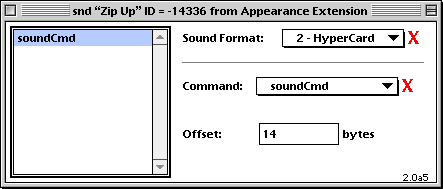
Once you have made the changes, you may close those windows.
Next, delete the original Windowshade sounds:
ID# -20234 = down sound
ID# -20233 = up sound
On the two remaining replacement sounds, from the File menu select "Get Info...", and change the ID to match the up/down ID, and check the System Heap box, as shown in the graphic below.
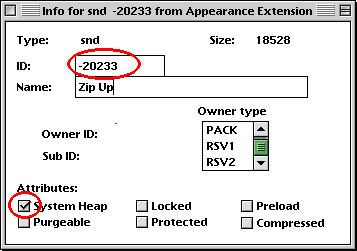 When finished, you can close the info windows. When finished, you can close the info windows.
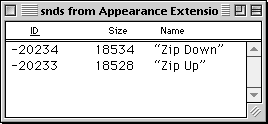
Your snd window should look similar to the one on the left.
If it does, you're all done.
Save your work and quit ResEdit.
Replace the old Appearance extension with the new one and restart you computer. To hear the new sounds, be sure to check the box in the Appearance Manager! |


