

|
|
Adding Finder Command Keys is OS 8
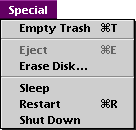
Under System 7, I added keyboard commands for Empty Trash and Restart. The locations of these resources are a little different under OS8.
In my example this week, we will add those two items shown above, but you could add a command key equivalent to any menu item if you hunt around a little.
 Using the Duplicate command under the File menu, make a copy of the Finder and leave it in the System Folder. I have my reasons for doing it this way which I'll explain later. Using the Duplicate command under the File menu, make a copy of the Finder and leave it in the System Folder. I have my reasons for doing it this way which I'll explain later.
Open the copy of the Finder with ResEdit. Please be certain to work on a copy; editing the running copy of the Finder would be disastrous!
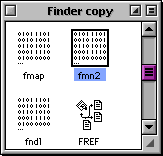 Start by finding resource ID fmn2 and open it. Start by finding resource ID fmn2 and open it.
 In the Finder, Command-R is already in use for Show Original. Since I want Command-R to for Restart, we'll have to remove it from Show Original. I don't see this as a problem, since Show Original is an option under the Contextual Menus. In the Finder, Command-R is already in use for Show Original. Since I want Command-R to for Restart, we'll have to remove it from Show Original. I don't see this as a problem, since Show Original is an option under the Contextual Menus.
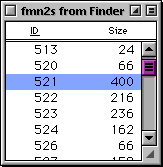
The commands for the File menu are in resource
ID 521.
Find it and open it up.
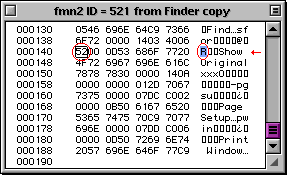 If you study this picture, you'll see the letter assigned as a command key is the third character before the menu choice. If you study this picture, you'll see the letter assigned as a command key is the third character before the menu choice.
An important item to notice is that the squares between R and Show Original are not equal. The first is "00" and the second is "0D".
Our goal is to replace the letter R with a square equivalent to "00".
Here's what you do: Highlight the square right after R and copy it (it's equal to "00"). Then highlight R and paste in the square. You have now removed Command-R from Show Original.
You can close resource 521.
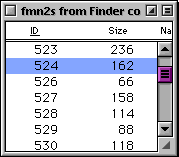 The commands for the Special menu are stored in resource ID 524. The commands for the Special menu are stored in resource ID 524.
Locate it and open it.
The items in Red were added by me for clarity.
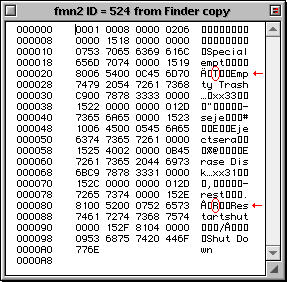 |
When you first open this resource, the third character before Empty Trash and Restart is a square.
Simply highlight each one and replace it with T and R respectively. (Be sure to use capital letters.)
You can now close all of your windows, saving your changes and quit ResEdit.
 What remains to be done is the replacing of the old Finder with the new. What remains to be done is the replacing of the old Finder with the new.
Move the old Finder to the Trash, but don't empty it - just in case...
Rename Finder copy to Finder. Before you restart your computer, you need to be certain the icon on your System Folder has the smiling Mac on it. If it doesn't, open and close the System Folder again and it should be there.
If it's still not there, you'll need to replace the hacked Finder with the original and start over. It's very important that you don't restart the computer until your System Folder has the smiling Mac icon (this is referred to as having a Blessed System!). Usually opening and closing the folder will do the trick.
If everything is ok, restart and you'll have two of the handiest command keys in your Finder. After a week, you'll wonder how you got by without them.
Please feel free to email me with any comments or suggestions.
|
|


