

|
|
Hack #1 - Netscape Communicator Menu
As you may remember, I generally browse with images off, then when I find something I'm interested in, I load the images for that page.
When I tried out the new Netscape Communicator, I was surprised to find a couple of my favorite command-key menu options were gone!
Reload a page = Command-R
Load images = Command-I
It seems Communicator has moved those command keys to its' mail reader instead of the browser.
No problem, we can put them back!
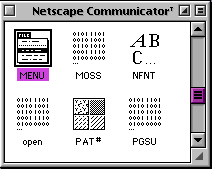 Open a copy of Netscape Communicator in ResEdit. Open a copy of Netscape Communicator in ResEdit.
Scroll around until you find the MENU resource, and open it by double-clicking it.
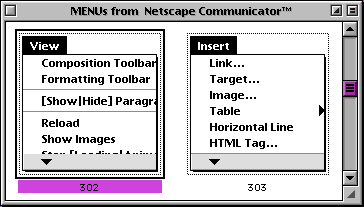 Now find MENU resource 302. Open it by double-clicking the menu picture. Now find MENU resource 302. Open it by double-clicking the menu picture.
There certainly are a lot of menus in Communicator.
That must be why they take so long to draw.
: )
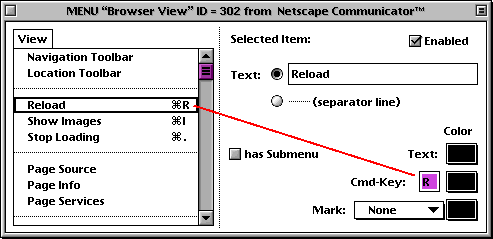
As you can see in the picture above, all you need to do is select the Reload menu option, and then enter the command key you want assigned.
I've done the same for Show Images.
The best part is, it won't effect your menu choices in the mail center portion of Communicator. Command-R and Command-I will still work.
Hack #2 - Eudora Pro 3.1 splash screen
I'm a long time owner of Eudora Pro. So when the upgrade to 3.0 was available for sale online, I plopped down my encrypted credit card number and downloaded a copy.
 |
|
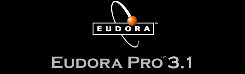
Above is the cool logo I saw on the installer
|
 |
|
And here is the yucky old logo
|
The first thing I noticed was the new cool black logo splash screen of the installer program, but I was disappointed to discover that after updating, my application still had the older blue logo.
More than a year later, I saw a friends copy of Eudora, and he had the black splash screen!
A quick check with ResEdit on my copy showed that I did indeed have the new logo, but somehow the updater didn't set all the parameters correctly to display it.
I'm not sure what the exact set of circumstances were to create my problem, but if you have a copy of Eudora Pro that's displaying the old logo, I may have a fix for you.
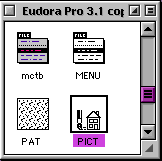 Open a copy of Eudora with ResEdit and locate the PICT resource. Open a copy of Eudora with ResEdit and locate the PICT resource.
View all the PICTs by double-clicking the icon.
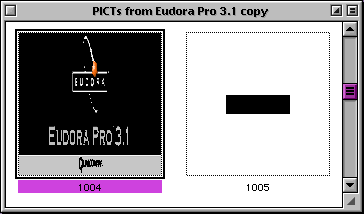 Find the picture with resource number 1004. This is the picture we want our splash screen to be. For some reason unknow to me, the program won't use it. So my solution was to duplicate the picture (an option under the Edit menu) and then tell Eudora to use the copy. Find the picture with resource number 1004. This is the picture we want our splash screen to be. For some reason unknow to me, the program won't use it. So my solution was to duplicate the picture (an option under the Edit menu) and then tell Eudora to use the copy.
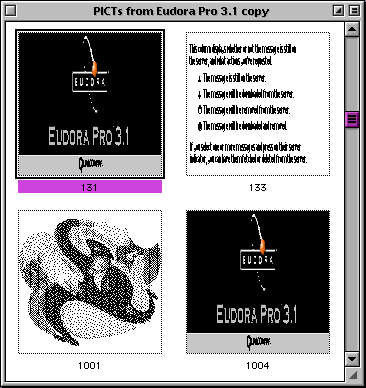 As you see in the picture on the left, ResEdit assigned my duplicate picture a resource number of 131. As you see in the picture on the left, ResEdit assigned my duplicate picture a resource number of 131.
We need to remember that number for later.
You can now close the PICT windows and get yourself back to the main Eudora resource window.
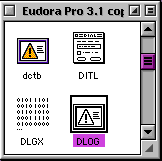 The next resource we want to change is DLOG. These resources contain the parameters for the dialog windows that are drawn within a window. The next resource we want to change is DLOG. These resources contain the parameters for the dialog windows that are drawn within a window.
With a double-click of your mouse, open DLOG.
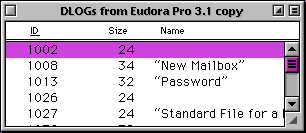 This is a list for all the dialog boxes used in Eudora. Fortunately, we're interested in the first one - 1002. This is a list for all the dialog boxes used in Eudora. Fortunately, we're interested in the first one - 1002.
So once again, double-click 1002 to open.
The Scary DLOG resource. Click to magnify
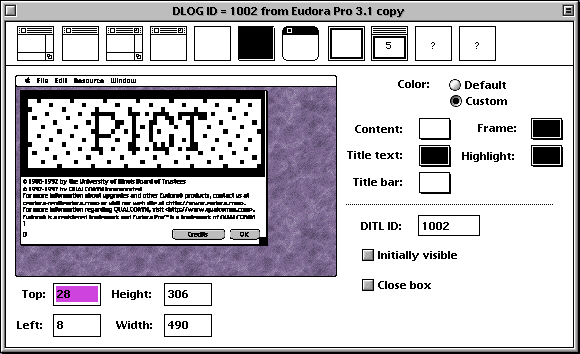 |
You should now see this overwhelming window.
The good news is, all you need to do is double-click in the PICT area to bring up the graphic that's suppose to be displayed.
So go ahead and double-click the PICT.
Click to magnify
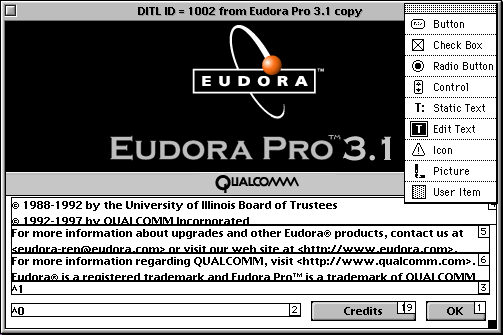 |
We have now zoomed in on the dialog parameter that lays out the text and picture. You could change some of the text, and someday in another hack we may do that, but for now we only want to change the picture.
One last time, double-click on the Eudora logo PICT to change it.

Here's the final step. Simple change Resource ID:1004 (old picture) to 131 (our new picture). Close all windows and save your work and the next time you launch Eudora, you'll have a cool new Eudora splash screen. |
|


