

|
|
A Simpler Way to Add Fonts to the Appearance Extension 8.0
ResEdit saves a list of text strings as a STR# resource, and also provides a built in template for viewing these strings. In this Appearance Extension edit, we will use the STR# template to display, in a more orderly fashon, the contents of the sfn# resource.
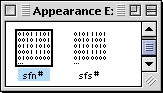 Open a copy of the Appearance Extension with ResEdit and scroll down to the sfn# resource. Open a copy of the Appearance Extension with ResEdit and scroll down to the sfn# resource.
Open it with a double-click.
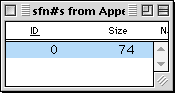
There is only one ID. Select it with a single click.
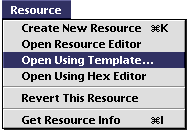
From the Menu, select:
Open Using Template...
 Either scroll down the list to select it with a double-click, or type STR# into the text box. Either scroll down the list to select it with a double-click, or type STR# into the text box.
Click OK.
You just told ResEdit to use the String List template to view the sfn# resource.
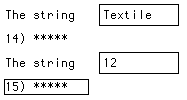 Scroll down the list to the last item. It may look different than the one pictured if you have performed previous font edits. Scroll down the list to the last item. It may look different than the one pictured if you have performed previous font edits.
Select the last number, in this case 15, and select the menu item "Insert New Fields" twice.
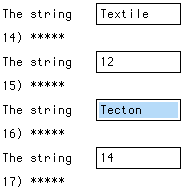 You should now have two additional empty item numbers (in my example 16 & 17). You should now have two additional empty item numbers (in my example 16 & 17).
Enter your font name and font size as shown.
Repeat for all the fonts you would like to add to the Appearance Manager.
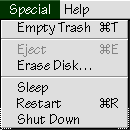
Save your work and quit ResEdit. Replace the original Extension with the modified one, and restart your computer.
You can now select the new font in the Appearance Manager.
|
|


