CURS - Black and White Cursor Editing
 The CURS resource contains the black and white cursors for an application. Currently, the System suitcase and Finder of MacOS 8.1 do not support colored cursors. To add colored cursors to these programs, see the collection of Extensions on MacPlaza's Cursors Page. (Instructions to edit color cursors are below.) The CURS resource contains the black and white cursors for an application. Currently, the System suitcase and Finder of MacOS 8.1 do not support colored cursors. To add colored cursors to these programs, see the collection of Extensions on MacPlaza's Cursors Page. (Instructions to edit color cursors are below.)
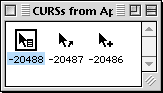 These are the CURS's that are in the Appearance Extension. To be honest, I've modified these icons, but they never seem to get used. All these resoures are also in the Finder. These are the CURS's that are in the Appearance Extension. To be honest, I've modified these icons, but they never seem to get used. All these resoures are also in the Finder.
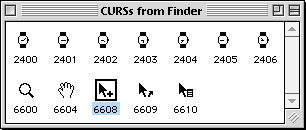 The Finder cursors are the most commonly used. Notice that ID's 2400-2406 create the "Waiting Watch" sequence. The Finder cursors are the most commonly used. Notice that ID's 2400-2406 create the "Waiting Watch" sequence.
Replacements for this spinning animation can be downloaded from info-mac's cursor collection. Make sure you replace all seven icons for smooth motion. Repeated here are the Contextual Menu icons from the Appearance Extension. These are the ones that are most commonly used.
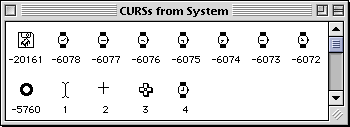
These are the System Suitcase cursors. In addition to a "Waiting Watch" series, there are also cursors for screen snapshots, and PopUp Folders.
Does anyone know when the RAM disk cursor gets used?
One thing to note: nowhere can you edit the standard pointer cursor. It's stored in ROM, so any attempt to replace it require an extension.
Editing Cursors
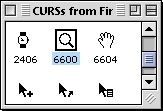 Cursor ID# 6600 appears when you use a "click-and-a-half" to zoom into folders. I've always felt that when the folders are in list view, this cursor was too fat - you can't tell exactly where the hot spot is. Cursor ID# 6600 appears when you use a "click-and-a-half" to zoom into folders. I've always felt that when the folders are in list view, this cursor was too fat - you can't tell exactly where the hot spot is.
Let's change it.
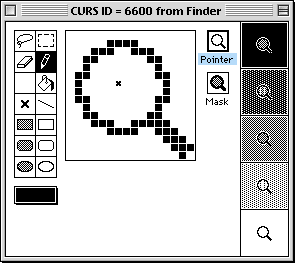 Open a copy of the Finder with ResEdit, and scroll to the CURS resources. Open a copy of the Finder with ResEdit, and scroll to the CURS resources.
Open them with a double-click.
Find cursor ID# 6600 (pictured above) and open it with a double-click.
You should now see the Cursor Editor pictured on the left.
There is an addition tool that doesn't appear in the icon editors. It's the Hot Spot tool - X. It designates the pixel in the cursor that represents the click spot.
On the right of the editor are various backgrounds for you to view your cursor against. These are helpful when editing the Mask. Generally , the Mask is one pixel greater around the perimeter than the Black and White cursor.
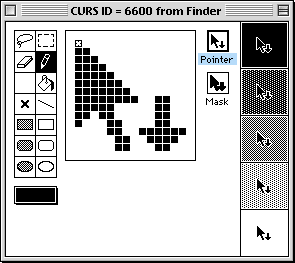 To create my replacement, I selected all of the original cursor in the editor, and deleted it. To create my replacement, I selected all of the original cursor in the editor, and deleted it.
This replacement is more consistent for me since it's based on the Pointer.
Notice the Hot Spot X on the tip of the pointer.
Also note the fatter Mask and how it creates the white outline of the cursor when viewed on a black border.
Once you're created your new cursor, save your work and quit ResEdit. Replace the Finder and restart the computer to use the new cursor.
Cursors in other Programs.
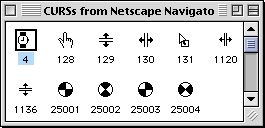 These are the cursors from These are the cursors from
Netscapes Browser.
You can edit application cursors using the same technique outlined above.
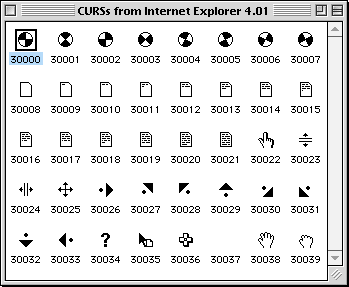
This group of cursors is from Internet Explorer.
You could use ID's 30001-30007 as replacements for Apple's Waiting Watch!
 crsr resources contain color cursors. If you wanted to modify one of the color cursors found on the MacPlaza Cursor page, this resouce contains their ID's. crsr resources contain color cursors. If you wanted to modify one of the color cursors found on the MacPlaza Cursor page, this resouce contains their ID's.
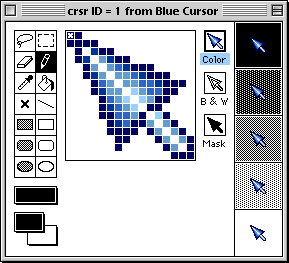
The editing instructions for color cursors is the same as for Black and White.
The Color editor is pictured on the left.
If you do modify or create a new cursor, please don't distribute it without the original authors consent. |


