|
MacOS X VM Swap Guide by Andy Moraitis
This document is the result of many hours of research and trial and error in an attempt to understand and improve the virtual memory functions in MacOS X. While the new OS is a beauty to behold, the default swapfile arrangement leaves much to be desired. Unfortunately, many of us are used to the virtual memory arrangements in MacOS 9, which can be disabled. This is not an option under Unix, however with some tweaks to the system, speed improvements can be seen. By drawing insipration from the default setups used by Linux distributions, a newer and faster method of employing swap within MacOS X has been devised. For the purposes of simplicity, this document is arranged in four primary sections. They are:
1. Functions of the Unix Virtual Memory System
2. Swapfile Partition Configuration Guide
3. Swapfile Partition Benchmarks
4. Swapfile Partition FAQ
Please note that this combined document was initially posted in three different sections over a three month period and has been edited and updated to bring the latest information to light. I hope you find it both useful and informative in gaining an understanding of how memory operates in MacOS X and what you, the user, can do to make those operations more efficient.
I. Functions of the Unix Virtual Memory System*
MacOS X employs a Mach based kernel, which was utilized in the NeXTStep and OpenStep environments. Since most Mach based systems used low amounts of physical RAM (8-32 Meg), an efficient VM system was needed to allow for fairly heavy system loads without compromising performance. As such, the principles of paging and swapping are transferable to MacOS X. Throughout this document, I’ll be discussing some specific terms and I would like to identify them now for easy reference.
Core Memory: Physical RAM on the motherboard.
Swapfile: A dedicated disk or storage device used to hold memory pages that do not fit into core memory. Also called the backing store.
Memory Page: A contiguous piece of virtual memory (4kb or 4096 bytes).
Page Fault: A signal sent by the hardware to the operating system when a process references a page that is not present in core memory.
Page in: Moving a page from the swapfile to primary memory.
Page out: Moving a page from primary memory to the swapfile.
Many older Unix systems used a true swapping format as opposed to the paging system that MacOS X uses. In a swapping arrangement, all of the memory used by a given process is either in main memory, or it isn’t. Should a new process need memory, another process is “swapped”out and the new one is loaded in. MacOS X differs by utilizing a paging system wherein if an entire process is not in core memory (RAM). It is not necessary to swap out other processes unless the limits of the physical RAM are exceeded. Should a page that is required in core memory by a process not be present, a page fault is generated and the information is paged in from the swapfile.
Evidence of paging is apparent when an application is launched, quit and then re-launched. The second launch is always much faster since some of the common libraries are still resident in core memory and have not been removed. Try this with System Preferences some time and you’ll see exactly what I mean. In retrospect, swapping is much slower than paging since it demands that all of a process’s pages be loaded into core memory in order to be run, while a paging system,such as the one used in MacOS X, will load the required pages in pieces as needed and will retain some of them when the process is terminated. This also explains why a user can have a certain amount of free RAM, open an application, terminate it and have less free RAM than they did prior to opening it.
Pageins and Pageouts: The Good, the Bad and the Ugly
In a typical MacOS X system that has adequate RAM, it is highly unlikely that a system will page out. If one references the top application from the terminal and checks the bottom line in the header block information, this will detail pageins and pageouts more clearly. It should be noted that in any installation where the user verifies that the system is paging out, either more physical RAM is needed, or fewer active processes (applications) should be run at once. While relocating the swapfile to a dedicated drive or partition will help, it does not solve the inherent problem that physical RAM is being exceeded.
In the past, I have run my machine with 128, 384 and 768 Megs of RAM, typically keeping five of six applications open and active at any one time. With only 128 Meg, the system would begin paging out almost immediately. The machine was incredibly slow and applications took forever (it seemed) to load. The drive could be heard chunking and “thrashing” quite often. With 384 Meg, system performance improved dramatically and never paged out. Typically, 50 to 60 Meg of free RAM remained after opening my required programs. With 768 Meg, I generally have between 400-450 Meg of RAM free after opening up to ten applications. While the system is not any faster, I still have plenty of memory left over for any new processes and have no fears whatsoever about paging out. Listed below is a screen shot of my terminal top command (header block only with four applications active):
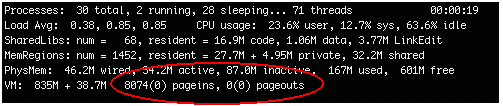
You’ll notice that while the system has not paged out, it is actively paging in. This is completely normal and a primary function of the informational exchange between core memory and the swapfile. Paging data in is not as time intensive as paging data out in order to free more memory. Consider that a pagein is a “hit” or a quick read from the swapfile into core memory, while a pageout is a “dump” or a write from core memory to the swapfile with an attached “read” to bring new information in.
The simple fact is this. If you use a system with less than 256 Meg of RAM, you are likely to invoke the paging process as soon as you open a few applications. On my system, MacOS X uses roughly 100 Meg of RAM before I open a single application. I strongly recommend at least 256-384 Meg of RAM as a minimum and more if possible.
Why Dedicated Swapfile Partitions Work:
Let’s use an analogy to explain why dedicated swapfile partitions make such a big difference. Pretend your desk is your hard drive. Sitting on the desk are a number of different files and folders (applications). Among these is your swapfile, which is referenced often, every time you load an application. If your swapfile is buried under mounds of other files and folders, it will take you longer to find that information. So instead of placing the swapfile on your desk randomly on your desk, you set aside the lower right corner of the desk just for that file. Now you can work faster becase you will always know where the commonly needed swapfile is.
An issue has also been raised that using a swapfile partition only works if a second drive is used. Again, this is inaccurate. Using a separate hard drive does help since the disk arm of the second drive can access the swapfile to page data into core memory while the primary drive can continue to do its work independently; much like having an administrative assistant would help you accomplish more at one time by splitting up the tasks.
Despite the fact that a second drive is preferred for relocating your swapfile, I have corresponded with a number of users who have tried the single drive method with great results. Irrespective of whichever method you choose, you will see performance gains and, more importantly, you now have an understanding as to why the process is so effective. Unix administrators who disagree with these facts are typically making the assumption that MacOS X uses a swapping setup (see the definitions listed above) commonly found in older Unix systems. Remember that MacOS X employs a paging arrangement based on the Mach kernel and that the swapfile is being used for work other than exchanging chunks of memory when RAM is oversubscribed.
Determining the Optimal Swap Partition Size:
The most effective way for a user to determine that optimal size is to once again run the top command from the terminal under a typical system load of open applications. If the system has not paged out and you are running a commonly used quantity of applications, it would be safe to assume that your system is only using one swapfile. To be safe, verify this from the Finder or the terminal. If only one swapfile file has been created, then your partition will be adequate at 80 Meg. If you see, however, that your system is almost out of RAM or that it has paged out, the swapfile partition will need to be enlarged (in 80 meg increments) to meet your needs. If you have adequate drive space and have not yet used MacOS X to obtain a feel for whether the system is paging out, a default setting of 500 meg is more than sufficient.
Users who have insufficient RAM to handle the load that is placed on the system require larger swapfile partitions than 80 meg. For example, if you normally run 128-256 meg of RAM and like to keep a large number of active processes running at one time, it is likely that you will experience pageouts, disk thrashing and sluggish system performance. Either reduce the system load or add more RAM. The simple point is this: a dedicated swapfile partition is not a substitute for physical RAM in the machine, but an assistor in allowing page faults and pageins to be handled more efficiently. While having the swapfile on a separate partition will help in the event of a pageout, it is essential that users seek to avoid pageouts in the first place. I cannot emphasize this enough. Next, we’ll review the actual process and procedures for setting up a dedicated swapfile partition.
II. Using a Dedicated Swapfile Partition to Speed Up MacOS X
One of my biggest gripes with MacOS X is that although the Aqua interface is beautiful, it requires tons of overhead and a very fast processor to keep things moving along. While there are a few tactics that work well in speeding up MacOS X, the single most effective procedure I have come across is to dedicate a partition to the vitrual memory swap file used by the BSD subsystem. In order to keep installation simple, MacOS X installs the swapfile among the data files by default. The problem with this is that the swapfile can sometimes become buried, especially if a user frequently opens and quits programs. The OS is then forced to look for the virtual memory swap among all the pieces of data files present on the drive, thus making system performance sluggish, which is fine if you LIKE staring at that little colored wheel. As the data on the drive becomes more fragmented, performance suffers further.
Before you stop in your tracks and cringe because you have no idea as to how to use a command line, keep in mind that until I recently purchased MacOS X, that I was new at this too. This guide is designed for as a step by step method in increasing your Mac’s performance in a big way. Where it’s necessary, I have included terminal text dumps so you have an idea as to what you should see on screen.
Methods:
There are basically two ways to accomplish the swapfile partition setup. You can either dedicate a piece of another hard drive (preferred) or use a partition on your existing boot volume. For users of single hard drive systems such as iBooks, PowerBooks and iMacs the single drive method applies. Since I have a G4, I added a separate 20 gig drive to complement my existing 30 gig drive that shipped with the unit. Either method will work well, but if you have the option to use a partition on a second drive, please do so as it is even faster than the single drive method. Either way, you WILL see measurable performance gains.
What follows is my exact setup procedure on my two drive system starting from scratch.
Step 1. Back Up Your Data!
Make sure to back up all of your relevant data files irrespective of which method you will be using. Also ensure that you back up copies of those custom files that you’ve worked on such as your HIToolbox.rsrc and all software updaters if you have upgraded from MacOS X 10.0 to 10.0.4.
Step 2: Set Up the Target Drive
Format and partition the target drive. I did this by starting from the MacOS 9.1 CD (hold down the “c” key as the CD boots) and using Drive Setup. I prefer to set up my drives up from OS 9.1 since I can tweak the partitions to any size that I want. The MacOS X Drive Setup Utility limited me to 1.5 gig on the swap partition and although I have plenty of drive space, anything in excess of a 500 meg swap partition seemed to be a waste. Latest information, as shown in the previous section, also indicates that if the system only needs one swapfile that an 80 meg partition will be sufficient.
With respect to format type, I used HFS+ and would recommend that all users do so unless they have a specific reason for choosing an alternative format (i.e. sharing a UFS or ext_2 partition with another operating system). If you’re planning to work in MacOS 9 as well, please note that it may be more efficient to maintain a full MacOS 9 partition with a complete extensions set, a smaller stripped down MacOS 9 Classic partition, a full MacOS X partition and a swap partition. While there are many different methods for partitioning, I have always found that separating a system’s operating software is beneficial, but that separating the data files and applications is not necessary. The reason for the smaller Classic partition with a minimal extensions set is that it will load much more quickly than a full MacOS 9 system.It is of interest to note that in MacOS X, some applications will not work properly if they are separated from the system software. My current partitioning scheme is as follows:
| MacOS X: |
30 Gig OSX Applications and System Partition on Drive 0 (boot drive) |
| MacOS 9: |
200 Meg OS9 System on Drive 1 (slave drive) |
| Swap: |
80 Meg swap Partition on Drive 1 (slave drive) |
| Free |
19.7 Gig Free Space (Unallocated) on Drive 1 (slave drive) |
MacOS X: 30 Gig MacOS X Applications and System Partition on Drive 0 (boot drive)
MacOS 9: 200 Meg MacOS 9 System on Drive 1 (slave drive)
Swap: 80 Meg swap Partition on Drive 1 (slave drive)
Free: 19.7 Gig Free Space (Unallocated) on Drive 1 (slave drive)
Please note that I no longer use Classic, but that I do maintain an MacOS 9 partition with a few icon editing applications and for backup CD burning for the MacOS X partition. With respect to partition sizes, these must be relative to your needs. As soon as you have quit Drive Setup, name your drives from the finder and proceed to the next step which is to install fresh system software.
Alternative Method Update: Revised 09-20-01
Please note that if you are using a dual drive arrangement with drives of mixed types, it is critical that you use the enclosed link for a different procedure. Since hard drives are mounted asynchronously, the order in which they mount, especially if they are of different types, will vary from boot sequence to boot sequence. As such, the /etc/fstab modification I use in my hack will not work as the device number may change. Since the /fstab file points to a specific fixed device, if this device is not the same as what the system sees during initialization, a new partition called Swap1 will be created. If your system contains an internal main drive, which is different in type and configuration than the slave drive(s), please use the link I've listed below to follow this new procedure. You may also wish to use this hack if you frequently connect and disconnect additional bootable devices as this also affects the device numbers assigned during boot sequence.
http://homepage.mac.com/gdif/virtmem.html
As an example if your boot drive is an ATA/66 and the slave drive is either an ATA/33, ATA/100, SCSI or FireWire device or any combination of the above types, modifying /etc/fstab will not provide you with consistent swapfile placement on the partition of your choice at each startup or re-boot. Please also note that drives of different speeds should be treated in the same manner. For users who are using the same types of drives for boot and slave (I run ATA/66's for both of my drives) or who are employing a single drive swapfile arrangement, the original hack will still work as consistently as it has on my system.
Disclaimer: Since I am not the author of this hack, please direct all troubleshooting and/or procedural questions to the author, or seek addition forum support as needed.
That should solve the Swap1 problems!
Step 3: Install Fresh System Software
I installed OS 9.1 on the OS 9.1 partition and did the same with MacOS X on the dedicated MacOS X partition. Following some minor tweaks to the preferences to get the system back to the way I liked, and a data restore of my applications and files, I opened up a terminal session in MacOS X. Please note that in order to perform the file editing we are about to delve into, it is necessary to have root access. If you have not already enabled root, you can do so by going to the “NetInfo” application in your MacOS X Utilities Folder. For more help on setting root access, use MacHelp from the Help Menu.
Step 4: Determining the Swap Partition Location
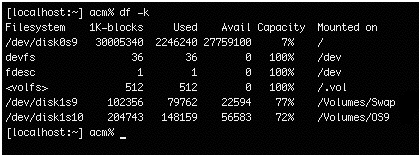
Open a terminal session (stop shaking already all you new users!) and use the df -k command at the prompt to list the components of your file systems. Here’s a screen dump of my df -k command.
Take a look at the 7th line down. The drive listed at /dev/disk/1s9 is the partition created with Drive Setup that I’ll use to set up the new home for the actual swap partition installation. Please note that the number of your partition may vary since 0 indicates a boot drive and 1 indicates a secondary drive. It is helpful to write down the number of the partition and the path (i.e./dev/disk1s9) since we’re going to be using it next.
Step 5: Using Pico to Create the /etc/fstab file
For the remainder of the work, we’ll need to gain root access to modify two main system files by using a text editor called Pico. These files are /etc/fstab and /etc/rc. From the command prompt, enable the root user by entering the su command at the terminal prompt. Type in your root password (which will not be visible) and then <enter>. Wham, you’re root! Next, we’ll need to open pico to create our /etc/fstab file
You’ll see a blank space on the screen (pretty much an empty canvas) and some command listings on the bottom that we’ll use to create our new fstab file.
At the terminal prompt, type the drive device information you wrote down from the df -k command that relates to your swap partition. Here’s what I typed and remember that your device may vary! Also make sure to include the spaces in the exact manner as listed and be careful not to add any spaces where they don’t belong as the swapfile setup will not work. My output looks like this:
Use a carriage return after you enter this line and then use Control-X. You will be prompted to save the file. Type “y” for yes at the prompt and hit enter.
Step 6: Using Pico to Modify the /etc/rc file
While still in the terminal, type the following at the command prompt:
pico /etc/rc
The /etc/rc file is fairly large and rather than scroll through the whole thing looking for the swapfile comments, the easiest method is to use the Control-W command to perform a search. Enter the word “swap” with no quotes and Pico will automatically bring you to the line to be modified. Here is what you’ll see on screen when you open the default /etc/rc file
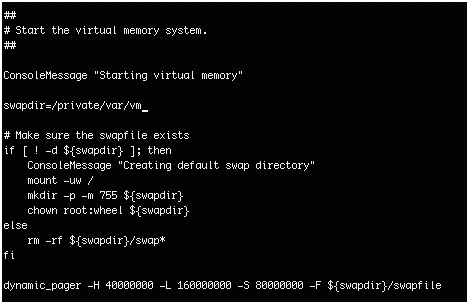
In order to make our new system work, we must comment out, or deactivate, the existing swapdir line by inserting the pound sign or “#” Since Pico does not require any special insert commands and your cursor is already on the appropriate line, simply add the # symbol to the beginning of the line.
Since we’ve now told the OS not to use the existing swapfile setup, we will need to insert our new comment line directly underneath.This will direct the OS to check for the swapfile in the new location established in the /etc/fstab file. Press the down arrow key to move down one line and type the following:
swapdir=/Volumes/swap/vm (enter another carriage return at the end of the line)
Your modified /etc/rc file will now look like this:
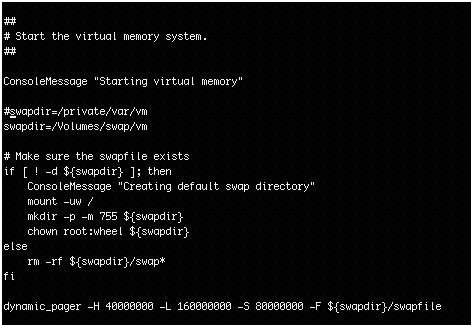
This will tell the etc/rc script to use this new location for the vm swapfile. Once again, use the Control-X combination to quit and type “y” for yes to save the file. Press enter one more time and you’ll exit pico and be brought back to the command line prompt. You can either close your terminal session and reboot from the finder, or reboot from the command line.
Step 7: Verifying Your Results
After the system restarts, there are two ways to verify that the swapfile was created properly. If you would like to use the command line, open a terminal session and change the directory to the view the swapfile’s new location (root access is NOT required).
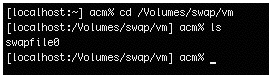
The results of the ls command should be the same as mine. A single file should be present called “swapfile0”. If this is what you see, then congratulate yourself on a job well done, quit the terminal and start enjoying your new system. You may even wish to howl like a banshee (then again, you may not!)
If you see a file called “swapfile1” this indicates that the /etc/fstab file probably has an error in the device comment line and that the current location appeared to be occupied when the system initialized the mountpoint, thereby forcing the creation of a new swapfile. Be sure to check for extra spaces or grammatical errors in the /etc/fstab and /etc/rc files where the modifications were made. Please see the FAQ section at the end of this document for more troubleshooting information.
You can also verify your results from the desktop by opening your drive entitled “swap” and looking inside the “vm” folder. You should see a file called swapfile0. Again if your file is named swap1, check it for errors and correct them as necessary from within Pico. There is no need to reformat or re-partition the drive since this has already been done. Next up, we get to see just how much of a difference a dedicated swapfile partition makes in the real world.
III. MacOS X Dedicted Swapfile Benchmark Results
System Specifications:
Power PC G4/466
768 Meg physical RAM
ATI Rage 128 Pro Video Card
NEC FE 950+ 19” Display set to Thousands of Colors
MacOS X Version 10.0.4
30 Gig Maxtor ATA 66 Drive set as Primary
20 Gig Maxtor ATA 66 Drive set as Slave
Default Arrangement: Swapfile is located in /private/var/vm on dev/disk/0s9
Single Drive Arrangement: Swapfile is located on a dedicated 80 meg partition on /dev/disk/0s10
Dual Drive Arrangement: Swapfile is located on a dedicated 80 meg partition on /dev/disk/1s10
Testing Methodology:
Rather than use “bounces” to measure system performance, each application launch was measured in seconds. I have verfied that using bounces actually uses some processor time and, as such, would corrupt the results although not to a great extent. Measurement begins as soon as the icon is clicked in the dock and terminates as soon as the application takes over and displays an open window. In order to ensure that the maximum amount of clean and available memory was used, each system configuration was tested after a restart. Furthermore applications were launched in sequence to simulate a growing processor load as opposed to launching, quitting and re-launching the next application in line. As much as possible, I tried to simulate the stress a user would place upon the system. While this is not a universal method of testing and is subject to variance between users, it is the most accurate method that I could devise to simulate the real-world results that users were looking for. Please also note that I did not use ASM or Menu Strip to automatically hide the previous application before launching the next one. I preferred instead to use the command-h key combination to hide each loaded application. My application launch sequence is as follows:
- Internet Connect
- OmniWeb 4.0.3
- TextEdit Plus
- Mail
- iTunes 1.1.1
- PhotoLine 32XL
- System Preferences
- Terminal
- GraphicConverter 4.0.8
- QuickTime 5.0 Pro
Results:
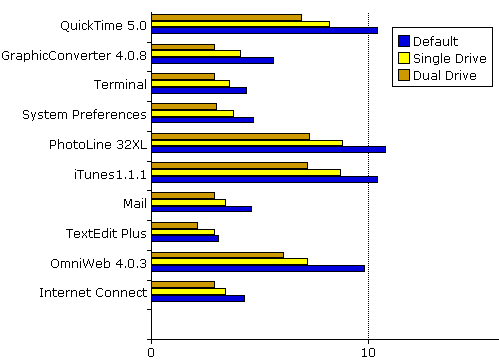
While I know that many of you are squeamish with respect to formatting your drives and partitioning, I think the results will bear themselves out that the speed difference is very real and not simply perceived. All times were measured in seconds (please allow SOME margin for measurement error). The following times were also measured in two sequences separated by restarts for each set of tests since reloading the same applications after an initial test would show faster launch times due to common libraries being previously resident in core memory. All were within +/- 1/10 of a second of the first set of times for each swapfile configuration.
Actual time listings for the above referenced chart are listed as follows and have been rounded to the nearest 1/10 of a second:
|
Default |
Single Drive |
Dual Drive |
| Internet Connect |
4.3
|
3.4
|
2.9
|
| OmniWeb 4.0.3 |
9.8
|
7.2
|
6.1
|
| TextEdit Plus |
3.1
|
2.9
|
2.1
|
| Mail |
4.6
|
3.4
|
2.9
|
| iTunes 1.1.1 |
10.4
|
8.7
|
7.2
|
| PhotoLine32XL |
10.8
|
8.8
|
7.3
|
| System Preferences |
4.7
|
3.8
|
3.0
|
| Terminal |
4.4
|
3.6
|
2.9
|
| GraphicConverter |
5.6
|
4.1
|
2.9
|
| QuickTime 5.0 |
10.4
|
8.2
|
6.9
|
As you can see from the above measurements, the average application launch time improved by close to 25% with some of the slower applications such as iTunes, OmniWeb, PhotoLine and QuickTime making the largest gains. Again, it is important to consider that each application launch was performed after another one had completed it’s tasks, but was still resident in core memory. By running top from the terminal upon completion of these tests, I noted that I still had 405 meg of available RAM. Furthermore, system performance was still very snappy and was not as sluggish as it would be with a standard swap configuration. Finally, my system had not paged out and my swapfile remained at 76.2 meg when I checked it through the Finder and the terminal.
Benchmark Summary:
I know that some of you are wondering what the results would be on a G3 series machine. While the application launch times may be a bit slower due to a slightly less advanced processor and a different cache, you will most likely see similar gains with respect to percentage improvement across the board. In addition, many of you use Classic, however I don’t since my necessary apps have already ported to MacOS X. Finally, I am aware that many of you use different programs than the ones I use. I didn’t measure IE 5.1.1 since I have a personal preference towards OmniWeb. Again, your results will improve relative to your system configuration. While I had a “feeling” that moving the swapfile would make a substantial difference, I am pleased that results do prove that the hack works and works well!
IV. A Brief MacOS X Swapfile FAQ:
I’ve noticed that in many of the e-mails that I’ve received, users will ask similar questions about partitioning and setup of the necessary files. What follows are some of the most common questions and answers.
1. Should my partitions be formatted in HFS+ or UFS?
Unless you are sharing your swap partition with another operating system there is no need to use any format other than HFS+. Research has shown that there are no apparent speed advantages to using UFS. If you do decide to use UFS however, make sure that you change the /etc/fstab line comment from hfs to ufs.
2. Can I name my drive something other than Swap?
Absolutely. Again make sure that you change the corresponding comment line in the /etc/fstab and /etc/rc files to reflect your new drive name. Also avoid the use of slashes, periods or commas in the device name as Unix generally doesn’t appreciate this! Also make sure that the new drive name matches exactly.
3. I created my /etc/fstab file and modified the system, but I still get a file called swap1. Why?
Most occurrences of this type are caused by improper line spacing in the /etc/fstab file. As the system checks /etc/rc for the swapfile mountpoint, if it sees that the information doesn’t match that which is present in the fstab comment lines, it considers that the current mountpoint is occupied and creates a new swapfile by default. This is actually comforting since, even if you make an error, your system will still be “smart” enough to create a new swapfile in the default location to keep things running.
Tip: The easiest method of inputting /etc/rc and /etc/fstab information is to copy both comment lines from the swapfile article into a text file. After you run the df -k command to verify your partition device number, open the text file, change the required comment lines and then copy and paste these into /etc/rc and /etc/fstab. In this way, you’ll guarantee that the line spacing will always be correct.
4. Why should I use Drive Setup from MacOS 9.1 instead of MacOS X?
I’ve instructed users to partition with OS 9.1’s Drive Setup since it allows partitions smaller than 1.5 GB, which seems to be the default limit in the MacOS X version. For users who do not have multiple drive setups or large hard drives, this will save precious storage space.
5. I originally made a 500 Meg partition and I really don’t want to re-partition to reduce the size. Can I do something with all of that extra space?
Once again, the answer is a qualified yes, with one small restriction. If you decide to use your extra swap space for something., please confine it to archived data. The use of any extra space for active applications will result in the partition becoming fragmented from regular use, which defeats the purpose of placing swap there in the first place. Make sure that you leave at least 80 Meg free for one swapfile to be created.
6. I’ve heard that 10.1 is so fast that it won’t be necessary to use a swapfile partition. Is this true?
If we consider that 10.1 is still based on the same Mach kernel as 10.0.x, then it stands to reason that the swapfile partition will still assist the system in paging information from the disk into core memory. Since version 10.1 is so much faster, the speed gains may not be as dramatic as in 10.0.x, but they will be evident nonetheless. It is not known at this time if the 10.1 installer will overwrite the modified swap setup and default it back to /private/var/vm. It is therefore advisable to verfiy the /etc/rc and /etc/ftsab comments once the installation is complete to ensure that the swap partition is in fact being used.
7. Can I use external drives or other drive types other than ATA/IDE?
Sure you can. I have spoken to a Powerbook user who configured his setup on an external FireWire drive and others who have used internal SCSI drives. I would not recommend the use of a USB external drive since the slow data transfer rate will hamper system performance when referencing the swapfile. Please note that this is my assumption and has not been verified.
8. I’m really not comfortable with all of these terminal commands and I’ve never done backups and partitioning before. Should I try this?
I’m sorry but if you’re unfamiliar with the rudiments of backing up and partitioning, I would recommend that you wait for the promised speed increases in System 10.1. If you do decide to proceed please do so carefully and keep in mind that I am available for technical support via e-mail. However, if enabling root access is something that you’re having trouble with, I would advise that you err on the side of caution. Wait for 10.1.
9. Are there any other terminal commands that will show how virtual memory is being used?
One of the most common terminal commands is vm_stat. This is a great command from which to see the amount of page faults generated by the system as well as pageins and pageouts.
10. I have a dual drive setup and one drive is faster than the other. Where should I put my swapfile?
Since swap is accessed rather frequently (as evidenced by the amount of pageins), it is beneficial that it be placed on the fastest drive possible, even if it’s the boot drive containing the active system. Just make sure that a partition of adequate size is used.
11. If MacOS X uses a paging method, why is it referred to as swapping?
This one is beyond me. I’m still trying to figure out why we drive on a parkway and park in a driveway. Actually, this evolved from the original Mach based terminology and has been retained in MacOS X as a result.
12. You STILL haven’t sold me on this whole swap thing! (I know, it’s not a question).
Well, if it doesn’t work, why does Linux use it by default?
Conclusion:
When I undertook this project nearly three months ago, that I didn’t expect that it would become this involved or time consuming. It all started with a simple question of “why?” and has lead me through reams of research documents. Along the way, there have been letters of thanks and also plenty of criticism for pushing against the tide of accepted theory. I’ve also had the chance to meet some incredibly talented and open-minded people. I’d like to once again thank Michael Coyle of ResExcellence for taking my ugly text files and making them look like works of art and for posting the original versions of these articles. Thanks are also due to Dennis Moraitis (a true Unix pro), John Montgomery, Karl Benko, Michael Gingerelli, Jochen Kupfer, Sven Dobbelaere, Patrick Proniewski, Michael Peters and Andrew Summerton who all helped me push this farther than I expected it go and listened (sometimes at gunpoint) to my miscellaneous ramblings. Finally, I’d like to thank every user who took a moment of their time to offer their thanks or to ask a question. The errors are all mine.
If we are to take the expression “Think Different” literally, then it sometimes means reaching beyond one’s current level of understanding to find a new road or a new method. In the spirit of sharing information, I’ve done my best to simplify some very complicated processes. Thanks for the feedback and the encouragement.
Andy Moraitis
i. Footnotes and Reference Information
*The section “Functions of the Unix Virtual Memory System” draws heavily from an excellent article entitled Optimizing Virtual Memory with Swaptab by Alan M. Marcum (support bulletin volume 3, issue 1: winter 1993)
For a more in-depth explanation on virtual memory usage within MacOS X, please refer to Barry Sharp’s article at www.macosxhints.com. While Barry and I disagree on the need for dedicated swapfile partitions, his article is very well written and full of useful information.
Personal Information:
Andy Moraitis (33) has a 12 year background in industrial engineering and factory operations and holds a Bachelor’s degree from Fairleigh Dickinson University in Political Science and Marketing. He is currently employed at Clinton Industries, Inc, a manufacturer of commercial sewing machine workstations, motor drive systems, PLC’s, electric eye systems and air-thread savers. His first computer was a Corona PC with a blazingly fast Intel 8088 processor running at 6.7 MHz. He fell in love with the Mac in 1986 and has never looked back since buying a IIcx in 1989. His current system is his first new computer (and probably his last). When not hacking swapfiles and writing how-to’s, Andy enjoys haunting the MacAddict forums, HIT bodybuilding, fitness consulting, foreign travel and freestyle and downhill skiing. He currently resides in Clifton, NJ with his cat Buster and very speedy G4/466 Tangent that thinks it’s a 733.
|