Replace the "Change Desktop Pattern" contextual menu
I never change my desktop pattern using the contextual menu. And now, thanks to a great tip provided by Chul Kim, I can show you how to change that menu item to open any file you would like.

In this example, we'll replace the menu "Change Desktop Pattern" to "Reset Icon Positions" using Gregory Parker's free AppleScript, Desktop Icon Manager.
 The first step it to give the replacement application a unique creator code. The first step it to give the replacement application a unique creator code.
Since all Applescripts have the same creator code, we need to change it to something unique.
To change the code on Desktop Icon Manager, open a copy of the application in ResEdit and from the File Menu, select "Get Info on...". Change the creator code to any 4 letters you would like. In my example, I chose ResX. Note the file type is APPL.
You're done with Desktop Icon Manager. Save the change and move the revised copy into the Control Panels folder. It nust be there for the menu action to find it.
 Next step, open a copy of the Finder with ResEdit and scroll down to the fmn2 resource. Next step, open a copy of the Finder with ResEdit and scroll down to the fmn2 resource.
Open it with a double-click.
 Find ID#-14614 and open it with a double-click. Find ID#-14614 and open it with a double-click.
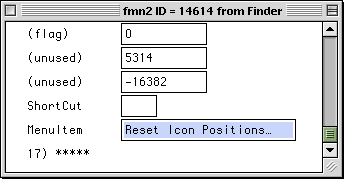 Scroll drown to the last item and you'll see the name of the Contextual menu, "Change Desktop Pattern". Scroll drown to the last item and you'll see the name of the Contextual menu, "Change Desktop Pattern".
In my example, I've changed it to
"Reset Icon Positions"
You can now close the fmn2 resource.
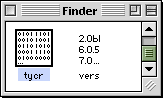 While still in the Finder, scroll down to the tycr resource and open it with a double-click. While still in the Finder, scroll down to the tycr resource and open it with a double-click.
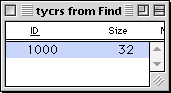 Open ID# 1000 with a double click. Open ID# 1000 with a double click.
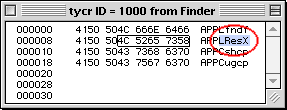
In the second line, change
Cdkpx to LResX.
What did we just do there? Originally, the intruction said, "Find a Control Panel Application called Desktop Pictures". We've changed it to say, "Find an Application called ResX."
Note for MacOS 9: The creator code 'apcp' is for the Appearance Control Panel. Under MacOS 9, that's what sets the desktop picture. APPC is the 'type' code for an 'Application Control Panel'.
So... APPC apcp means that the contextual menu will open the Application Control Panel called Appearance Control Panel.
You will want to change it to APPL (for a regular application) plus the creator code for the replacement application.
You can now save your work and quit ResEdit. Replace the original Finder with the new on and restart the computer.
 As I plug in different expansion bay modules and PC Cards, the icons on the desktop of my Powerbook get all out of whack. As I plug in different expansion bay modules and PC Cards, the icons on the desktop of my Powerbook get all out of whack.
Now I can realign them with menu choice!
|