Changing the Trash Icon and Text in Mac OS 9.1 to 9.2.2
The Complete Makeover
by ))Sonic Purity((, July 7th, 2004
ResExcellence has in the past featured articles, such as this one, and others that detail procedures for updating the Trash in name and icon for earlier versions of Mac OS. Here is an updated version for OS 9, with specific resource location numbers verified for OS 9.1 & 9.2.2. Since it’s no fun to have your shiny new Outhouse or Shredder or whatnot still be referred to as Trash, we’ll dive deeper than past articles and find all possible mentions of Trash hiding in the OS, such as Balloon Help and Contextual Menu strings and the like.
As always, work on non-running copies of the System and Finder files, then when finished, substitute the edited copies for the originals, and Restart.

Changing The Icon
Since the Appearance Extension became rolled into the OS itself (starting with Mac OS 8.5), the Trash icons have moved… back to their former home! Sort of.
In OS 9, they are stored two places:
1) In the System file, still in resources -3993 for empty trash, and -3984 for full trash.
2) In the System Resources file, with the same resource numbers.
Why this was done, only Apple knows. The icons in the System file use the Old icon format, pre-OS 8.5. The Empty Trash icon comes in Large, Small, and Mini sizes, at bit depths of 8, 4, and 1, with a 1-bit mask. The Full Trash icon is the same, except for the omission of the Mini size set. ResEdit works decently with this format, and I very quickly pasted in my Outhouses (Clean and Smelly) from an old icon collection whose source I do not remember. Upon swapping in my modified System file and Restarting, I was supremely disappointed to find that my icon was still a Trash can! Well, sometimes… my outhouse was correctly displaying in certain window views in the Finder.
After weeks of puzzlement, I discovered the other set of Trash icons in the System Resources file. Same sizes and bit depths as in the System file, yet these were the New OS 8.5 and up icns icon suite format, even though they do not expressly use any of the features of the new format, as best I can tell. ResEdit cannot work with the new format, so I used Iconographer 2.4 to directly paste the new icons into these resources to ensure their proper display under all circumstances.
There is a menu item in Iconographer to select the correct resource number (Info).
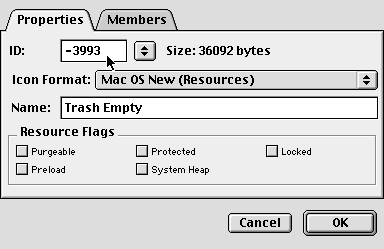
Iconographer even has a pop-up list with popular ID numbers.
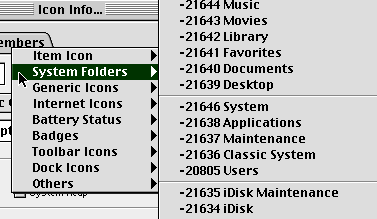
There are alternatives to Iconographer… just make sure they can handle the icns resource format.
I have not experimented with what happens if new icns format icons that use the new features are placed in both locations… maybe someone would like to try and add to this report.
Note that all these icon resources need to remain Purgeable, as they are shipped from Apple. I accidentally switched off the Purgeable bit during testing (as can be seen in the first screenshot), and may have caused what seemed to me like a memory leak.
Changing The Text
Trash is one of the more deeply embedded interface elements of the Mac OS. It should come as no surprise that references to the Trash are all over the place. Most of the various strings mentioning Trash are stored in Finder STR# resources. The essential resource is STR# 4700, which contains the string which shows up on the desktop, the Empty Trash strings under the Special menu, and many other items. Take a close look at each item in STR# 4700 and change as desired.
Be sure to Save after each string item change, especially with names longer than 5 characters, otherwise you may get a Pascal string overlength warning and be unable to save. Apple did not design the OS to be able to handle “Amazing Recycling Bucket”, or even just “Recycling Bucket”, for that matter. Your new name choice will need to be 8 characters or fewer, if it is to fit in all locations i found where Trash is mentioned. My 8-character choice of “Outhouse” just barely fit… the Pascal string overlength happened on STR#4700 Item 19. I found two sequential spaces, and deleted one. Without doing this, 7 characters would have been the maximum for this string item.
Note that this also affects the wording “empty”, “emptying”, and so forth, as in “The Trash cannot be emptied”. I was fortunate that my substitution of “clean” is 5 characters long, just like “empty”. (I’ve since been told that outhouses are “mucked out” instead of “cleaned”. Oh well). Some creativity may be needed to make other choices fit everywhere.
Here are some other places in Finder resources where Trash appears, and any available information about them:
DITL 504: “Try emptying the Trash…”
DITL 2220: “…cannot be moved to the Trash.”
fmn2 523 Item 4: Move To Trash (File Menu). I had not yet discovered ResExcellence when I was making this change, and wound up having to spend too much time figuring out how to edit a Pascal string in raw hex. You, being wiser, do not need to do this… make sure you have downloaded and installed the fmn2 ResEdit Template, and your editing life will be much easier!
fmn2 14614 Item 2: “Empty Trash…” (contextual menu)
hmnu 520 match strings Empty Trash… and Empty Trash.
hmnu 555 match strings Empty Trash… and Empty Trash.
Both of these are part of the Balloon Help system. They are matching strings which enable Balloon Help to operate. It is very important that you make these strings exactly match the contents of the first item in the Special menu, stored in STR# 4700 Items 10 and 11. Otherwise, your entire Special menu Balloon Help will fail to operate correctly.

If you have Resorcerer, it may be easier to deal with these entries. I don’t (yet), so careful hand-editing was needed. The one template for ResEdit that I found for the hmnu resource actually made life more difficult. I opened up the hmnus with ResEdit’s standard hex editor, then did the following. Look at the before and after screenshots and follow along:
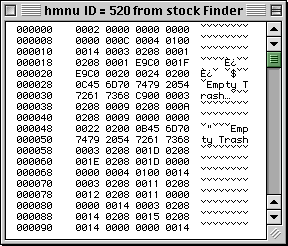
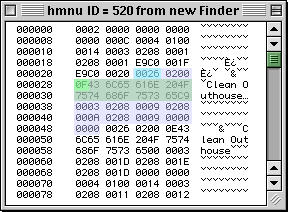
1) Find the first occurance: Empty Trash…. Change as needed.
2) This is a Pascal string, so the byte immediately preceding the byte for the first letter of the first word of the string is a length byte (in hexadecimal) for the string, NOT including the length byte itself. In the Before example screenshot, it is the 0C at offset 28. Count the bytes of your new string, and adjust this byte accordingly (as I did, my 0F replacing the original 0C at this location, as seen highlighted in the After screenshot).
3) Two words before this byte is the length word for the whole hmnu line entry for what was Empty Trash…. This is a byte count for everything shown as highlighted in any color/shade in the After picture, INCLUDING both bytes of this length word. The easiest method may be to calculate the difference in bytes between the original “Empty Trash…” string and your new string, and then add or subtract accordingly from this length word. On a stock OS 9.2.2, the first byte of this word starts at offset 24, and is 0x0024 (Before picture). The After example screenshot shows the corrected byte count of 0x0026, two more bytes than the stock Finder. This may seem odd, when one realizes that my “Clean Outhouse…” string is 3 bytes longer than the standard “Empty Trash…” string. Well, the standard string ends in the middle of a hexadecimal word, and is padded by one null (zero) byte. My new string ends at a normal word boundary, so no padding byte is needed, saving one byte and making the overall size increase by only two bytes.
4) Repeat this process for the same entry, just below, without the ellipsis.
5) Be sure to do all this for both hmnu 520 and 555.
(For the curious: the word immediately following the length word and preceding our matching Pascal string, 0x0200, is the code for the HMCompare function, which is what is going on here. It needs to be left alone. Following our Pascal string and possibly one null byte to pad our string to an even word boundary, is 0x0003, which is the HMStringRES function. After that are four pairs of words, the first in each pair being the number of a STR# resource, and the second being the item number inside that resource. These, too, should be left alone.
I considered making a ResEdit template for the hmnu resource, until I realized that all these items change radically for different common hmnu configurations. Not knowing how to make a dynamic ResEdit template, I am thinking seriously about buying Resorcerer.)
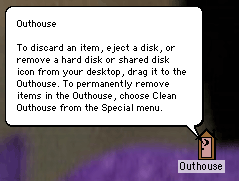
STR 4701: Trash Balloon Help string (when empty, in Finder). 4 mentions of Trash.
STR 4702 trash (lower case; unknown use)
STR#128 Items 3, 11, 25, 26, & 31: mention t/Trash.
STR#500 Item 32: two mentions of Trash.
STR#516 Items 19, 20, 33, & 34: Help strings which mention Trash.
STR#520 Items 1-10, 29, & 30: Help strings which mention Trash.
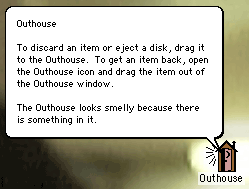
STR#1401 Item 25: Trash Balloon Help string (when full, in Finder). 5 mentions of Trash.
STR#1419 Item 17: “Trash”. Unknown use; desktop remains unchanged. Appears to be related to special folders, icons, or both.
STR#3000 Item 27: mentions Trash.
STR#3500 Items 24, 25, 36-39, 48-51: Mention Trash.
STR#3611 Item 2: Trash (looks like hidden folder names that sometimes appear; desktop remains unchanged)
STR#4500 Items 65-68, 86, 87: mention Trash.
STR#4600 Item 17, 34, 59: mention Trash. Note: there is no Item 59 in OS 9.1, just 9.2.x.
STR#4701: All are Help strings related to the Trash.
STR#5100 Item 50: mentions Trash.
STR#5200 Item 13: Mentions Trash.
STR#7200 Items 10 & 11: mention Trash (Desktop Printer and PrintMonitor-related).
STR#8300 Items 15-18: Mention Trash.
STR#25000 Items 17, 41, 47, 48: mention Trash (Desktop Printer-related).
STR#29000 Item 2: mentions trash (PC Card eject-related).
Not Needing Change?
The following items did not appear to make any difference in actual operation… or I decided not to bother changing them. They are here both for completeness, and to speed things up if you find mentions of Trash popping up after you have made the changes above. If you discover any further details about what these items are doing and under what conditions their effects are visible let us know.
More Trash mentions found in known Resources:
fdm2 14620: Empty Trash…
fdm2 14624: Move To Trash
I don’t know what the fdm2 resource does. If you edit these, you will be playing with raw hexadecimal if you use ResEdit. The single byte immediately preceding the first letter of each of these strings is a string byte length count (not including the length byte itself). Change this byte as necessary if you choose to edit these, or expect Big Problems when these strings get triggered.
fvew 4742: “Warn before emptying”. This is for the checkbox in the Get Info window for the Trash. I did not have a template for this resource, and there appeared to be things going on that I did not understand, so I left it alone. Proceed with caution.
STR#25101 Item 12: “…click the Trash button…”. Not the Trash can in the Finder… something in a printing window.
The following hexadecimal offsets (from the program BrainHex 1.1) in the Resource fork for Finder 9.2.2 (Finder 9.1 offsets follow in parentheses) mention t/Trash. The offset number shown is the byte preceding the beginning of the word “trash” or “Trash”:
147C: “because the original item is in the trash”.
2316D (22FE9): “Empty Trash”.
23229 (2308F): “Empty Trash”.
If anyone knows how to map offsets as seen in programs like BrainHex into resource items as displayed in ResEdit, I sure would like to know about it!
I found numerous mentions of Trash/trash in what appear to be an internal programming context, starting at offset 63219 for OS 9.2.2, and 61CF9 for OS 9.1. It became too tedious to list them here, especially since none of them appear to have anything to do with what the user sees. Go ahead and look around if you wish… I didn’t touch a thing in this area.
The Data fork mentions Trash at offset 1C65FB in Finder 9.2.2 and 1C5471 in Finder 9.1, immediately preceding Desktop Folder in both cases. I left this alone, with no visible effects.
Is It Worth It?
Only you can decide. If you had asked me several years ago, I probably would have said, “No. The Mac OS changes too often, so why spend the time?”. Now that there is never going to be another new version of the Vintage Mac OS (OS 9 and earlier), I find myself going back to these sorts of resource editing joys that were especially popular when the Mac OS was young, in the 1980s. The advantage now is that OS 9 is as stable as it is going to get, remains highly usable, and work such as this can live on for years and years without getting lost in an OS upgrade.
If you’re not sure what you really want to replace the Trash, might as well not bother changing anything besides the icons and the Finder name. If you find yourself settling for something, then later you can go back and make the rest of the changes, if you want. At least now you know where all these pieces are hidden!
Enjoy your Trash replacement!
))Sonic Purity((
Keeper of the Clean Outhouse








