File Scripts
Scripts to change type/creator codes, file backups, and more.
Contents:
Eject CD ROMs
Delete items in the "Cleanup at Startup" folder
Change type/creator codes
Sync your Palm with FileMaker Pro
Use creator codes instead of app names
Another creator code changer
Droplet to open files with Help Viewer
File Backups with AppleScript

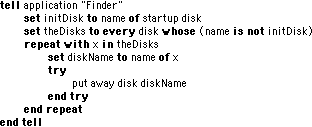
Everytime I powerup the family iMac, you can bet one of my lovely children has left The Sims or Oregon Trail 3 game CD in the drive. This is annoying because it not only slows my boot time, but most CD's open a massive Finder window upon mounting.
Morgan Andreasson wrote this little Applescript to unmount any CD left in the computer. The script works if you have only one hard disk partition. Placing it in the Coyle Family iMac's Shutdown Items folder ejects any CD's and reminds my little darlings to put things away after they're finished using them. Too bad I can't use Applescript to make them put their clothes in the hamper...
Delete items in the "Cleanup at Startup" folder
Many utiity applications have been released to handle the problem of invisible temp files not being deleted correctly. If you're the kind of person who likes to "roll your own" solutions, SlackJaw sent this little Applescript to delete the items in the "Cleanup at Startup" folder. It uses a scripting addition called "File Visibility " (included). After you download the package, be sure to replace his hard disk's name (eight) with yours.
Isn't it annoying when you download a bunch of files (pictures, text, etc...) and they don't have any creator codes or worst, they have codes for applications you don't want to use.
For example, you have a bunch of Simpletext files, but you would rather have them opened in Tex-Edit.
Here are a couple of Applescripts to handle the job. Just drag a group of files on them to change the type/creator codes.
This script by Grierson will change both parameters
property fileType : "TEXT" -- change to whatever you want
property creatorType : "ttxt" -- change to whatever you want
--
on open (theList)
tell application "Finder"
repeat with theItem in theList
set file type of theItem to fileType
set creator type of theItem to creatorType
end repeat
end tell
end open
This version by Athel changes only the application creator code.
on open (docList)
tell application "Finder"
repeat with sourceFile in docList
set the creator type of sourceFile to "TBB6" -- Change to whatever you want
end repeat
end tell
end open
Are you interested in syncing your Palm Pilot with a FileMaker Pro database? While it requires some customizing, Ryan Colley submitted this AppleScript to automate the task for you.
If you're familiar with KeyQuencer, you know that you can address an application by using its creator code rather than by name. I had wondered if AppleScript could do this, and thanks to Myonghon Lee, I have the answer.
In this example to quit Netscape:
tell application "Finder"
get name of application file id "MOSS"
end tell
tell application result
quit
end tell
The Finder gets the path and exact name of the file with the creator code: MOSS (Netscape), and then quits that application. This small addition stops two annoying problems. You will no longer be prompted to find an application the first time you run a script. You scripts won't break when you update an application and the name changes slightly. The Eudora betas are an example of this.
Chris Green uses this Applescript to get a file path using the creator code:
tell application "Finder" to set app_name to application file id "MOSS" as string
quit application app_name
This works great because it's more concise, and uses a full path string, which is a better form to get in the habit of using so that you won't be asked where the application is if it's not running.
Jonathan Signor submitted this AppleScript to change the creator codes of any file dropped onto the applet:
on open theSelectedItems
with timeout of 9000 seconds
tell application "Finder"
activate
set lastItem to the last item of theSelectedItems as text
repeat with thisItem in theSelectedItems
set file type of thisItem to "XXXX" ----- Use ResEdit to get
set creator type b thisItem to "XXXX" -- the 4 character codes
end repeat
end tell
end timeout
end open
Brian DePalo sent this AppleScript you can download that changes the creator codes of files dragged on to it to Apple's Help Viewer. This could come in handy for 'Read Me' files and simple documentation.
By changing the creator code in the first line, the script can modify the creator codes for any application!
property ct : "hbwr" -- Help Viewer creator code.
on open (theList)
tell application "Finder"
activate
repeat with theItem in theList
set the creator type of theItem to ct
end repeat
end tell
end open
An AppleScript to Backup a stuffed archive of your files.
by Dave Oliver
I have had my hard drive inexplicably die twice in the last 5 months. Norton couldn't fix it and I had to manually piece together 1 1/5 years of email and a lot of graphics files that I lost. The other big things I lost were all my 'net preferences (I'm really sick of having to keep telling InternetConfig and Netscape how to handle the files I download.
Instead of simply copying the Eudora Folder onto my Jaz drive, I decided to "Think Different" and use the tools Apple gave me: I wrote an AppleScript that Stuffs and uploads my Eudora folder and all mu Internet Preferences onto my web FTP site. I now do this religiously every Friday when I get home from work, so if anything major happens I only lose a couple days' worth of email. (download the script)
tell application "Finder"
activate
if file "Macintosh HD:Desktop Folder:eudora_folder.sit" exists then
delete file "Macintosh HD:Desktop Folder:eudora_folder.sit"
end if
if file "Macintosh HD:Desktop Folder:internet_prefs.sit" exists then
delete file "Macintosh HD:Desktop Folder:internet_prefs.sit"
end if
end tell
tell application "StuffIt Deluxe™"
activate
«event SIT!updm»
make new archive with properties {pathname:"Macintosh HD:Desktop Folder:eudora_folder.sit"}
stuff {alias "Macintosh HD:System Folder:Eudora Folder:"}
close archive 1
-- here's where it gets complicated :)
make new archive with properties {pathname:"Macintosh HD:Desktop Folder:internet_prefs.sit"}
make new archive folder with properties {name:"internet folder"}
set current folder of archive 1 to archive folder "internet folder" of archive 1
stuff {alias "Macintosh HD:System Folder:Note Pad File"} into archive 1
stuff {alias "Macintosh HD:System Folder:Preferences:Netscape Users:Dave Oliver:bookmarks.html"} into archive 1
stuff {alias "Macintosh HD:System Folder:Preferences:MT-NewsWatcher Prefs"} into archive 1
stuff {alias "Macintosh HD:Internet:MT-NewsWatcher 2.4.4 ƒ:MT-Newswatcher Filters"} into archive 1
stuff {alias "Macintosh HD:System Folder:Preferences:Modem Preferences"} into archive 1
stuff {alias "Macintosh HD:System Folder:Preferences:Internet Preferences"} into archive 1
stuff {alias "Macintosh HD:System Folder:Preferences:GC Universal Prefs"} into archive 1
stuff {alias "Macintosh HD:System Folder:Preferences:Fetch Prefs"} into archive 1
stuff {alias "Macintosh HD:System Folder:Preferences:Fetch Shortcuts"} into archive 1
stuff {alias "Macintosh HD:System Folder:Preferences:CD Remote Programs"} into archive 1
stuff {alias "Macintosh HD:System Folder:Preferences:Virtual PC 2.0 Preferences"} into archive 1
stuff {alias "Macintosh HD:System Folder:Preferences:Transit Favorites"} into archive 1
stuff {alias "Macintosh HD:System Folder:Preferences:Transit Preferences"} into archive 1
stuff {alias "Macintosh HD:System Folder:Preferences:TCP/IP Preferences"} into archive 1
stuff {alias "Macintosh HD:System Folder:Preferences:Stickies file"} into archive 1
stuff {alias "Macintosh HD:System Folder:Preferences:Remote Access:Remote Access Connections"} into archive 1
stuff {alias "Macintosh HD:System Folder:Preferences:QuickTime Preferences"} into archive 1
stuff {alias "Macintosh HD:System Folder:Preferences:PC Exchange Preferences"} into archive 1
stuff {alias "Macintosh HD:System Folder:Extensions:Modem Scripts:pope 288/336"} into archive 1
close archive 1
quit
end tell
tell application "Fetch 3.0.3"
activate
with timeout of 300 seconds
put into url "ftp://username:password@your.ftp.site/" item alias "Macintosh HD:Desktop Folder:eudora_folder.sit"
put into transfer window "your.ftp.site" item alias "Macintosh HD:Desktop Folder:internet_prefs.sit"
end timeout
close window 1
quit
end tell
tell application "Finder"
activate
if file "Macintosh HD:Desktop Folder:eudora_folder.sit" exists then
delete file "Macintosh HD:Desktop Folder:eudora_folder.sit"
end if
if file "Macintosh HD:Desktop Folder:internet_prefs.sit" exists then
delete file "Macintosh HD:Desktop Folder:internet_prefs.sit"
end if
end tell
Back to the Archive